Cinematic World Building
Subject + style + lighting + camera angle
Each detail eliminates ambiguity. Location, time, lighting, camera position, and tonal reference give the model concrete anchors.
From your first generation to extended multi-scene narratives — prompt structure, camera language, creative workflows, and copy-ready templates for Grok Imagine.
Adapted from the @XCreators official Grok Imagine guide.
Grok Imagine turns text and images into high-quality images and video. You describe what you want, pick your settings, hit generate, and have a clip or image ready to use. This guide covers every step: how to set up your first generation, how to write prompts that produce great results, how to extend clips into longer sequences, and how to build a repeatable workflow.
Prompt formula: Subject + style/mood + lighting + camera angle + finishing details
Type a description and generate an image. Grok Imagine produces vivid, high-quality results from natural language prompts — no keyword stuffing needed.
Describe a scene and generate a video clip directly. Write like you're describing the scene to a friend: what is happening, what it looks like, how the camera moves. Works best when you have a clear scene in mind.
Start from any image and animate it into a short clip with synced audio. The image can be one you generated or one you upload. Because you already know what the base image looks like, the output is more predictable.
Pro Tip: The Two-Step Workflow
Generate an image first using a detailed prompt. Review it. If the composition, lighting, and subject look right, animate it with a short motion prompt. Keep the video prompt focused on describing movement, camera, and mood — the model already has the visual context.
Image Prompt
Two otters in aquamarine water, viewed from above with a vintage film aesthetic.
Video Prompt
Calm organic movement, subject is still and pulls out slowly. Otters slightly drifting, mostly calm.
Upload up to 7 reference images as the visual foundation or style reference. Grok blends your references with your text prompt, so you get output that matches a specific look, brand style, color palette, or visual tone.
Choose based on where you plan to post or use the output.
Select 1–15 seconds for your clip. Shorter clips generate faster and cost fewer credits. Use Extend Video to chain clips into longer sequences.
480p for quick drafts and iteration. 720p for polished, share-ready output.
The quality of your output starts with the prompt. Specific prompts give the model clear anchors, but avoid getting too prescriptive to allow for creative freedom.
Vague
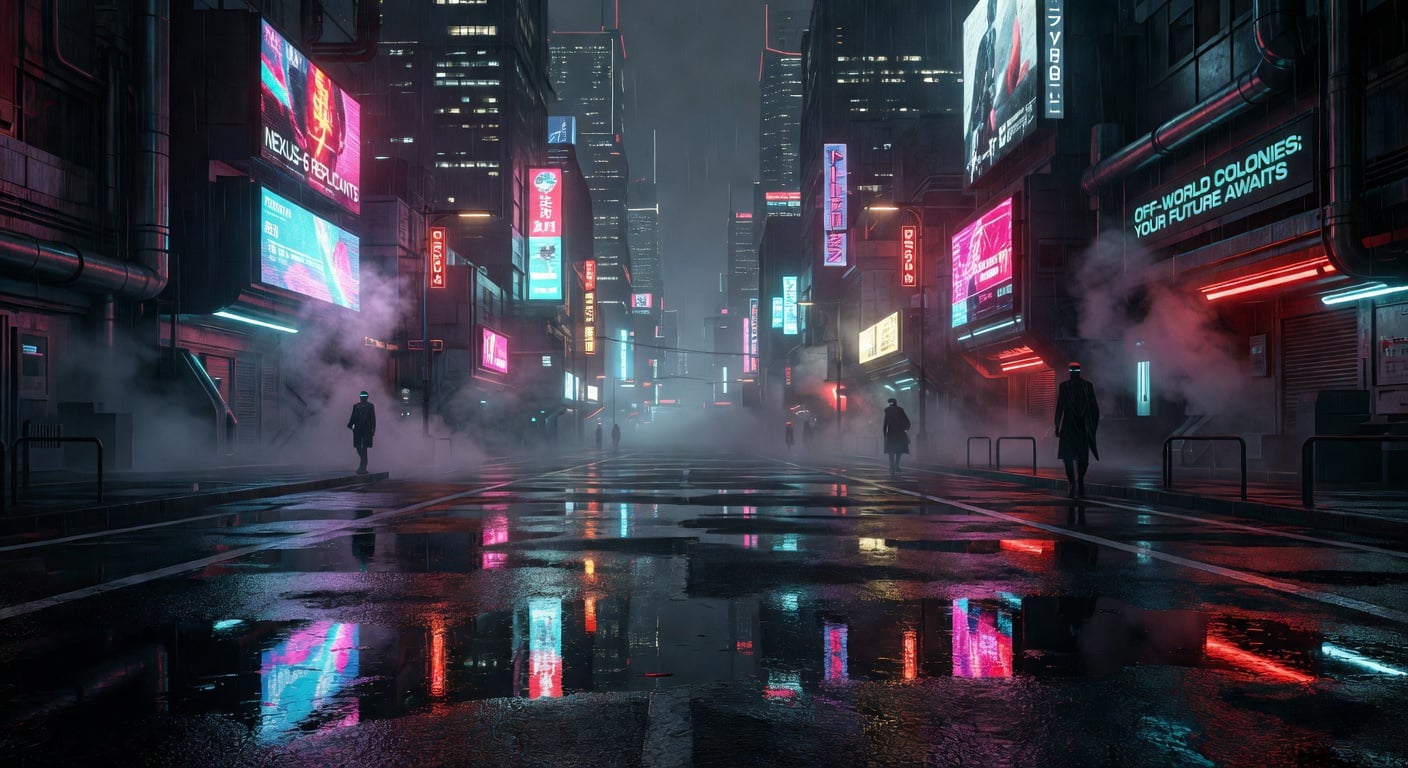
"a city at night"
Specific
"futuristic Tokyo street at 2am, rain-slicked asphalt, neon reflections, low-angle wide shot, cinematic fog, Blade Runner mood"
Each image below was generated with Grok Imagine on PixelDojo. Copy any prompt to use as a starting point, then iterate by changing one variable at a time.
Subject + style + lighting + camera angle
Each detail eliminates ambiguity. Location, time, lighting, camera position, and tonal reference give the model concrete anchors.
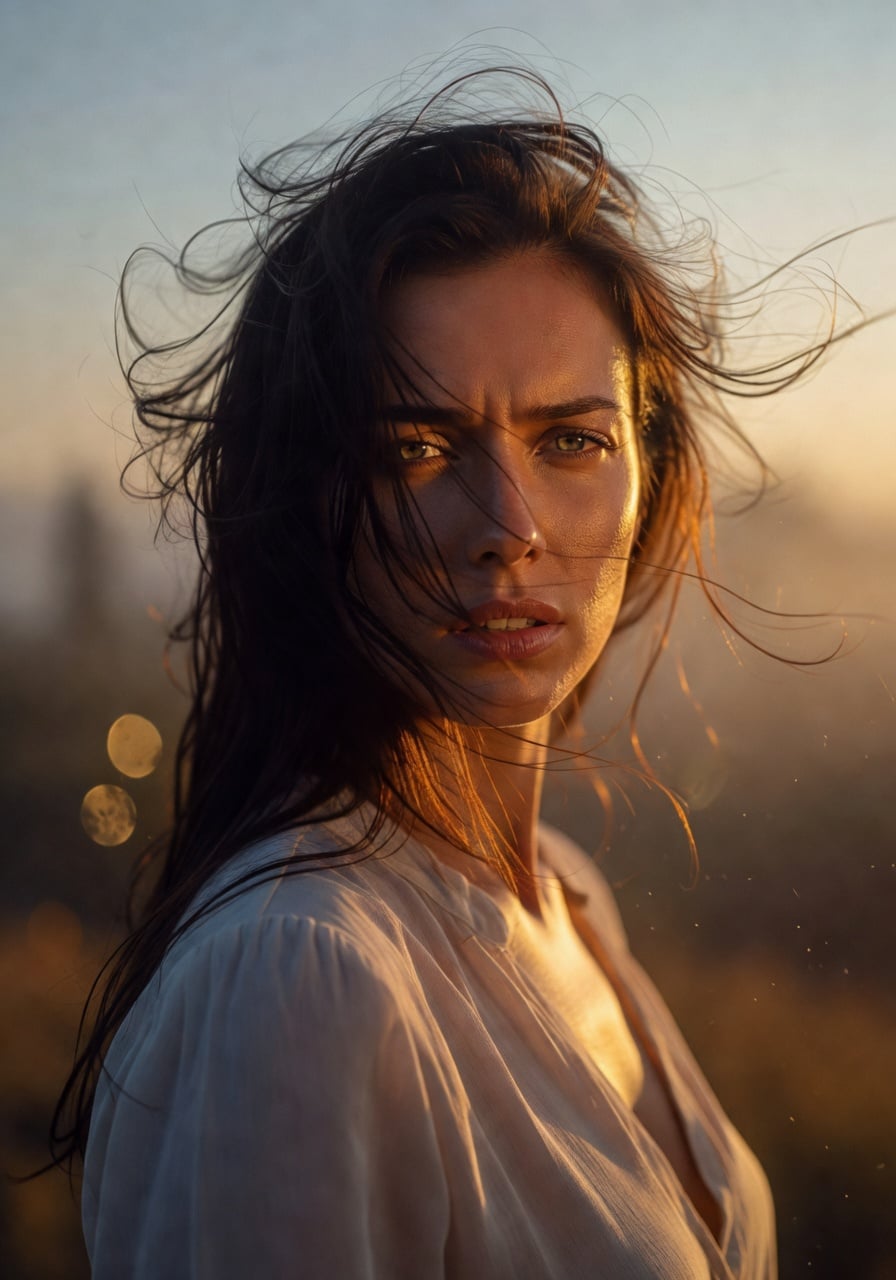
Clear subject against a defined background
A clear subject against a defined background consistently beats a busy, crowded scene. When in doubt, simplify.
Name your lighting for complete control
"Golden hour backlight," "overcast diffused light," and "hard rim light from the left" produce completely different results. Lighting is a high-leverage detail.
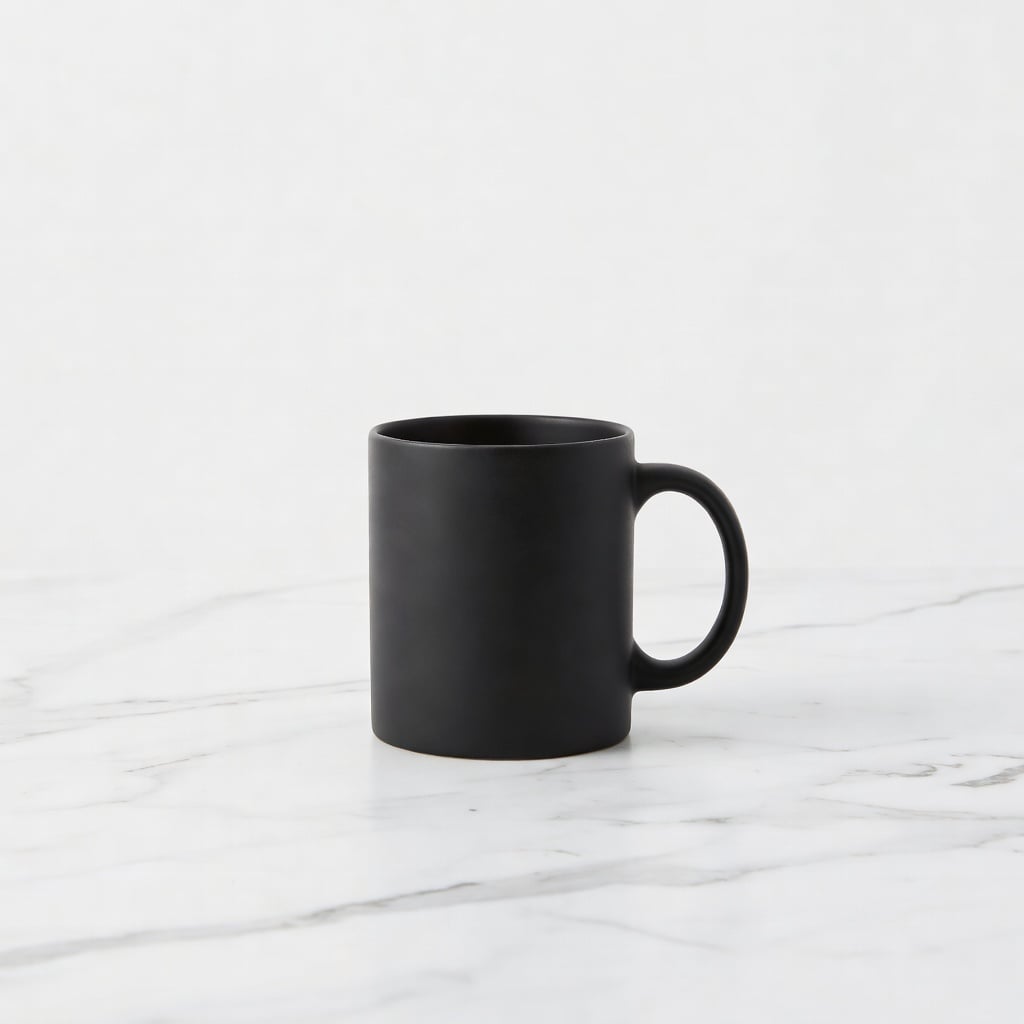
Clean composition for commercial use
Product shots work best with explicit lighting direction, surface materials, and background descriptions.
Videos generated with Grok Imagine on PixelDojo. Notice how text-to-video prompts include full scene descriptions while image-to-video prompts stay short and focused on motion.
Text-to-video world building
Video Prompt
For text-to-video, include camera movement, lighting conditions, and ambient sound descriptions for cinematic results.
Dynamic motion with cinematic camera
Video Prompt
Name your camera movement explicitly — "low-angle tracking shot" translates directly into how the scene is animated.
Image-to-video with subtle motion
Image Prompt
Video Motion Prompt
For image-to-video, keep prompts short — the model already has the visual context. Just describe what should move and how.
Atmospheric image-to-video
Image Prompt
Video Motion Prompt
Minimal motion prompts create atmospheric mood pieces. Let the scene breathe rather than forcing action.
A single generation gives you a short clip. Grok Imagine's Extend Video feature lets you go further — select any frame as the starting point for an extension. The model carries forward motion, character positioning, lighting, and audio. Each extension adds additional seconds, and you can keep chaining them together.
Extension Prompting Tip
Write a continuation prompt that describes what happens next in the scene, not a full re-description. The model already knows what the scene looks like — just tell it where to go.
Too much
"A woman in a red dress sitting at a rain-streaked cafe window at night with neon reflections, she stands up and walks toward the door"
Better
"She stands up slowly, grabs her coat, and walks toward the door. The camera follows."
A clear subject against a defined background consistently beats a busy, crowded scene. When in doubt, simplify.
Wider shots and slower movements produce the cleanest results when there are people in the frame. Pull the camera back and let the motion breathe.
"Blade Runner mood" or "Studio Ghibli feel" gives the model a rich visual library to draw from. Single adjectives like "dark" or "soft" are too open-ended.
"Golden hour backlight," "overcast diffused light," and "hard rim light from the left" produce completely different results. Lighting is a high-leverage detail you can specify.
"Slow dolly in," "pan right," "static wide" translate directly into how the scene is animated. If you don't specify, you're leaving one of the most important creative decisions to chance.
When animating an existing image, the model already has the visual context. Your prompt just needs to describe what should move and how.
Results vary between runs, even from the same prompt. If the first generation doesn't land, try it again before rewriting. The second or third attempt often nails it.
Outputs vary between runs. When something lands, keep the exact prompt so you can build on it and iterate from a known-good baseline.
Cinematic landscapes and environments with atmosphere.
Dynamic motion with explicit camera language.
Animate product images for polished commercial content.
Bring portraits to life with subtle, natural motion.
Atmospheric scenes with minimal, intentional motion.
Use reference images to lock a visual style or brand tone.