Kling 3 Prompting Guide

Prompt Kling 3
like a scene director

A practical Kling 3 playbook with generated examples for shot structuring, explicit camera motion, and image-to-video anchoring.

Based on guidance from the fal.ai Kling 3.0 prompting guide.

Overview

Kling 3 performs best when prompts are written as scene direction instead of object lists. The highest-leverage pattern is: define shot structure, anchor subjects early, then specify motion and pacing explicitly.

Prompt Playbook

Think in shots

Label each shot with framing and subject behavior. Multi-shot prompts produce better narrative flow than one dense block.

Anchor subjects early

Introduce characters/objects at the beginning and keep their labels consistent across beats to improve continuity.

Describe motion explicitly

Use cinematic verbs (dolly, pan, track, hold) for both camera and subject movement to reduce jitter and ambiguity.

Use mode-specific strategy

For consistency-sensitive outputs, start with image-to-video and describe scene evolution instead of re-describing all visuals.

Generated Videos

Multi-Shot Storyboard

Think in shots, not one giant paragraph

Shot 1 (0-2s): Wide rainy neon alley at night, reflective puddles, lone courier walks toward camera. Shot 2 (2-4s): Medium profile tracking shot as the courier glances left at a glowing shop sign. Shot 3 (4-6s): Tight close-up as the courier stops, breath visible in cold air, subtle handheld finish.

Shot labels improve pacing and framing transitions, especially when you want cinematic sequence coverage.
Explicit Motion Long Take

Direct camera behavior with film language

A cinematic long take inside a quiet library. Camera slowly dollies forward down the aisle, then gently pans right to reveal a scholar turning one page of an old book. Dust particles float in warm sunbeams. Keep movement smooth and grounded.

When motion words are explicit (dolly, pan, hold), Kling outputs cleaner temporal consistency and less drift.

Image-to-Video Anchor

Lock the scene first, then animate

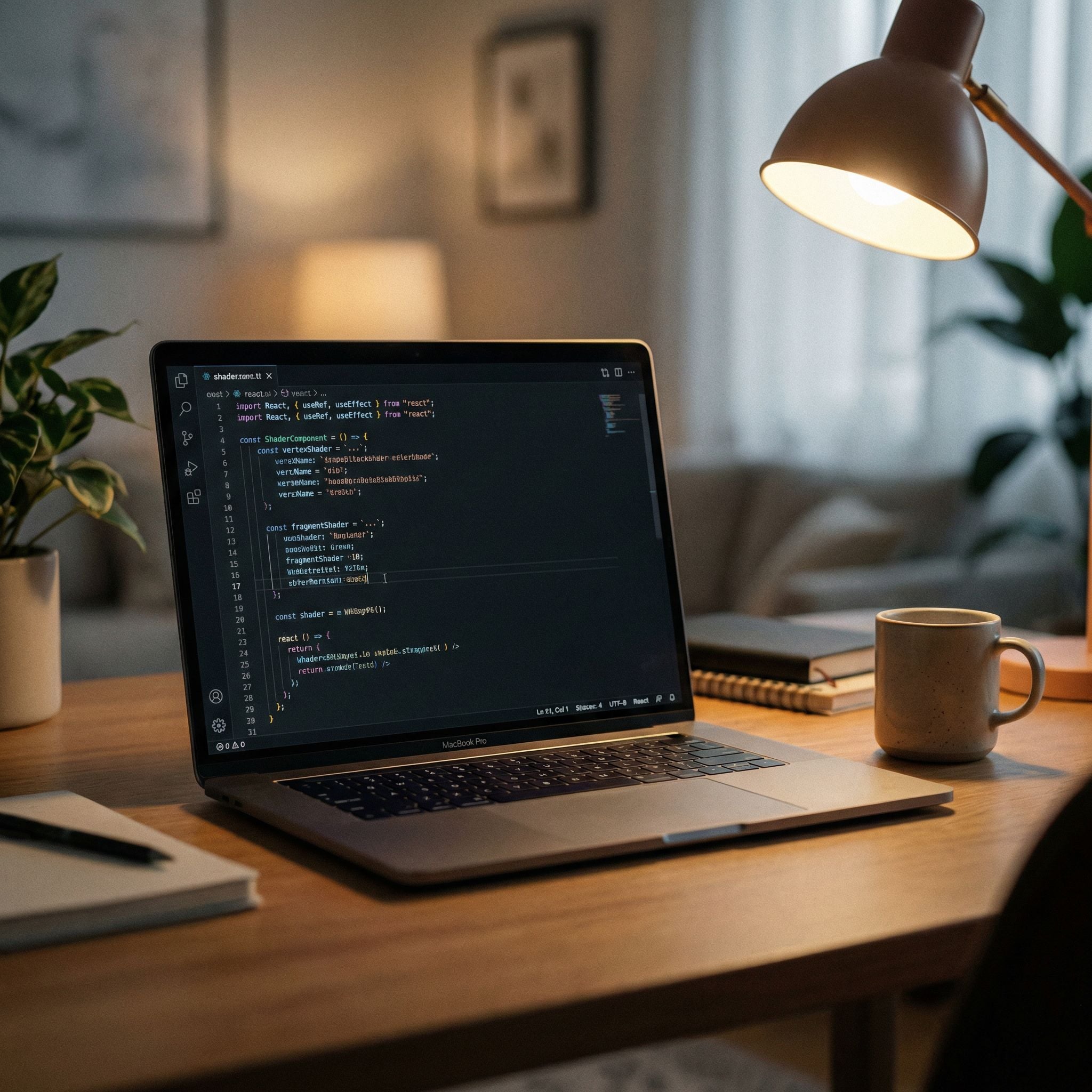
Start from this exact desk scene. Add subtle monitor glow pulses, drifting steam from the mug, and a slow push-in camera move. Keep object layout and text on screen stable while introducing natural motion.

Image-to-video works best when your prompt describes how the scene evolves rather than re-describing static details.

Inputs used

Start image

Start image

Prompt Templates

Multi-Shot Template

Use for story beats and shot-by-shot cinematic control.

Shot 1 (0-2s): [framing] of [subject] in [environment], [action]. Shot 2 (2-4s): [new framing/camera move], [subject reaction/action]. Shot 3 (4-6s): [close/impact shot], [final action/pose], [mood cue].

Dialogue + Audio Template

Use when generating native audio with multiple speakers.

A [scene setup] with [ambient sound details]. [Character A: role, vocal tone]: "[line]" Immediately, [Character B: role, vocal tone]: "[line]" Camera: [movement], pacing: [timing], emotional beat: [feeling].

Image-to-Video Template

Use when preserving identity/layout from a source image.

Start from this image. Keep [identity/layout/text elements] consistent. Add [subject motion], [environment motion], and camera [movement pattern]. Maintain continuity and realistic timing with no abrupt scene jumps.

Checklist

  • Write prompts as a scene direction, not a keyword dump.
  • For multi-shot, label shot boundaries and framing clearly.
  • Name characters consistently if dialogue or interactions are involved.
  • Specify camera motion and subject motion separately.
  • Use image-to-video when continuity matters most.