Industry News
Mastering Tripo Studio: A Comprehensive Guide to AI-Powered 3D Model Generation
This article provides an in-depth tutorial on Tripo Studio, an AI-driven platform that transforms text and images into high-quality 3D models. It explores the platform's features, including text-to-3D and image-to-3D conversion, intelligent segmentation, AI texturing, and auto-rigging, while also highlighting how PixelDojo's tools can complement and enhance the 3D modeling process.
Introduction
In the rapidly evolving world of digital design, Tripo Studio stands out as a revolutionary AI-powered platform that enables users to generate high-quality 3D models from text descriptions or images. This comprehensive guide will walk you through the key features of Tripo Studio, providing step-by-step instructions to help you master this innovative tool. Additionally, we'll explore how PixelDojo's suite of tools can complement and enhance your 3D modeling workflow.
Getting Started with Tripo Studio
To begin your journey with Tripo Studio:
- Create an Account: Visit the Tripo Studio website and sign up for a free account.
- Access the Dashboard: Once registered, log in to access the user-friendly dashboard, which serves as your central hub for all 3D modeling activities.
Generating 3D Models from Text
Tripo Studio's text-to-3D feature allows you to create 3D models by simply describing them:
- Navigate to Text-to-3D: In the dashboard, select the 'Text to 3D' option.
- Input Your Description: Enter a detailed description of the object you wish to create. For example, "a medieval knight in armor holding a sword."
- Generate the Model: Click 'Generate 3D Model' and let the AI process your description into a 3D model.
The AI analyzes your text input and generates a corresponding 3D model with sharp geometry and solid topology. This feature is particularly useful for quickly prototyping ideas without the need for extensive modeling experience.
Creating 3D Models from Images
If you have a 2D image or sketch, Tripo Studio can convert it into a 3D model:
- Navigate to Image-to-3D: Select the 'Image to 3D' option in the dashboard.
- Upload Your Image: Drag and drop your image file (JPG, PNG, or WEBP, up to 5MB) into the upload area.
- Generate the Model: Click 'Generate 3D Model' to initiate the conversion process.
For more accurate 3D reconstructions, Tripo Studio supports multi-view image input. By uploading multiple angles of the same subject, the AI can create a more reliable and structurally sound 3D model. Before uploading, you can use PixelDojo's Google Nano Banana tool to enhance and edit your reference images, ensuring higher-quality inputs for the 3D generation process.
Intelligent Segmentation
Tripo Studio's intelligent segmentation feature allows for precise control over complex models:
- Access Segmentation Tools: After generating a model, select the 'Segmentation' option.
- Automatic Splitting: The AI will automatically divide the model into structured, editable parts with clean edges.
- Manual Adjustments: Fine-tune the segmentation as needed to achieve the desired level of detail.
This feature is invaluable for creating models with multiple components that require individual adjustments or for preparing assets for animation.
AI Texturing
Applying realistic textures is crucial for bringing 3D models to life. Tripo Studio offers AI-driven texturing capabilities:
- Select Texturing Options: Choose the 'AI Texturing' feature from the dashboard.
- One-Click Texturing: Apply high-resolution 4K, PBR-ready textures to your model with a single click.
- Magic Brush: Use the Magic Brush tool for seamless local repainting and precise detail control.
For further refinement, PixelDojo's Style Transfer tool can be used to apply artistic styles to your model's textures, adding a unique aesthetic touch to your creations.
Auto Rigging and Animation
Preparing models for animation is streamlined with Tripo Studio's auto-rigging feature:
- Access Rigging Tools: Select the 'Rig & Animate' option in the dashboard.
- Automatic Rigging: The AI will generate a clean skeleton with smooth skin weights for your model.
- Apply Animations: Utilize the built-in library of over 100 motion-capture-quality animations to bring your model to life.
This feature eliminates the need for manual rigging, allowing for quick prototyping and testing of animations.
Exporting and Integrating Models
Once your model is complete, Tripo Studio offers various export options:
- Choose File Format: Export your model in formats such as GLB or FBX, compatible with major 3D software like Blender, Maya, and Unreal Engine.
- Download the Model: Click 'Download' to save the file to your device.
For enhancing the visual quality of your exported models, PixelDojo's Magnific Upscaler can be used to upscale textures and improve overall resolution, ensuring your models look their best in any application.
Conclusion
Tripo Studio revolutionizes the 3D modeling process by leveraging AI to simplify and accelerate model creation. Whether you're a seasoned professional or a beginner, its intuitive features make 3D design more accessible than ever. By integrating PixelDojo's tools into your workflow, you can further enhance and refine your models, achieving professional-grade results with ease.
For a visual demonstration of Tripo Studio's capabilities, check out this tutorial:
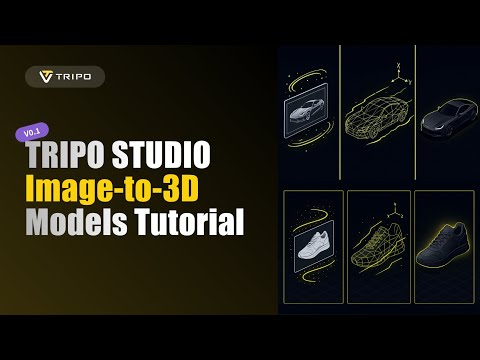
Note: The above video is provided for educational purposes and is not affiliated with this article.
Original Source
Read original articlePremium AI Tools
Create Incredible AI Images Today
Join thousands of creators worldwide using PixelDojo to transform their ideas into stunning visuals in seconds.
125
Creative AI Tools
4M+
Creations
60+
AI Video Models