Kling 2.5 motion control tutorial AI Generator
Transform your creative visions into reality with Kling 2.5's advanced motion control capabilities. Whether you're aiming to produce dynamic marketing content, engaging social media videos, or cinematic storytelling, Kling 2.5 empowers you to animate characters and scenes with precision and ease. This tutorial will guide you through the process of leveraging Kling 2.5's motion control features to create professional-grade videos that captivate your audience.
Join thousands of creators who have enhanced their video production with Kling 2.5. Rated 4.8/5 by users worldwide for its intuitive interface and powerful features.
Why Choose Pixel Dojo for Kling 2.5 motion control tutorial
Professional-quality results with cutting-edge AI technology
Achieve Precise Character Animation
Utilize motion control to animate characters with exact movements, bringing your creative ideas to life.
Enhance Video Realism
Apply real-world physics to your animations, resulting in more believable and engaging videos.
Streamline Content Creation
Reduce production time by automating complex animations, allowing you to focus on storytelling.
How It Works
Creating dynamic videos with Kling 2.5's motion control is a straightforward process. Follow these steps to animate your characters and scenes effectively.
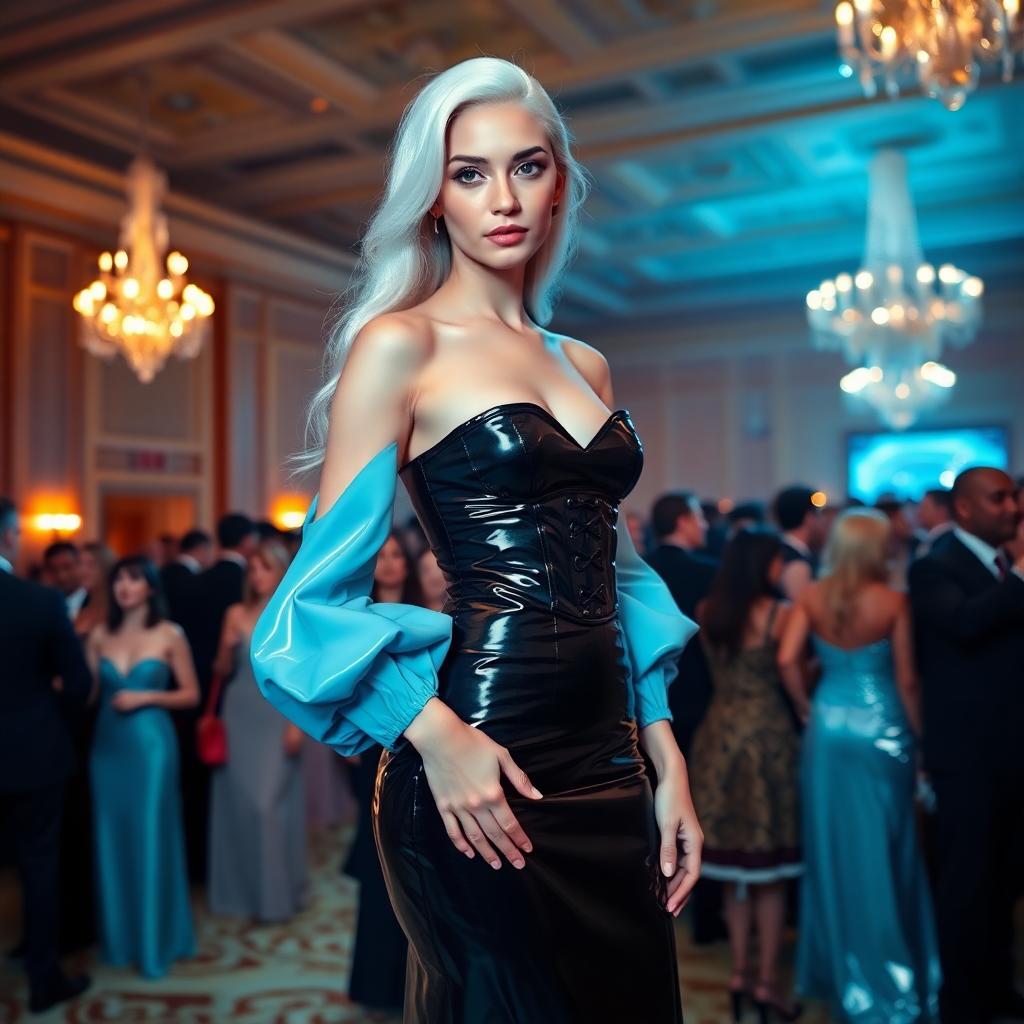
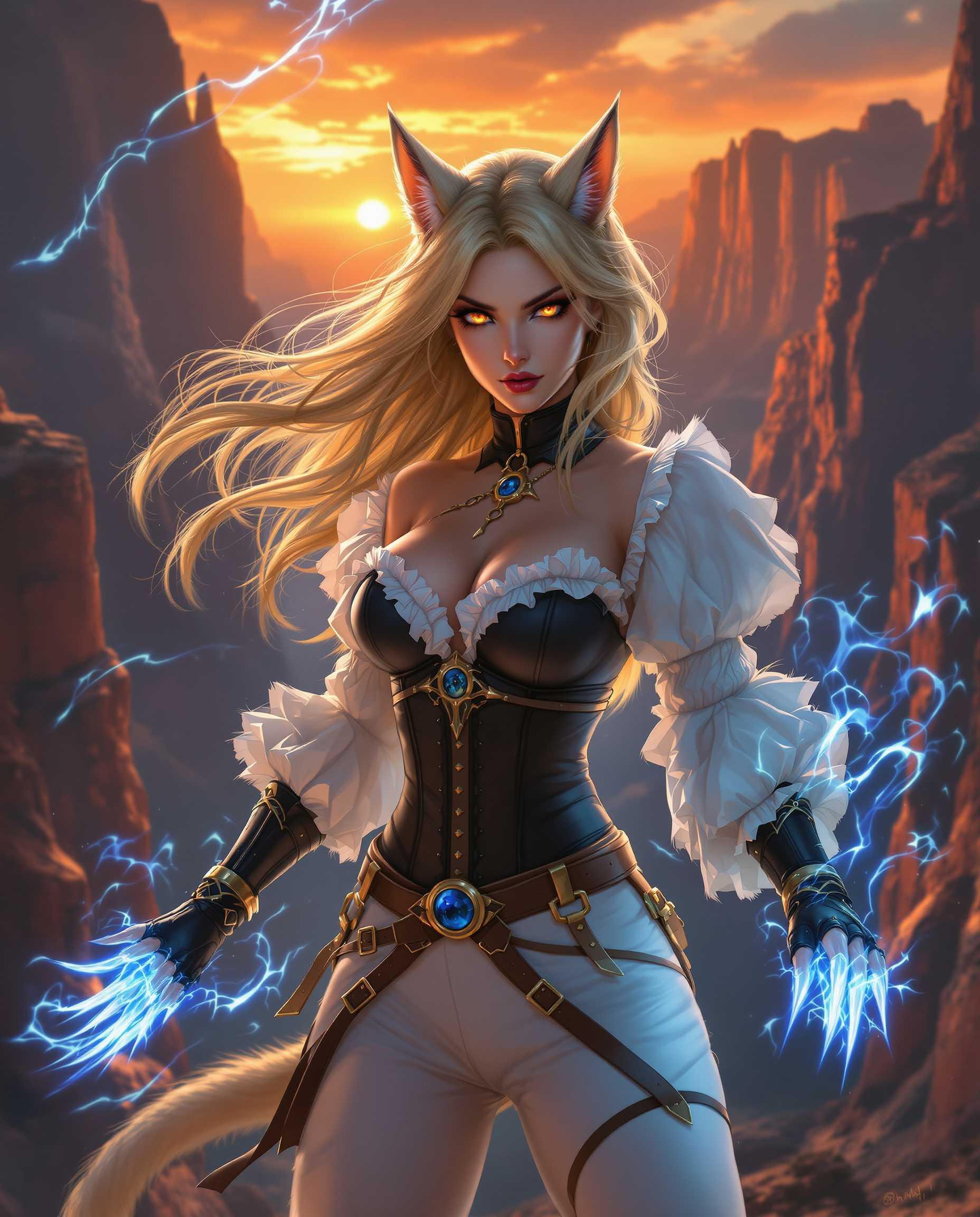
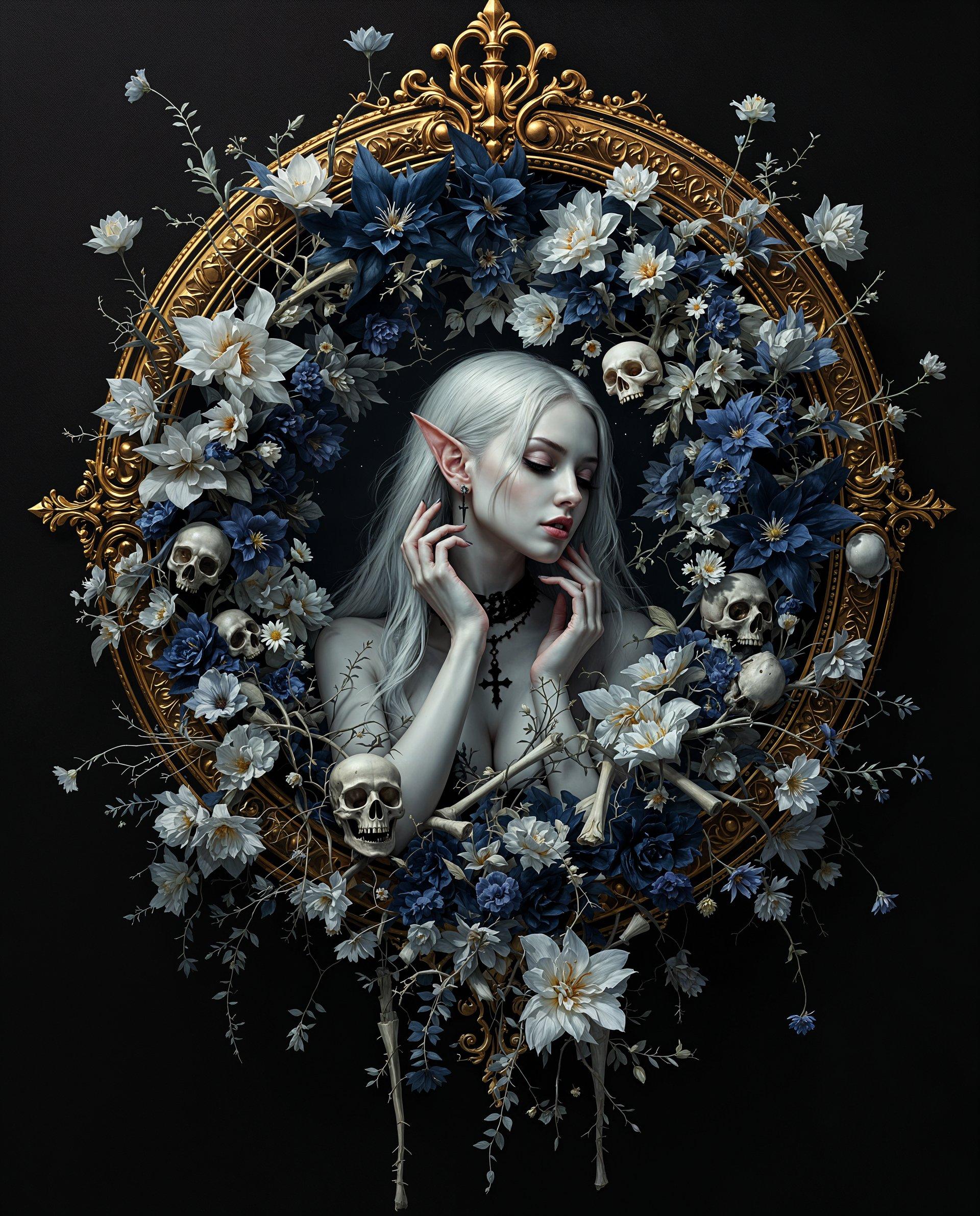
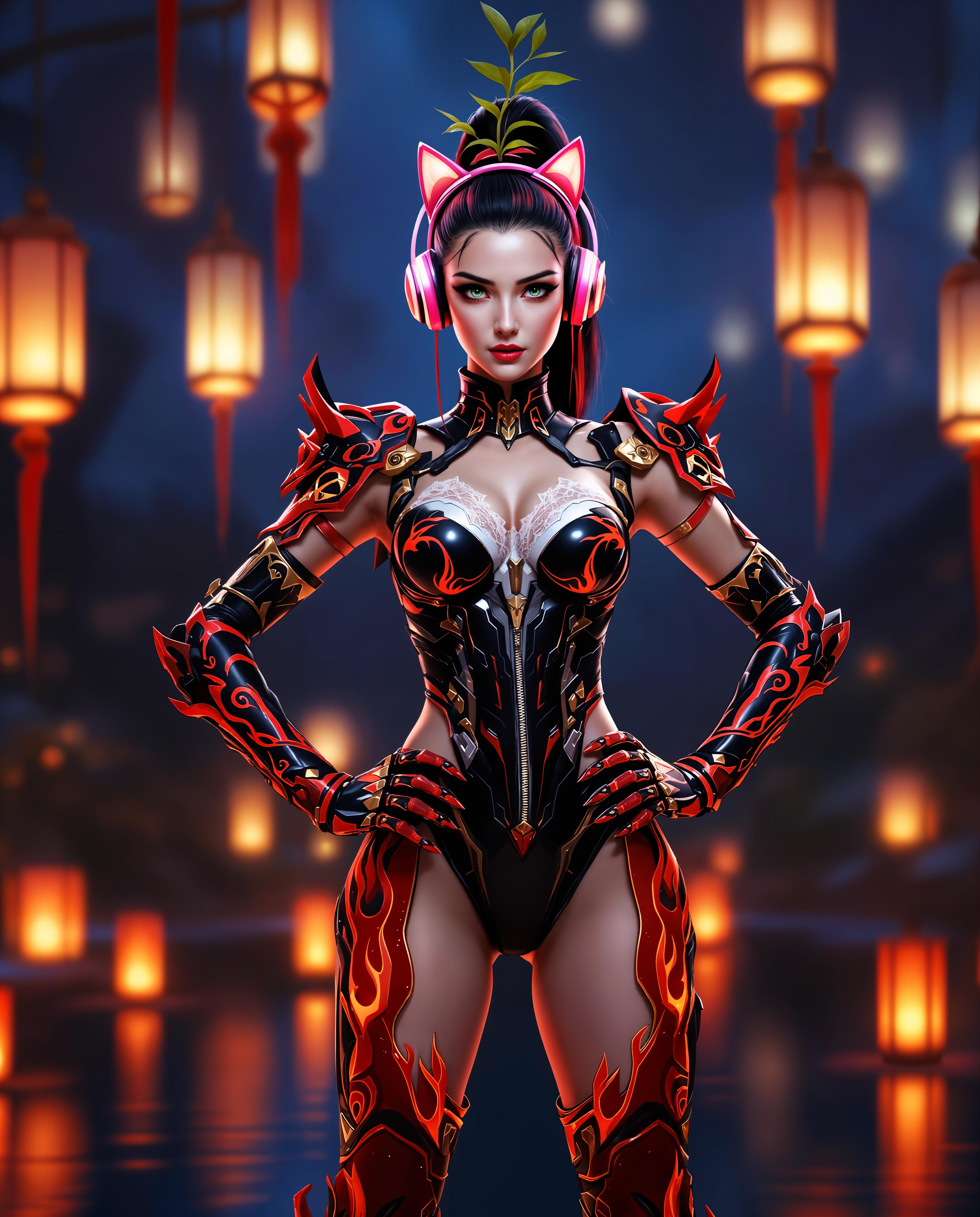
Step 1: Select Your Base Image
Choose a high-quality image that serves as the foundation for your video. This image will be animated using the motion control features.
Step 2: Upload a Motion Reference
Provide a reference video that demonstrates the desired movement. Kling 2.5 will use this to guide the animation process.
Step 3: Generate and Refine Your Video
Use Kling 2.5 to apply the motion reference to your base image, generating the initial animation. Review the output and make any necessary adjustments to achieve the desired result.

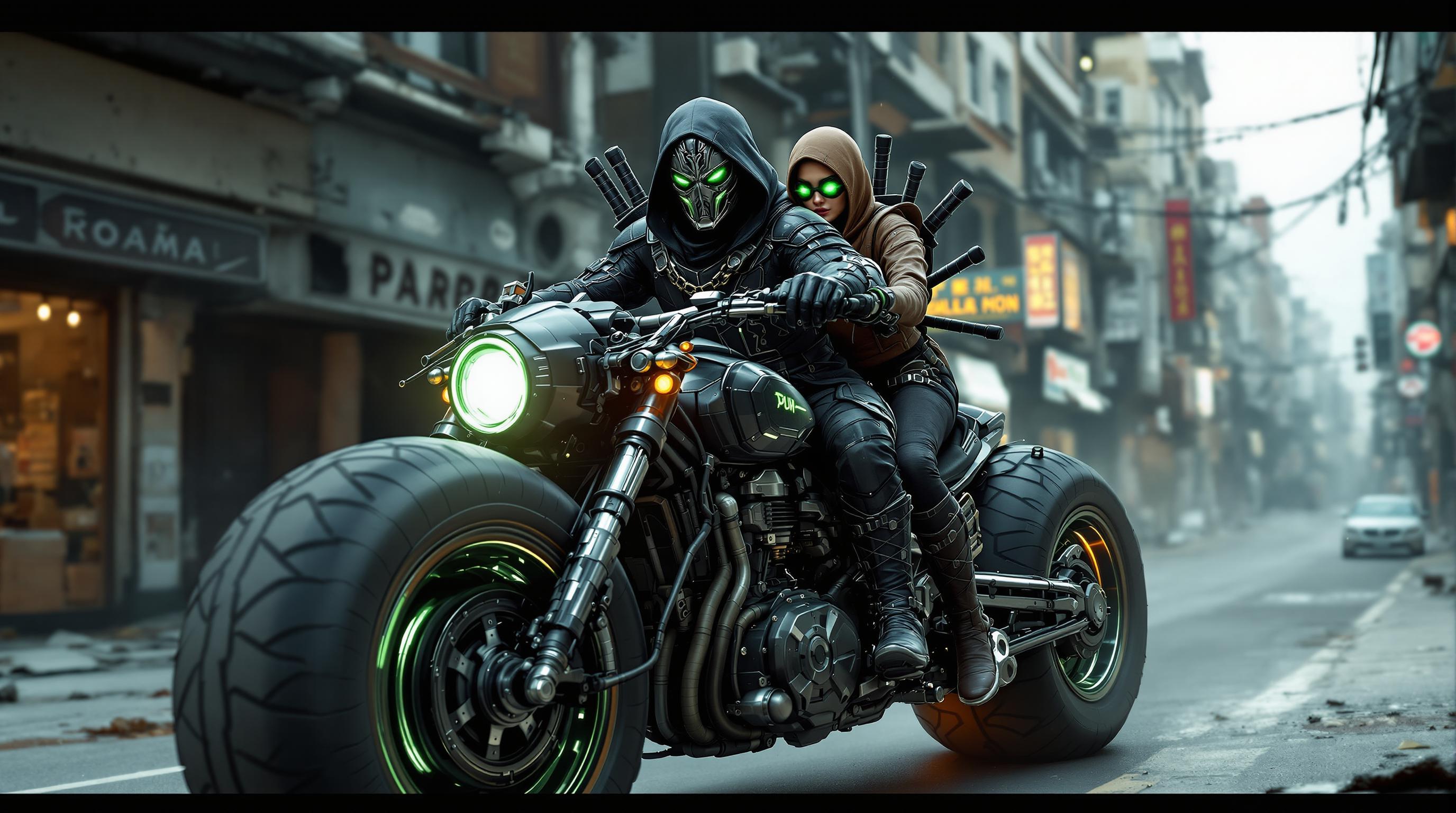
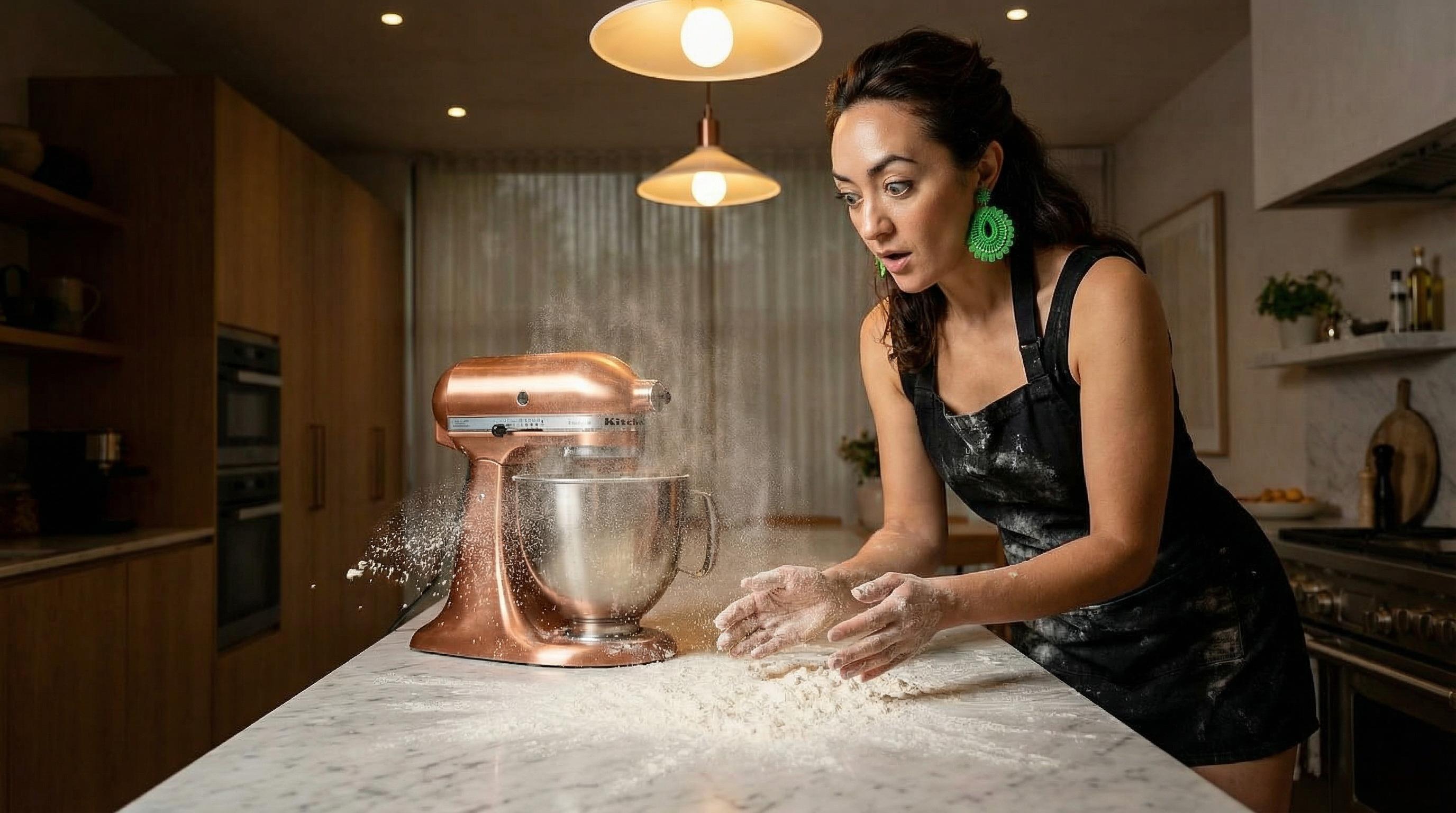
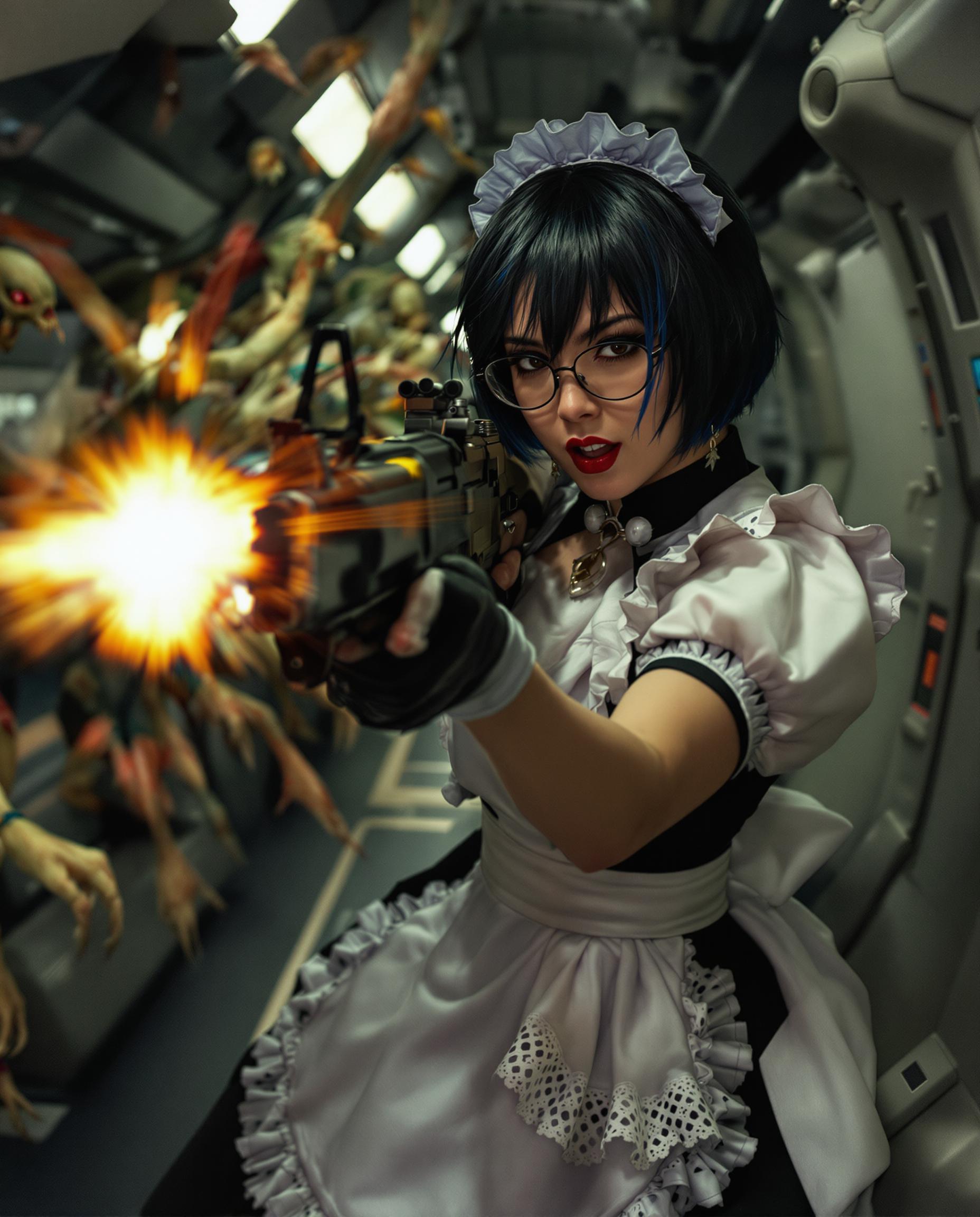
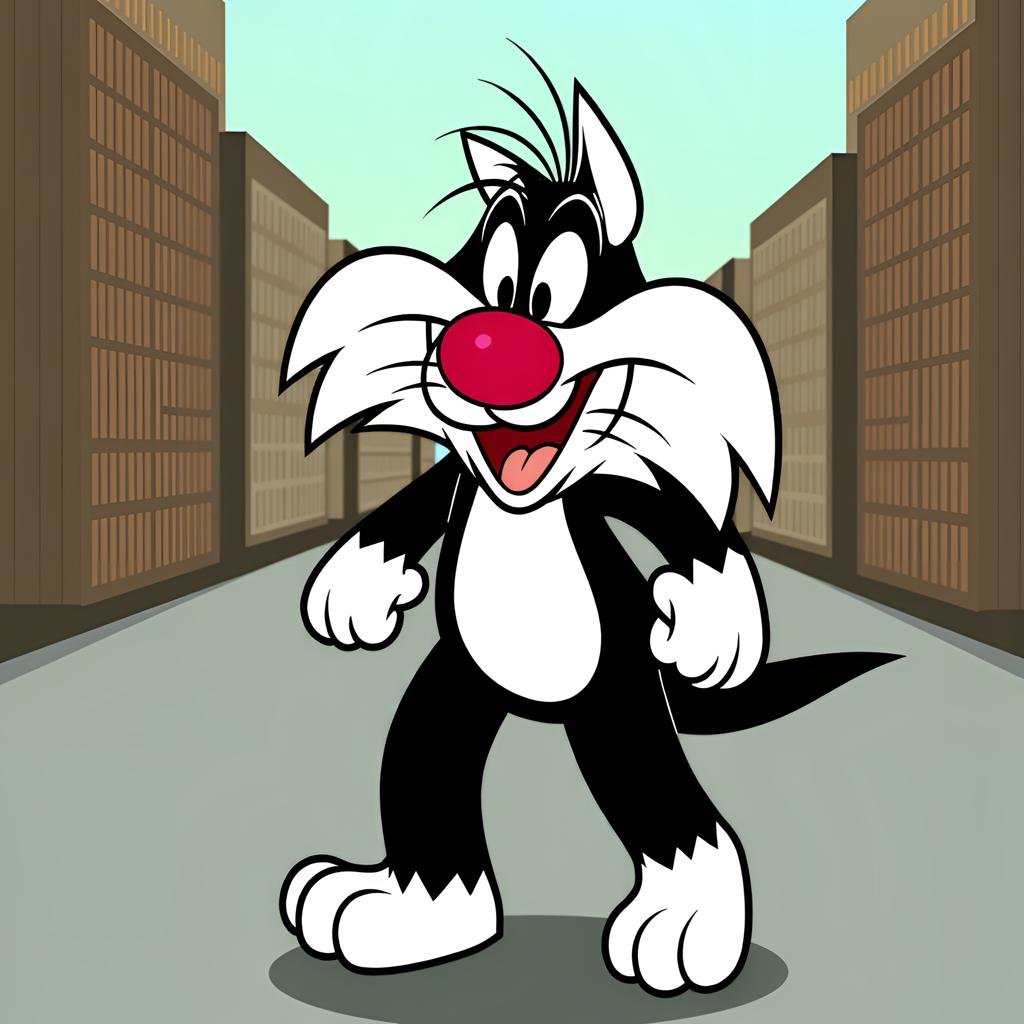


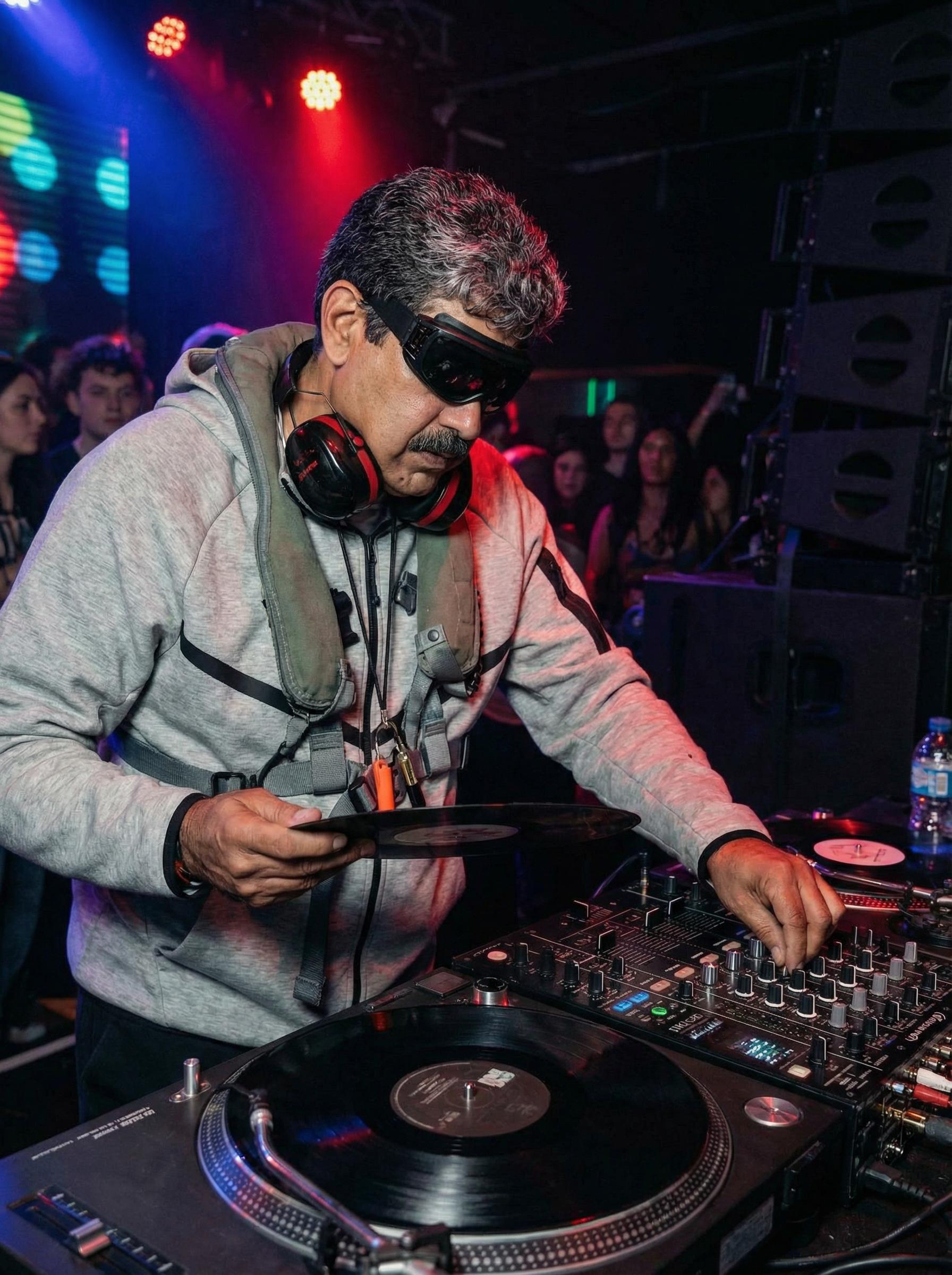
The Pixel Dojo Advantage
Discover how Kling 2.5's motion control stands out in the realm of AI video generation.
| Others | Pixel Dojo |
|---|---|
| Traditional Animation Techniques | Eliminate the need for frame-by-frame animation, significantly reducing production time and effort. |
| Generic AI Video Tools | Achieve higher accuracy in motion replication by using specific reference videos to guide animations. |
| Manual Video Editing | Automate complex motion sequences, allowing for more creative freedom and efficiency in video production. |
Loved by Creators
See what our community says about Kling 2.5 motion control tutorial
"Kling 2.5's motion control has revolutionized our content creation process. The ability to apply precise movements to our characters has elevated our videos to a professional standard."
Alex Johnson
Creative Director
"As a solo creator, Kling 2.5 has been a game-changer. The motion control features allow me to produce dynamic videos without the need for a large team or extensive resources."
Jamie Lee
Independent Filmmaker
Common Questions
Everything you need to know about Kling 2.5 motion control tutorial AI generation
How does Kling 2.5's motion control enhance video production?
Kling 2.5's motion control allows you to animate characters and scenes by applying movements from reference videos, resulting in realistic and dynamic animations without manual frame-by-frame editing.
Can I use any video as a motion reference in Kling 2.5?
Yes, you can upload any video that demonstrates the desired movement. Kling 2.5 will analyze the motion and apply it to your selected image, animating it accordingly.
Is Kling 2.5 suitable for beginners in video production?
Absolutely. Kling 2.5 is designed with an intuitive interface that makes it accessible for users of all skill levels, from beginners to experienced professionals.
What file formats are supported for motion reference videos?
Kling 2.5 supports common video formats such as MP4, AVI, and MOV for motion reference uploads.
Can I adjust the intensity of the applied motion in Kling 2.5?
Yes, Kling 2.5 provides options to tweak the motion parameters, allowing you to control the intensity and style of the animation to match your creative vision.
Does Kling 2.5 offer any templates for motion control?
While Kling 2.5 focuses on user-provided motion references, it also offers a library of preset motions that you can apply to your images for quick and easy animations.