flux 2 pro prompt guide AI Generator
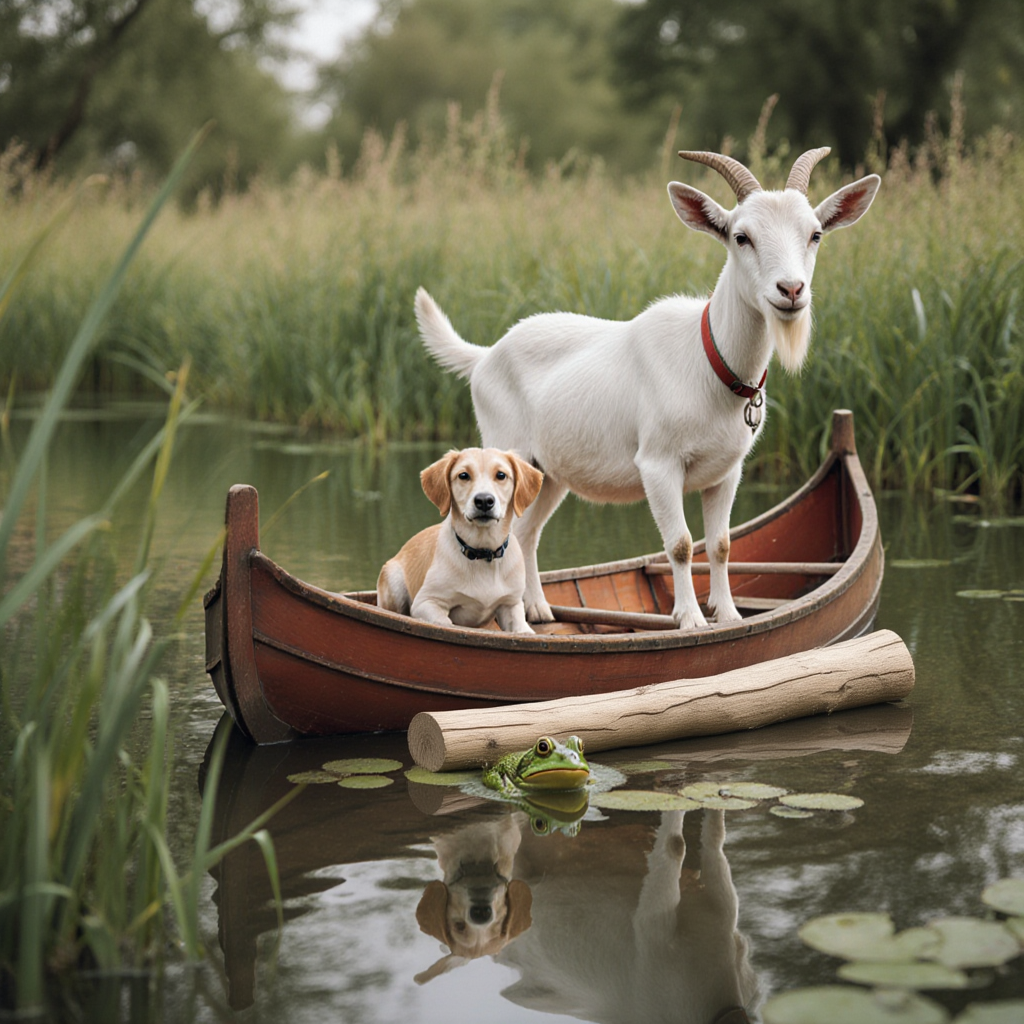
Generated on PixelDojo. Produced by PixelDojo's generation pipeline.
You can turn a simple idea into a photorealistic campaign hero, product shot or character portrait that looks like it came from a professional studio. PixelDojo’s Flux.2 Studio lets you achieve that outcome in minutes when you follow a proven Flux 2 Pro prompt structure. Front-load your subject, describe lighting with precision, use natural prose instead of keyword dumps, and you get images that match your vision the first time. Thousands of marketers, designers and creators already use these techniques on PixelDojo to produce consistent, on-brand visuals without hiring photographers or spending hours in editing software. Start with Flux.2 Studio, add camera and lighting details, and download print-ready files that convert browsers into customers.
Real image examples generated on PixelDojo
Every example below was produced on PixelDojo. Hover to see the prompt.
Add a log edited with Flux Kontext Dev
flux-studio
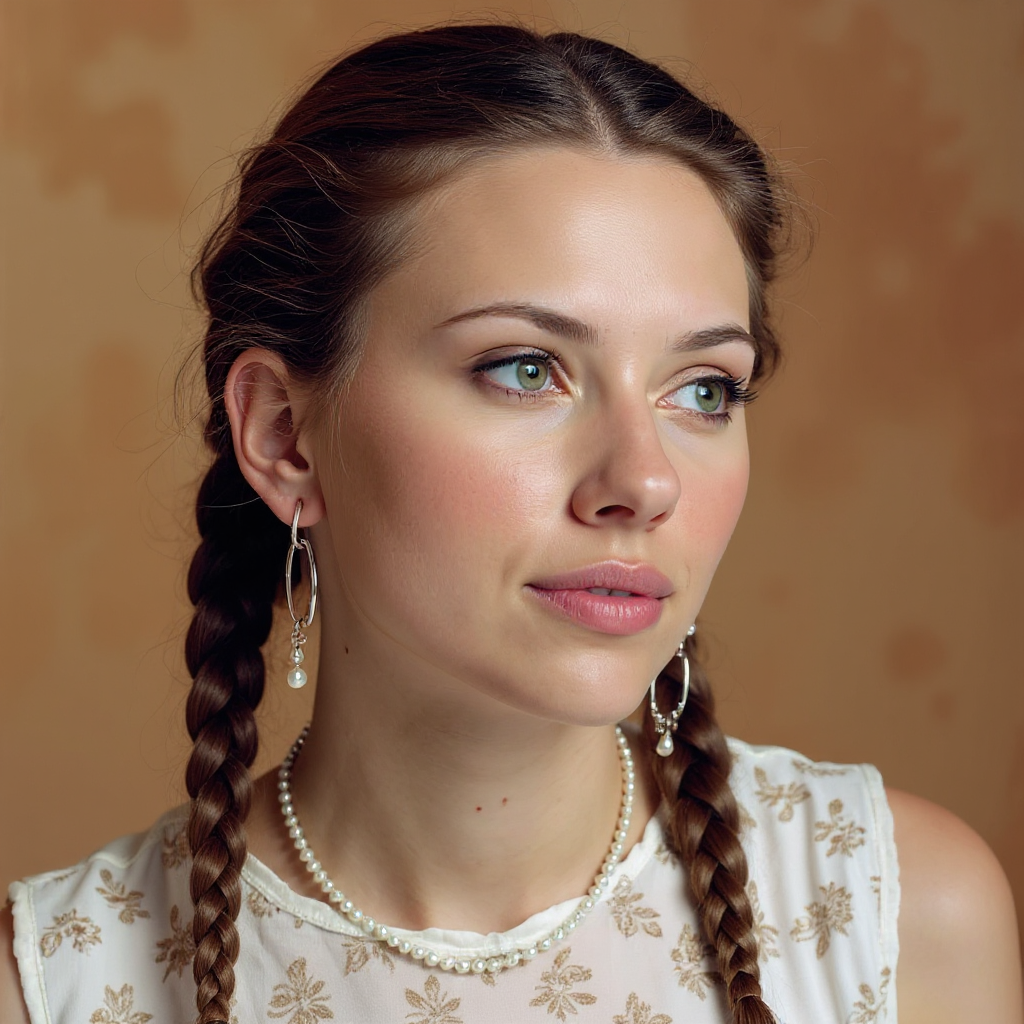
Quickly change someone's hair style and hair color
stable-diffusion
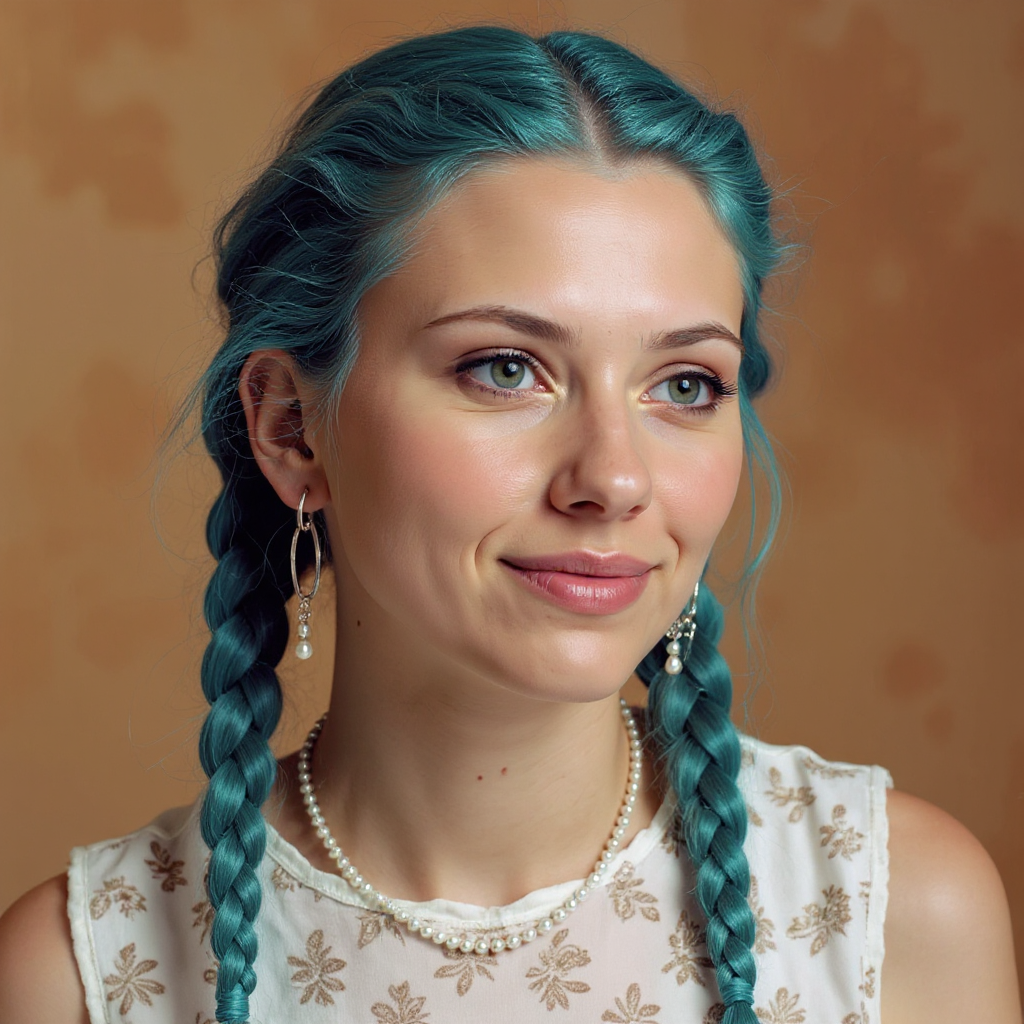
Quickly change someone's hair style and hair color
stable-diffusion
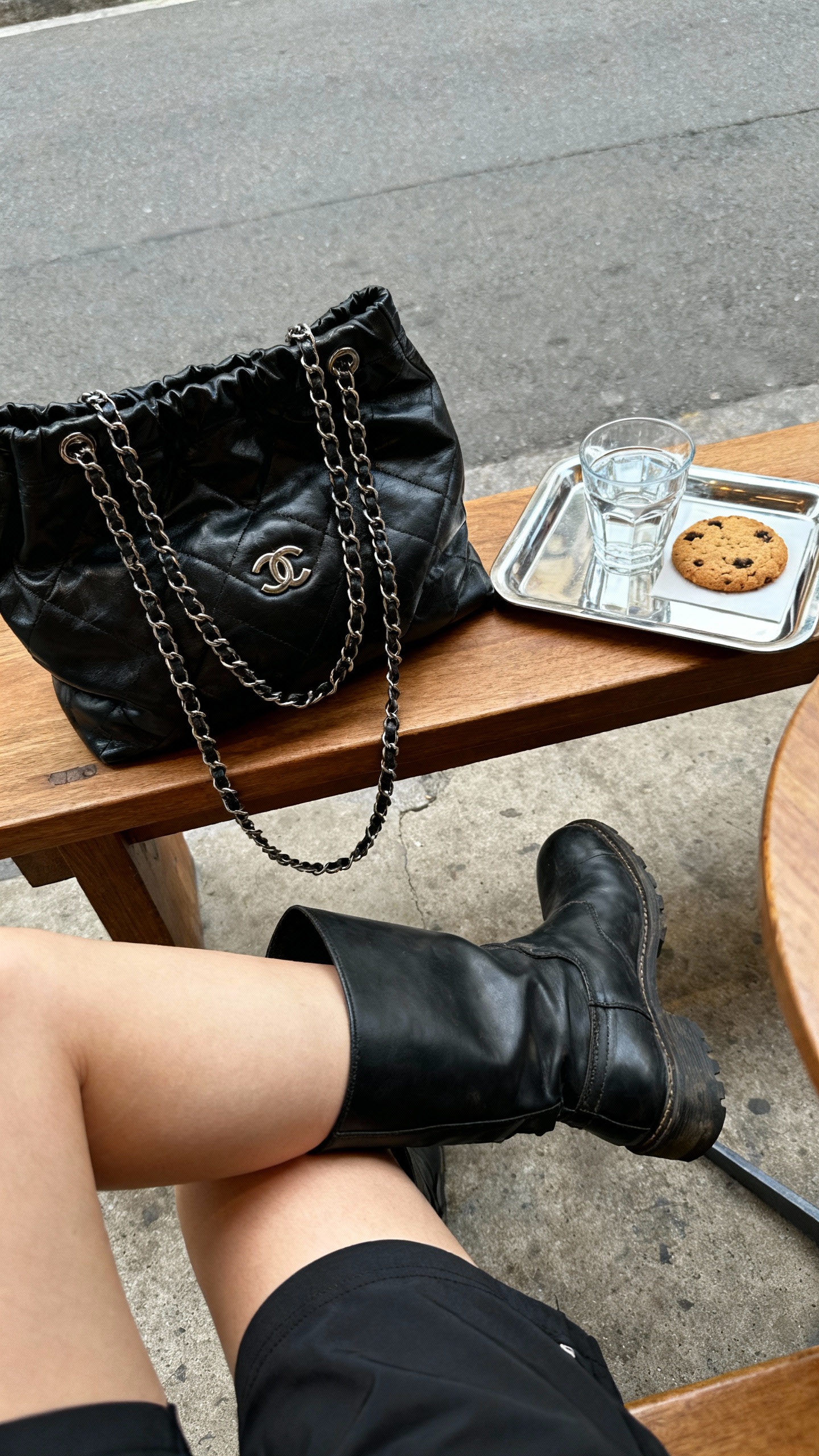
POV iPhone snapshot
seedream-4
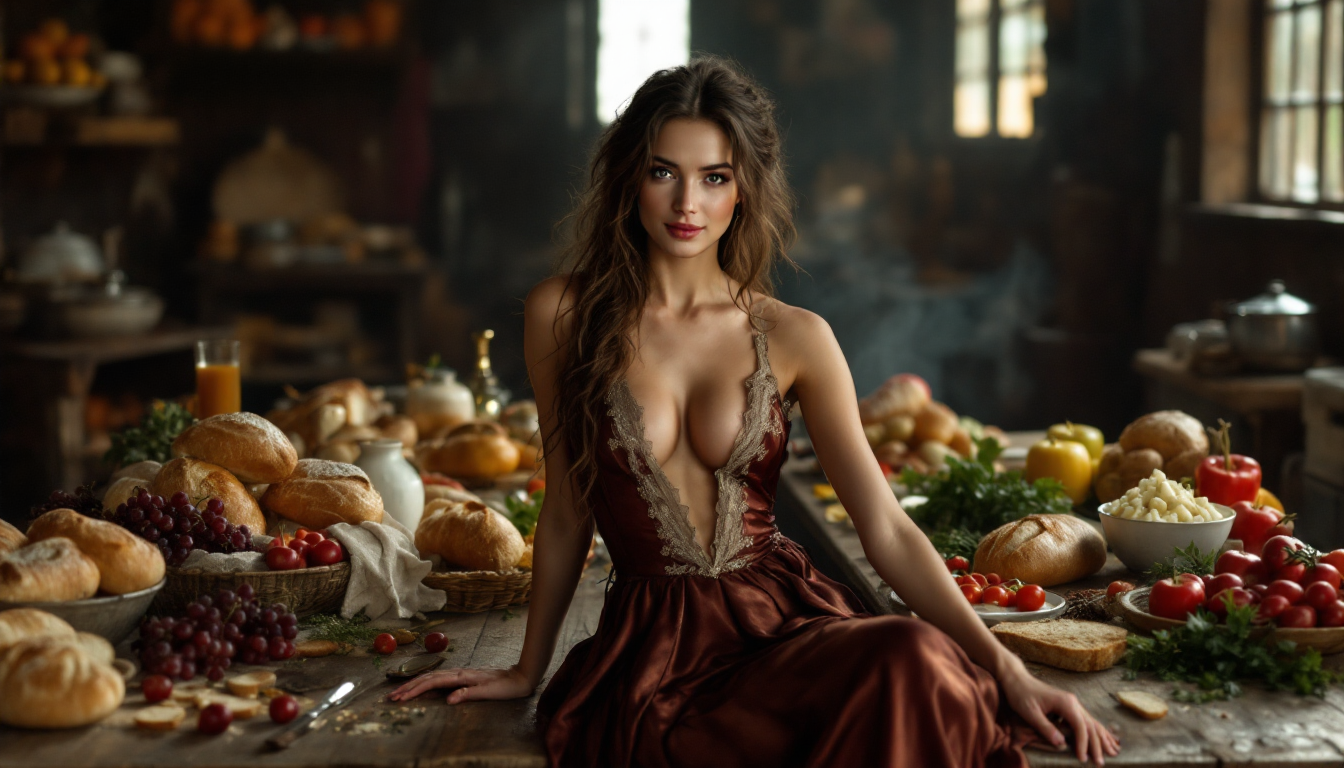
An 8K ultra-realistic
flux

Brooke-LoRA-Zip
stable-diffusion
Models you can run on PixelDojo for flux 2 pro prompt guide
Switch models without switching tools. Each one runs in the same PixelDojo studio.
What you can do with flux 2 pro prompt guide on PixelDojo
Flux 2 Pro Prompt Patterns
We document how Flux 2 Pro responds to subject, style, lighting, and camera language so you can write clearer prompts. Use these patterns as a starting point for portraits, products, and scenes.
Negative Prompt And Constraints
We show how to exclude common artifacts and keep composition under control with negative prompts and simple constraints. Pair them with Flux 2 Pro so outputs stay closer to your brief.
Style And Reference Language
We cover medium, lens, color, and mood terms that Flux 2 Pro follows well, plus how to describe references without overloading the prompt. Creators can mix look direction with scene details in a consistent order.
Iterate With Saved Prompt Notes
We help you version prompts, lock what works, and change one variable at a time in Flux 2 Pro. Keep a short note of settings so you can recreate a look across a series.
Loved by thousands of creators worldwide who generate professional images daily. 40+ cutting-edge AI tools, 4.9 average rating, cancel anytime.
Why Choose Pixel Dojo for flux 2 pro prompt guide
Professional-quality results with cutting-edge AI technology
Photorealistic Results That Convert
You produce studio-quality portraits, product heroes and editorial shots that look indistinguishable from real photography. Specify camera models, lenses and lighting in your Flux 2 Pro prompt inside Flux.2 Studio and watch PixelDojo deliver sharp textures, natural skin and authentic depth of field that elevate your marketing and social content.
Brand-Perfect Colors and Readable Text
You lock exact brand colors with hex codes and render crisp typography by quoting the text you need. Flux.2 Studio on PixelDojo follows these instructions so your logos, packaging and ads stay on-brand across an entire series without extra retouching.
Consistent Series Without Guesswork
You generate matching sets of images by repeating a short style block in every prompt. Combined with PixelDojo’s Image to Image, Inpainting and Consistent Characters tools, you keep characters, products and lighting identical from one frame to the next, saving hours of manual matching.
How It Works
Follow this three-step workflow inside PixelDojo’s Flux.2 Studio to turn any idea into a polished image. The official Flux 2 Pro approach rewards clear, ordered descriptions rather than long keyword lists.
Step 1: Choose Flux.2 Studio
Open Generate Images and select Flux.2 Studio. This production-balanced model gives you the best mix of quality and speed for final assets. Set your aspect ratio and resolution, then prepare a short, structured prompt that starts with the main subject.
Step 2: Enter Your Structured Prompt
Write in natural prose using the proven order: subject first, then action or pose, style, context, lighting and camera details. Example: “A ceramic coffee mug on a marble counter, steam rising, editorial product photography, soft window light from the left, shot on Hasselblad X2D 80mm f/2.8, color #C4A484.” Avoid negatives; describe only what you want. PixelDojo’s Flux.2 Studio reads early words most strongly, so put the hero element at the beginning.
Step 3: Refine, Edit and Download
Generate, then use Image to Image, Inpainting or Magic Lighting to perfect small details. Upscale with P-Image Upscale or Magnific Upscaler if you need print size. Download instantly or continue into Marketing Studio and Consistent Characters for a full campaign. Cancel anytime if it is not the right fit.
The Pixel Dojo Advantage
Why PixelDojo outperforms other options for Flux 2 Pro image generation
| Others | Pixel Dojo |
|---|---|
| Traditional photography and studio shoots | You skip location fees, models and retouching. Flux.2 Studio plus structured prompts delivers the same photoreal look in minutes, then you refine with Inpainting and Style Transfer at a fraction of the cost. |
| Generic AI tools | You get native Flux.2 Studio with hex-color support, quoted typography and multi-reference editing that generic platforms lack. Combined with PixelDojo’s 40+ specialized tools you stay in one workflow from first prompt to final campaign asset. |
| Manual photo editing | You generate the base image already lit and composed correctly, then apply Reality Polisher, Background Remover or Change Camera Angle instead of starting from scratch in desktop software. |
Loved by creators on PixelDojo
Real feedback from people using PixelDojo, pulled from our in-product surveys.
phenomenal site. would highly recommend
Amazing features, easy to use, privacy
the number of options, and especially the quick response to questions on Discord
Love you guys!!
Trained my Lora super fast. Still working out how to creat content wit it, but I love it so far.
I love this app
Explore more AI tools on PixelDojo
AI Tools
Compare & Switch
- Best AI Image Generators
- Best AI Video Generators
- Midjourney Alternatives
- Civitai Alternatives
- Runway Alternatives
- Leonardo Alternatives
- Pika Alternatives
- Luma Alternatives
- Magnific Alternatives
- Veo Alternatives
- Flux Alternatives
- Freepik Alternatives
- Seedance Alternatives
- Seedream Alternatives
- Pixverse Alternatives
- GPT Image Alternatives
- Synthesia Alternatives
- Playground Alternatives
- NightCafe Alternatives
- Canva AI Alternatives
- ElevenLabs Alternatives
- ComfyUI Alternatives
- Fal Alternatives
- Replicate Alternatives
Common Questions
Everything you need to know about flux 2 pro prompt guide
What is the best Flux 2 Pro prompt structure for photorealistic images on PixelDojo?
Start with the subject, then action, style, context, lighting and camera. Front-load the most important element because Flux 2 Pro weights early tokens more heavily. Write in flowing prose of 30-80 words. Example inside Flux.2 Studio: “A confident founder in her thirties, editorial headshot, medium close-up, soft directional window light, muted teal palette, 85mm lens, natural skin texture.” PixelDojo’s Flux.2 Studio follows this order for reliable, professional results.
Does Flux 2 Pro support negative prompts and how do I avoid unwanted elements?
Flux 2 Pro does not use negative prompts. Instead describe the positive scene you want. Write “empty sunlit street at dawn, only parked bicycles” rather than “no people.” Inside PixelDojo you can further clean results with Inpainting or Background Remover after generation, giving you full control without fighting the model.
How do I get exact brand colors and readable text with Flux 2 Pro on PixelDojo?
Place hex codes next to the object they belong to (“the bottle is #2F5D50”) and put any text you need inside quotation marks. Flux.2 Studio renders both accurately. Combine with Recraft V4.1 or Ideogram 4 for extra typography power, then lock the look across a series using Consistent Characters.
What camera and lighting keywords work best in a Flux 2 Pro prompt guide?
Specify real cameras and settings: “shot on Sony A7IV, 35mm f/1.4, golden hour.” Lighting has the single biggest impact, so name the quality and direction: “soft window light from camera left, Rembrandt triangle on the face.” PixelDojo’s Flux.2 Studio plus Magic Lighting tool lets you iterate these details until the mood is perfect.
Can I create a consistent series of images with the same Flux 2 Pro style on PixelDojo?
Yes. Write a short style block once (“flat vector, navy coral cream palette, thick outlines”) and paste it into every prompt. Use Flux.2 Studio together with Consistent Characters, Character Sheets and Image to Image to keep faces, products and lighting identical. Marketing Studio then turns the set into ads or social posts.
How long should a Flux 2 Pro prompt be and can I use JSON on PixelDojo?
30-80 words is the sweet spot for most images; longer prompts work for complex multi-subject scenes. Flux.2 Studio also accepts structured JSON for production workflows when you need precise control over multiple elements. Start simple, generate, then add only the details that change the image. PixelDojo’s 40+ tools let you refine without rewriting everything from scratch.