reference to video wan
Generated on PixelDojo. Produced by PixelDojo's generation pipeline.
You upload a few photos of your character, product, or style and instantly get cinematic videos where every frame stays true to those references. No more faces that morph or products that look slightly off. PixelDojo's WAN Reference to Video lets you lock in identity, clothing, lighting, and even voice so your videos feel like they were shot with the same talent on the same set. Marketers produce on-brand ads in minutes. Storytellers keep heroes looking identical across scenes. Creators star in their own content without hiring a crew. You get 720p or 1080p clips with native audio that are ready to post, all from the references you already have. Combined with PixelDojo's 40+ cutting-edge AI tools loved by thousands of creators worldwide, you can generate, edit, upscale, and caption everything in one place and cancel anytime.
Real video examples generated on PixelDojo
Every example below was produced on PixelDojo. Hover to see the prompt.
Video to sound generation
image-to-video
W-cinematic
image-to-video
Merged video from "pamela was flying in a prototype aircraft when it
image-to-video
Merged video from "Pam in Lisbon" - 5 clips
image-to-video
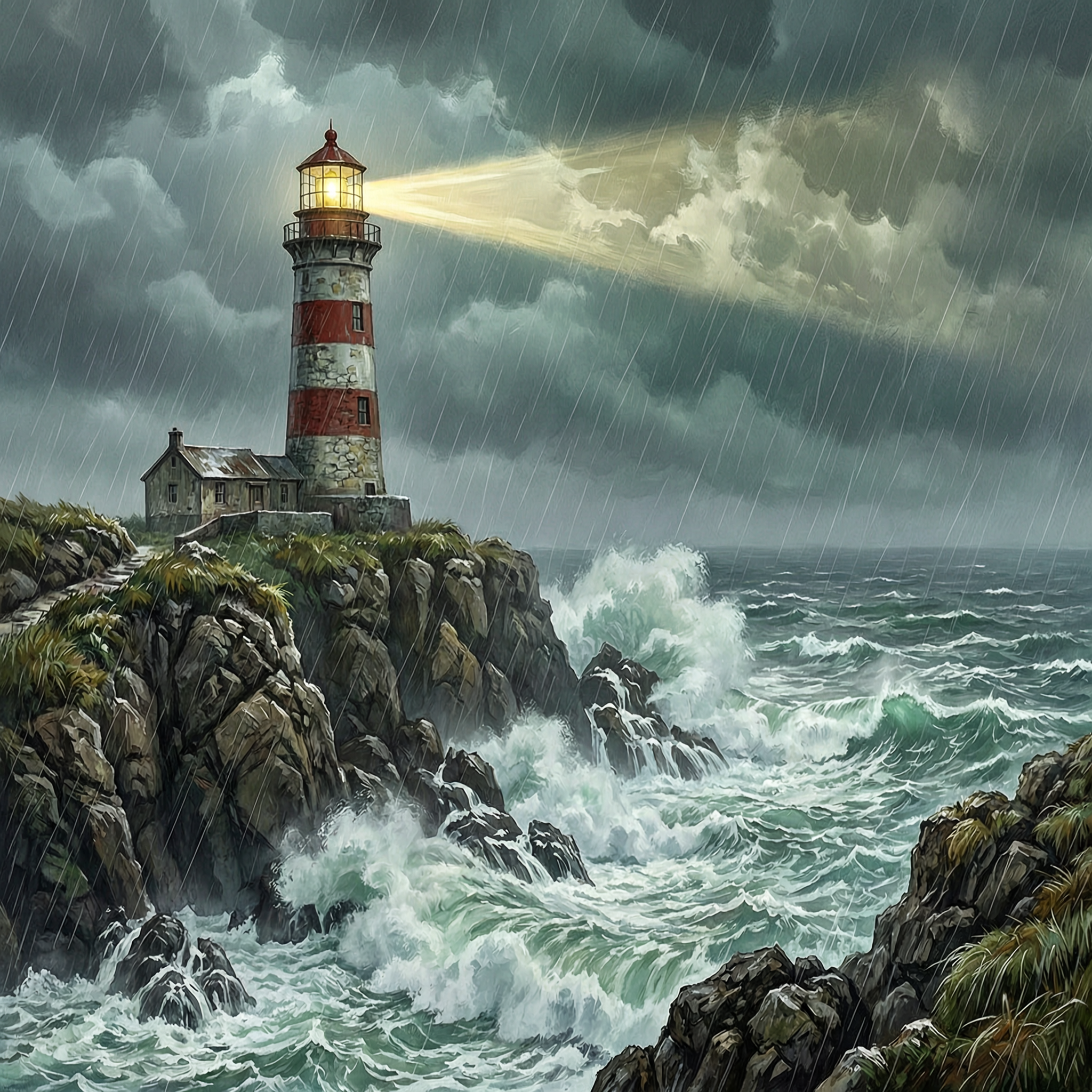
Wan-cinematic
image-to-image
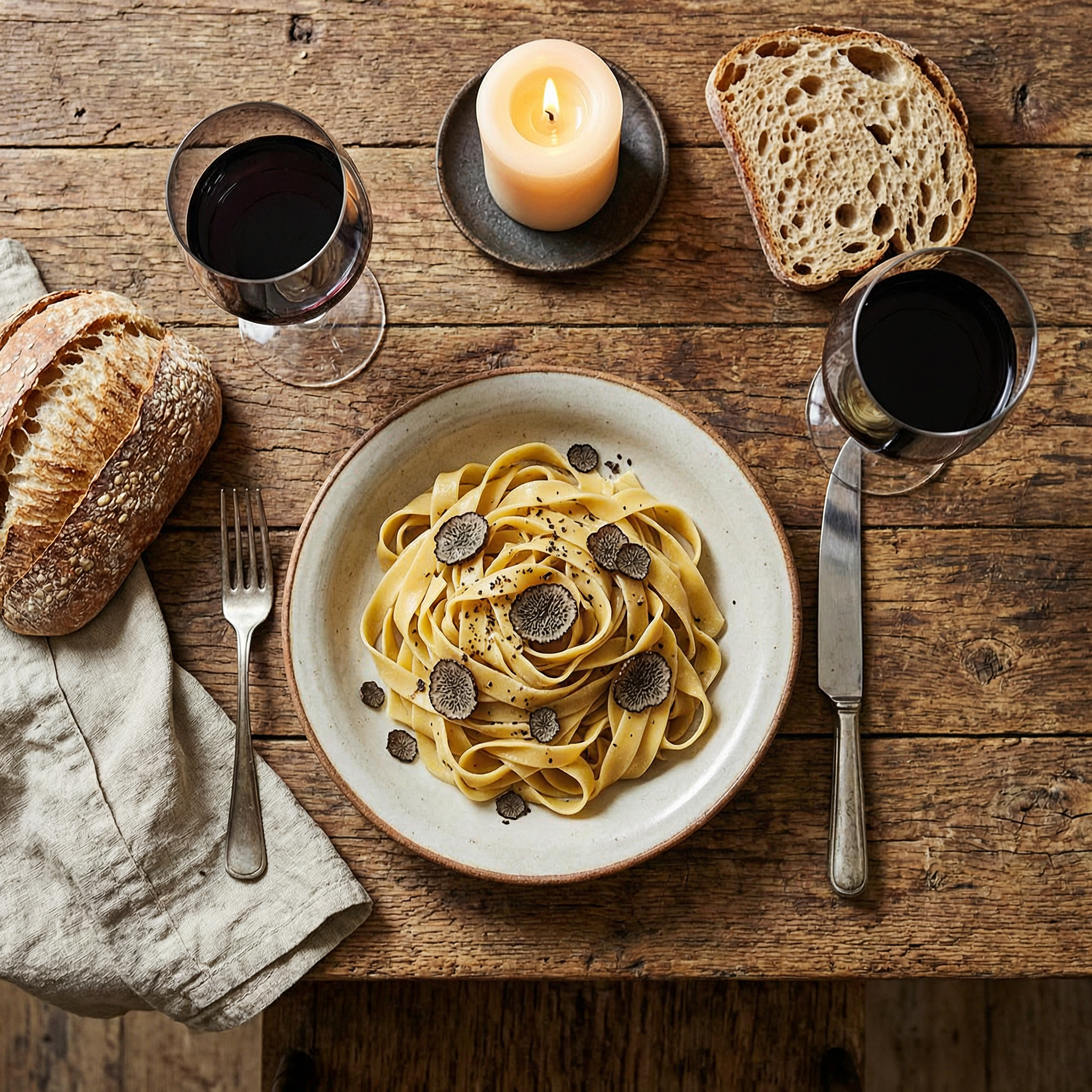
Wan-food
image-to-image
Models you can run on PixelDojo for reference to video wan
Switch models without switching tools. Each one runs in the same PixelDojo studio.
What you can do with reference to video wan on PixelDojo
Reference Image To Video
We take a still you provide and generate a Wan video that follows its subject, framing, and look so you can turn a keyframe into a short clip.
Keep Character And Style
We use your reference to hold identity, wardrobe, and visual style across frames, which helps the Wan output stay on-model instead of drifting.
Guided Motion From Stills
We let you describe camera and subject motion on top of the reference so Wan animates the scene while staying tied to the source image.
Iterate Clips In One Place
We give you prompt, reference, and generation controls together so you can rerun Wan clips, compare takes, and pick the version that matches your brief.
Thousands of creators worldwide trust PixelDojo's 40+ AI tools to produce professional videos every day. Join them and start creating with WAN Reference to Video—cancel anytime.
Why Choose Pixel Dojo for reference to video wan
Professional-quality results with cutting-edge AI technology
Lock in Perfect Character Identity Across Every Scene
Your talent, mascot, or product looks exactly like the reference photos you uploaded. Faces, outfits, and details stay consistent from the first frame to the last so viewers never notice a shift. You can finally build series, ads, and stories that feel cohesive without reshoots.
Combine Multiple References Into One Cohesive Video
Drop in up to three images—one for the main character, one for supporting elements, one for overall style—and watch PixelDojo's WAN Reference to Video blend them into a single scene. You get creative control that used to require a full production team.
Deliver Professional Videos With Synced Audio Fast
Generate 5- to 15-second clips at 720p or 1080p complete with matching sound. Then refine them with WAN 2.7 Video Edit, Video Autocaption, or FLUX Video Upscale. You walk away with finished assets ready for social, ads, or presentations.
How It Works
Creating consistent videos with WAN Reference to Video takes just a few clicks. Start with the references you already have and let PixelDojo handle the rest.
Step 1: Choose Your Tool and Prepare References
Open Generate Videos and select WAN Reference to Video (or WAN 2.6 Video / WAN 2.7 Video for extra options). If you need fresh reference images first, generate them with Flux.2 Studio, Nano Banana 2, or GPT Image 2. Upload 1–3 clear photos: main character first, additional elements second, style third. PixelDojo also supports WAN 3.0 for even richer multi-reference control.
Step 2: Write Your Scene Prompt
Describe the action, camera movement, lighting, and mood in natural language. Address your references directly (character1 walks toward the camera, character2 waves). Add details like “cinematic 16:9, golden hour, slow dolly in.” The model uses your images to keep identity locked while following your direction. Pair with Consistent Characters or Ideogram Character if you want extra identity strength.
Step 3: Generate, Refine, and Download
Pick duration, resolution, and audio options, then hit generate. Review the clip, then enhance it with WAN 2.7 Video Edit, Video Autocaption, Video Reframe, or FLUX Video Upscale. Download the finished MP4. You can also swap faces later with WAN Video Character Swap or Kling Video Character Swap for extra flexibility.
The Pixel Dojo Advantage
Why PixelDojo outperforms other options for WAN reference to video generation
| Others | Pixel Dojo |
|---|---|
| Traditional video production | You skip location scouting, talent booking, and hours of shooting. Upload photos you already have and get broadcast-ready clips in minutes instead of days. |
| Generic AI video tools | Most tools let faces drift after a few seconds. PixelDojo's WAN Reference to Video plus Consistent Characters and WAN Video Character Swap keep identity rock-solid across every frame. |
| Manual photo-to-video editing | You no longer spend hours keyframing or rotoscoping. One prompt plus your references produces motion, lighting, and audio that would take a specialist all afternoon. |
Loved by creators on PixelDojo
Real feedback from people using PixelDojo, pulled from our in-product surveys.
A well resourced sunscription with attention to updates.
Easy to use and there's lots of options.
super lora download
Great variety of tools to create and modify images and video.
Lots of Tools, and the one time I needed support I got help right away
Easy to use once you get the hang of it
Explore more AI tools on PixelDojo
AI Tools
Compare & Switch
- Best AI Image Generators
- Best AI Video Generators
- Midjourney Alternatives
- Civitai Alternatives
- Runway Alternatives
- Leonardo Alternatives
- Pika Alternatives
- Luma Alternatives
- Magnific Alternatives
- Veo Alternatives
- Flux Alternatives
- Freepik Alternatives
- Seedance Alternatives
- Seedream Alternatives
- Pixverse Alternatives
- GPT Image Alternatives
- Synthesia Alternatives
- Playground Alternatives
- NightCafe Alternatives
- Canva AI Alternatives
- ElevenLabs Alternatives
- ComfyUI Alternatives
- Fal Alternatives
- Replicate Alternatives
Common Questions
Everything you need to know about reference to video wan
What is WAN reference to video and how does PixelDojo make it easy?
WAN reference to video lets you upload photos or short clips so the AI copies the exact look of your character, product, or style into a new video. On PixelDojo you simply choose WAN Reference to Video, drop in 1–3 images, write a scene description, and generate. The result stays true to your references while adding professional motion and audio. You can then polish it with WAN 2.7 Video Edit or Video Autocaption.
How many reference images can I use with WAN 2.6 and WAN 2.7 reference to video?
PixelDojo's WAN Reference to Video currently supports up to three reference images for the best consistency. Use the first for your main character, the second for extra objects or people, and the third for overall style. Later versions like WAN 3.0 expand this further, and you can always create extra references first with Flux.2 Studio or Seedream 5.
Can I create product videos that keep my exact branding with WAN reference to video?
Yes. Upload clear photos of your product from multiple angles plus a style reference. PixelDojo's WAN Reference to Video plus Marketing Studio and Flux Pro Virtual Try-On keep logos, colors, and packaging identical while adding dynamic camera moves and lighting. Finish with Background Remover or Reality Polisher if needed.
Does WAN Reference to Video on PixelDojo generate synchronized audio?
Yes. You can generate native dialogue, sound effects, and background audio that match the visuals. After generation, use Video Autocaption or Seed Audio 1.0 to refine the soundtrack. This saves you from separate voice-over sessions.
How do I get the best character consistency with WAN reference to video?
Start with high-quality, well-lit reference photos that show the face clearly. Use Consistent Characters or Ideogram Character to generate extra matching stills first. In your prompt, name the references (character1, character2) and keep lighting and camera similar to the originals. Then apply WAN Video Character Swap if you need a final identity tweak.
Which other PixelDojo tools work best with WAN Reference to Video?
Create references with Nano Banana 2, GPT Image 2, or QWEN Image 2. After generation, use WAN 2.7 Video Edit, Kling Video Edit, Video Reframe, Merge Videos, or FLUX Video Upscale. For faces, add Face Swap, LoRA Face Swap, or Kling Avatar. Everything lives in one dashboard so you never leave PixelDojo.