ai outpaint AI Generator
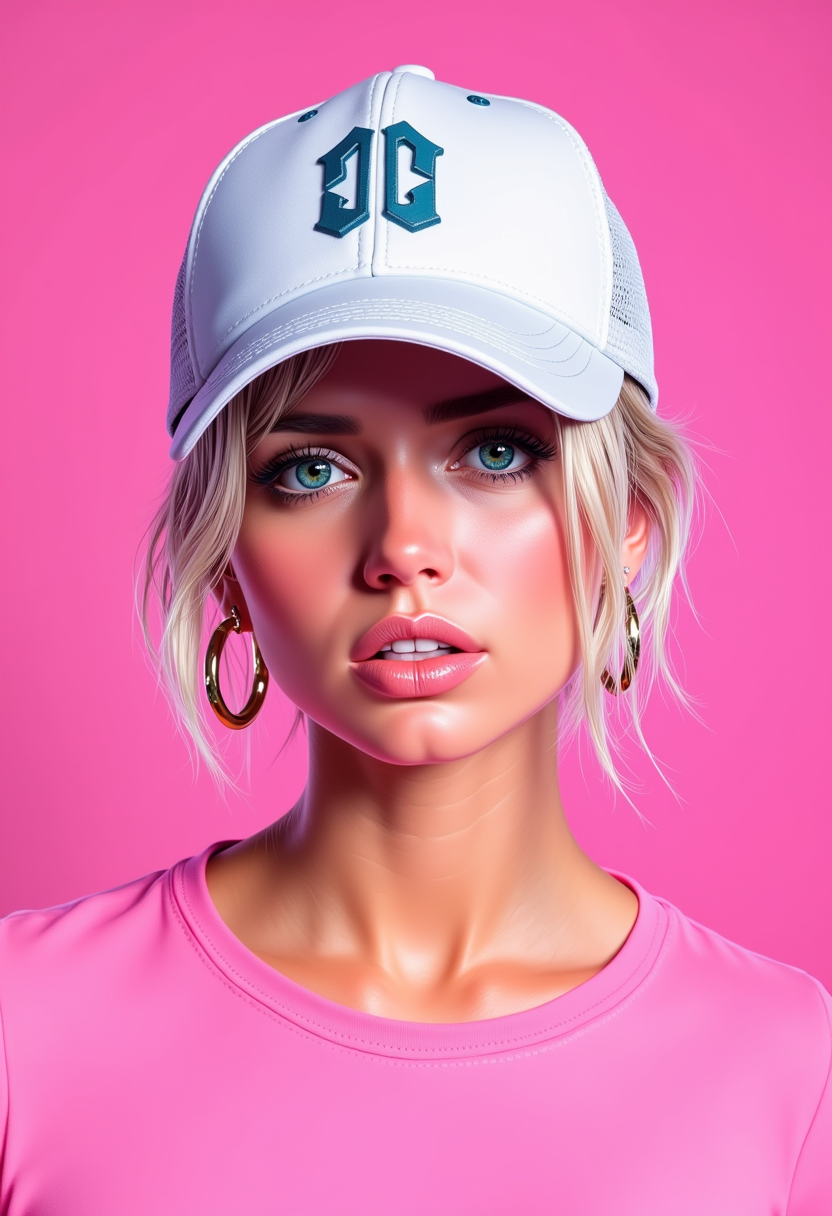
Generated on PixelDojo. Produced by PixelDojo's generation pipeline.
Turn any tightly framed photo into a breathtaking wide shot, cinematic banner, or perfectly sized social graphic without cropping a single important detail. PixelDojo's AI outpainting lets you expand images in any direction while the new content matches lighting, textures, perspective, and mood so naturally that viewers never notice the original edges. You upload a square product shot and instantly receive a 16:9 hero image ready for ads. You take a vertical phone photo and transform it into a landscape wallpaper that feels like it was always that wide. Marketers, photographers, and designers achieve professional results in seconds instead of hours of manual work. PixelDojo combines dedicated Image Outpainting with generators such as Flux.2 Studio, GPT Image 2, Nano Banana 2, and Seedream 5 so every expansion stays true to your original vision. Join thousands of creators using 40+ cutting-edge AI tools—cancel anytime.
Real image examples generated on PixelDojo
Every example below was produced on PixelDojo. Hover to see the prompt.
A photo of ANA$
flux
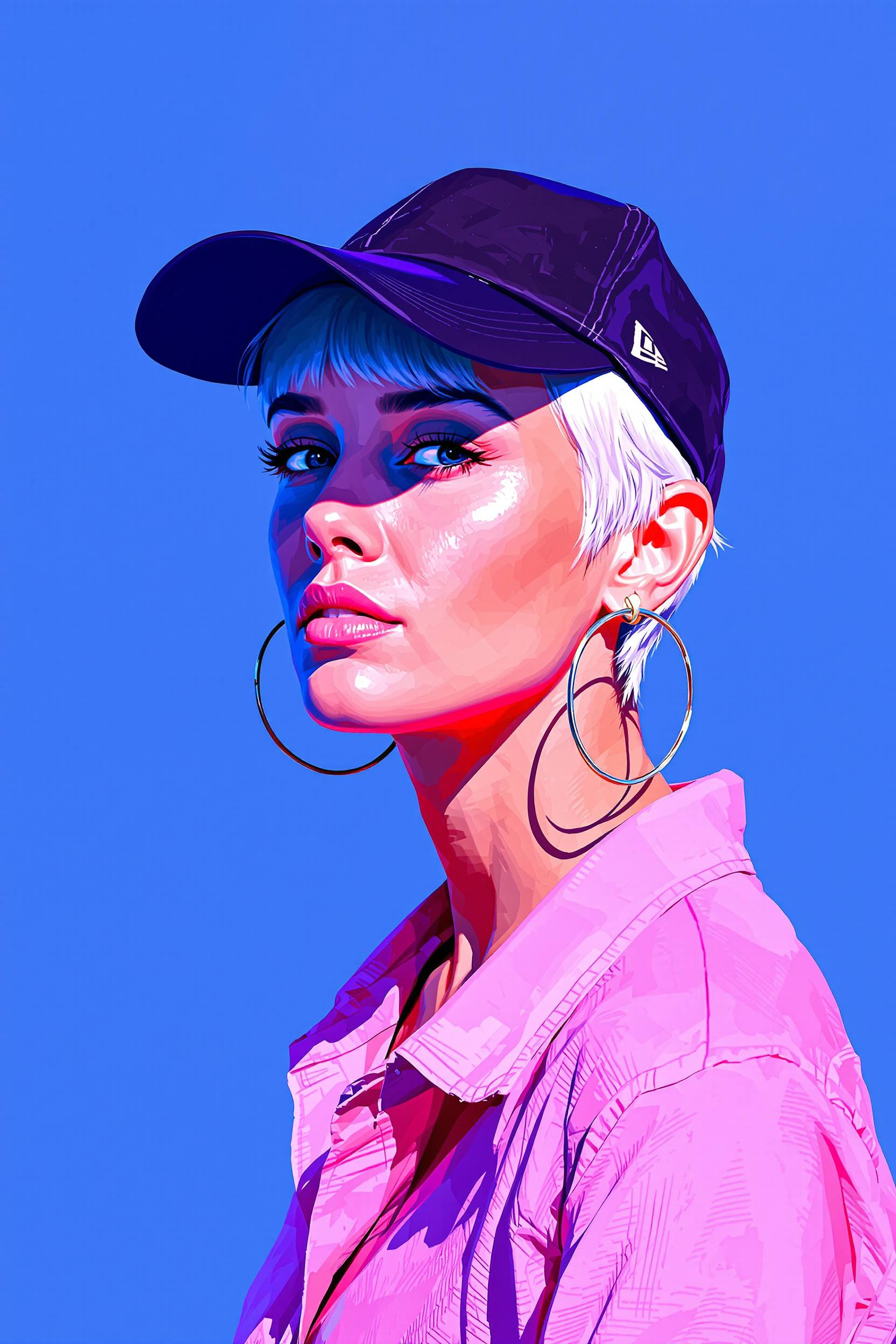
A woman with short white hair
flux
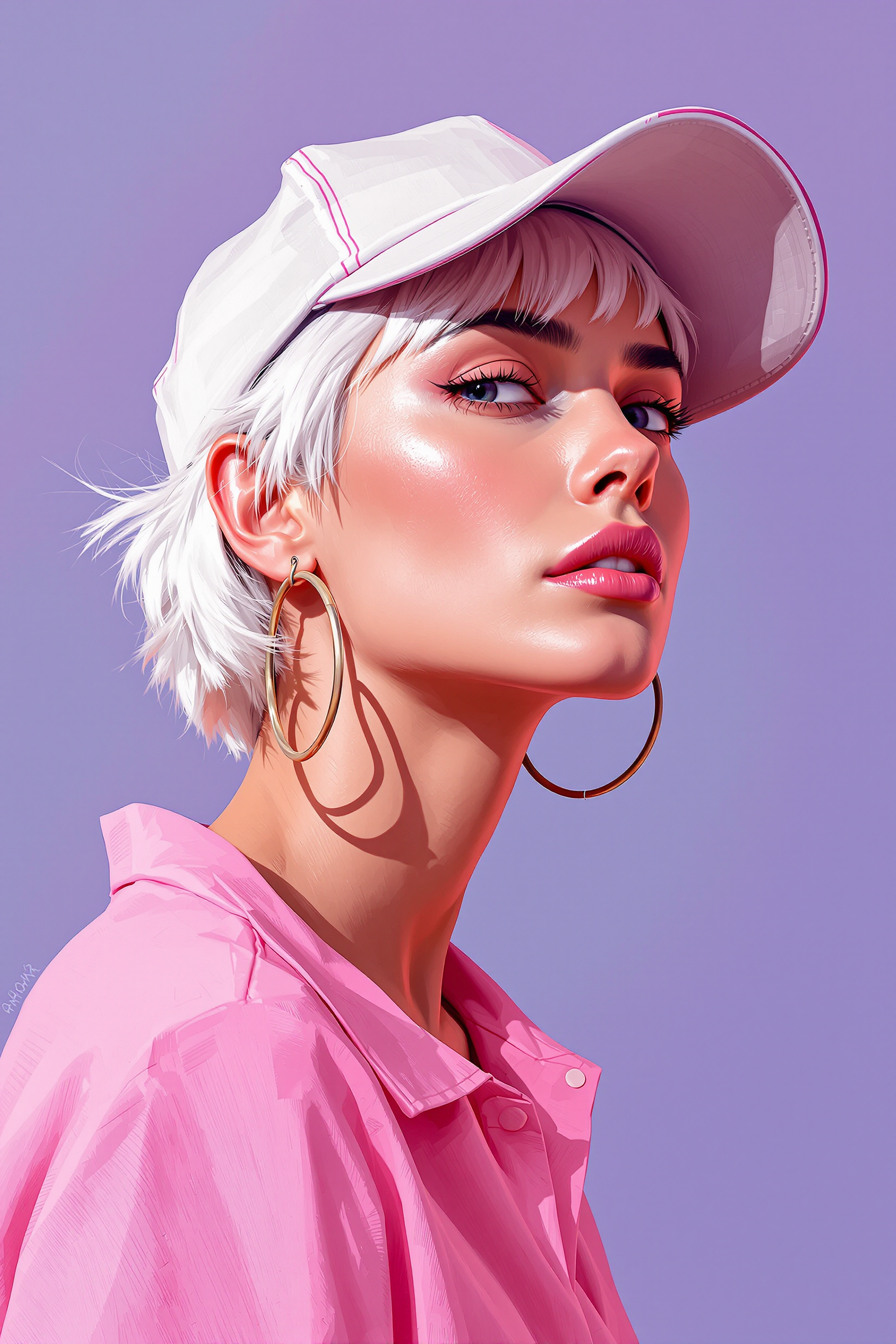
A woman with short white hair
flux
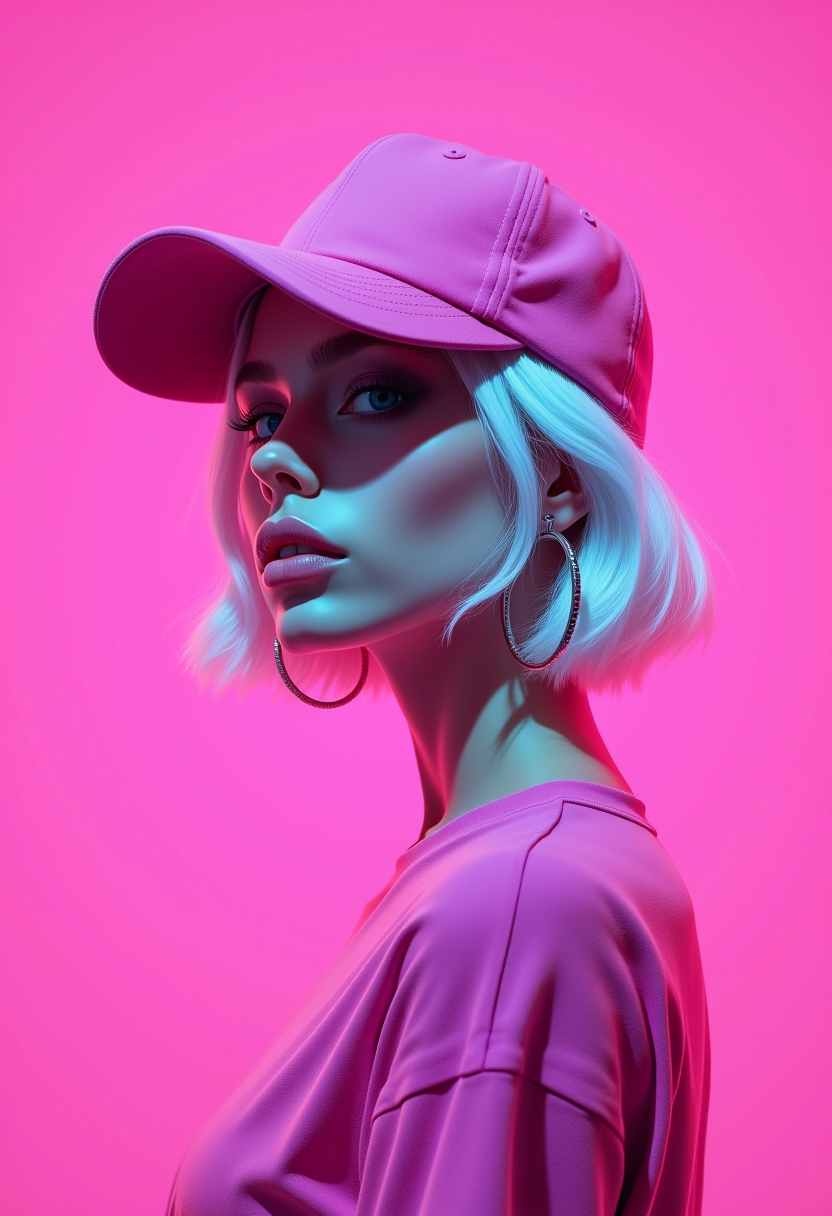
ai outpaint on PixelDojo
flux
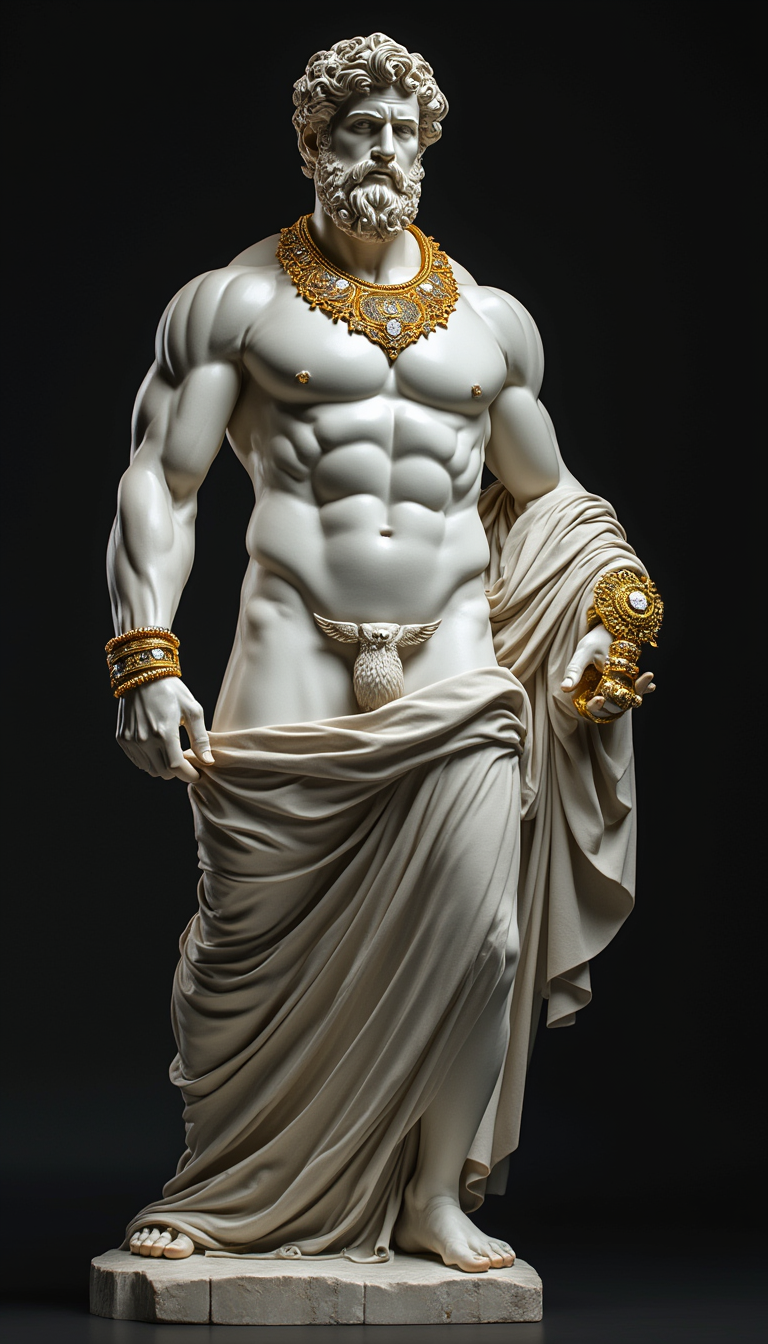
A hyper-realistic Greek marble statue with extremely well-defined and exaggerated muscles
stable-diffusion
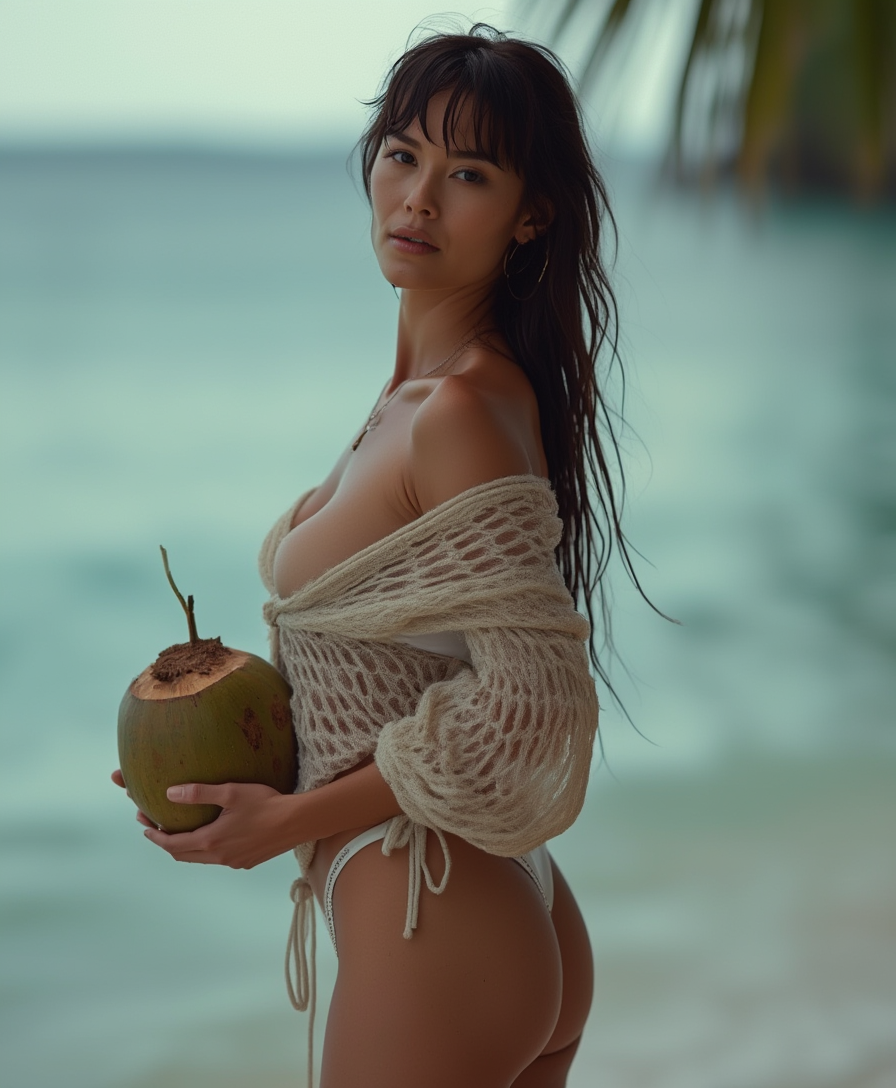
Middle aged
flux
Models you can run on PixelDojo for ai outpaint
Switch models without switching tools. Each one runs in the same PixelDojo studio.
What you can do with ai outpaint on PixelDojo
Expand Beyond the Frame
We extend your image in any direction so the new canvas still matches lighting, texture, and composition. You keep the original subject and grow the scene around it.
Preserve Style and Grain
Outpainted regions follow the same color, brushwork, and camera look as the source. We aim for a continuous picture rather than a visible patch.
Set Ratio and Direction
Grow a crop into a banner, square, or taller frame without cutting the part you already like. You choose which edges to fill and how large the result should be.
Iterate Only the Edges
Regenerate the extended area until the join looks natural, then export at the size you need. We leave the locked original pixels in place while you refine the rest.
Loved by thousands of creators worldwide. Users expand images daily for social campaigns, print, and client work with consistently high ratings for seamlessness and speed.
Why Choose Pixel Dojo for ai outpaint
Professional-quality results with cutting-edge AI technology
Perfect Aspect Ratios Without Losing Your Subject
Convert any crop into 16:9 banners, 9:16 stories, or custom print sizes while keeping every person, product, and landmark fully visible. New surroundings appear as if they belonged in the original scene.
Lighting and Style That Match Perfectly
The AI reads color temperature, shadows, textures, and perspective from the edges of your photo and continues them so the expansion looks photographed, not generated. No more mismatched skies or repeating patterns.
Professional Output in Seconds, Not Hours
Skip cloning, healing, and painstaking blending. Generate, then refine instantly with Inpainting, Reality Polisher, or Magnific Upscaler for print-ready files that clients love.
How It Works
Expanding images with PixelDojo is fast and intuitive. Start with any photo or generate a new one using Flux.2 Studio, then use the dedicated Image Outpainting editor to grow the canvas while preserving quality.
Step 1: Upload Your Image and Choose Expansion
Open Edit Images and select Image Outpainting. Upload a photo or one you just created with Flux.2 Studio, Grok Image, or QWEN Image 2. Pick the sides to expand and set your target aspect ratio or exact dimensions. High-quality originals with simple edges like sky or walls produce the most natural results.
Step 2: Add Optional Guidance and Generate
Describe what should appear in the new areas if you want control, for example continuing a forest with extra trees and matching golden-hour light. Or leave the prompt empty so the model continues automatically from the existing edges. PixelDojo models understand context deeply for coherent scenes.
Step 3: Refine and Download High-Resolution Results
Review the expanded image. Use Inpainting for small tweaks, Magic Lighting or Style Transfer for atmosphere, then upscale with P-Image Upscale or Clarity Pro. Download instantly. Combine with Background Remover or Image Analyzer if needed for even more polished commercial assets.
The Pixel Dojo Advantage
Why PixelDojo outperforms other options for AI outpainting image generation
| Others | Pixel Dojo |
|---|---|
| Traditional image expansion methods | You get natural scene continuation that respects lighting and perspective instead of obvious cloned patches or stretched pixels that look amateur. |
| Generic AI tools | Dedicated Image Outpainting plus Flux.2 Studio and GPT Image 2 deliver superior edge blending, higher resolution, and consistent style matching that generic generators often miss. |
| Manual photo editing | Hours of careful cloning and color matching become seconds of generation followed by quick refinements using Inpainting and Reality Polisher, with far fewer visible seams. |
Loved by creators on PixelDojo
Real feedback from people using PixelDojo, pulled from our in-product surveys.
the amount you can do on this site
all in one place
It is a lot of fun to uae and easy too.
So many different models to try out
You keep adding to it to stay up to date and that is GOLD.
very easy to use and good support
Explore more AI tools on PixelDojo
AI Tools
Compare & Switch
- Best AI Image Generators
- Best AI Video Generators
- Midjourney Alternatives
- Civitai Alternatives
- Runway Alternatives
- Leonardo Alternatives
- Pika Alternatives
- Luma Alternatives
- Magnific Alternatives
- Veo Alternatives
- Flux Alternatives
- Freepik Alternatives
- Seedance Alternatives
- Seedream Alternatives
- Pixverse Alternatives
- GPT Image Alternatives
- Synthesia Alternatives
- Playground Alternatives
- NightCafe Alternatives
- Canva AI Alternatives
- ElevenLabs Alternatives
- ComfyUI Alternatives
- Fal Alternatives
- Replicate Alternatives
Common Questions
Everything you need to know about ai outpaint
What is AI outpainting and how does PixelDojo help me expand photos?
AI outpainting generates new content beyond the original borders of an image so it fits any size or aspect ratio. PixelDojo's Image Outpainting tool analyzes the edges of your photo for lighting, texture, and composition, then creates matching surroundings. You can start with images from Flux.2 Studio or Seedream 5, expand in one or more directions, and refine with Inpainting. The result looks like it was captured that way originally, perfect for banners, social posts, and print.
How do I get the best results when using AI outpainting for social media formats?
Begin with a strong original image that has relatively simple edges such as sky, walls, or blurred backgrounds. Expand 25-30 percent at a time rather than stretching dramatically in one pass. Add a short prompt that matches the existing mood and lighting. PixelDojo lets you generate with WAN Image or Kling Image first, then outpaint, and finish with Video Reframe or Extract Frame if you need motion later. This workflow produces platform-ready 9:16 or 16:9 files quickly.
Can PixelDojo outpaint photos that include people or complex scenes without artifacts?
Yes. The models read perspective lines, anatomy, and lighting so people and objects continue naturally when they sit near the edge. For best quality keep subjects away from the extreme border on the first pass and extend in stages. Follow up with Face Swap or Reality Polisher if tiny details need polishing. Flux.2 Studio and Ideogram 4 integrations help maintain character consistency across the new areas.
Which PixelDojo tools work together with Image Outpainting for professional results?
Generate your starting image with Flux.2 Studio, GPT Image 2, Nano Banana 2, or Recraft V4.1. Expand using Image Outpainting. Then apply Inpainting for local fixes, Change Camera Angle for new viewpoints, Style Transfer for artistic looks, Magic Lighting for atmosphere, and P-Image Upscale or Magnific Upscaler for large prints. Character tools such as Consistent Characters keep faces identical if you expand portraits.
Is AI outpainting on PixelDojo suitable for commercial use and high-resolution output?
Absolutely. You receive high-resolution files ready for ads, websites, and print. Combine outpainting with Creative Upscaler or Portrait Upscaler, then export. PixelDojo's 40+ tools including Developer API let agencies and brands produce unlimited commercial assets. Cancel anytime, so you only pay while you create.
How can I outpaint images to any custom size or extreme aspect ratio with PixelDojo?
Upload to Image Outpainting, set exact pixel dimensions or choose common ratios, and generate. For very large expansions work in stages and use global context from models like Qwen 3 Pro or Hunyuan Image 3. After expansion, run Clarity Pro or FLUX Video Upscale if you later animate the scene. The process stays simple yet gives you complete control over the final canvas.