animate image with motion reference
Generated on PixelDojo. Produced by PixelDojo's generation pipeline.
You already have the perfect still image—a product shot, a character portrait, or a lifestyle photo. Now you need it to move. With PixelDojo you simply pair that image with a motion reference video and the AI transfers natural movement, camera work, and expressions while locking in every detail of your original photo. The result is a polished, ready-to-publish clip that looks like you filmed it, without a camera crew, studio time, or extra budget. Marketers turn catalog photos into scroll-stopping ads. Creators give illustrated characters walking, talking, and reacting. Brands reuse approved stills as full video campaigns. All of this happens inside one platform that already includes WAN Reference to Video, P Video Animate, Kling Video, Seedance 2.5, and WAN 2.7 Video so you never leave the workflow. You stay in control of identity, lighting, and composition while the motion feels organic and cinematic. Start with any image you already love and walk away with video that performs.
Real video examples generated on PixelDojo
Every example below was produced on PixelDojo. Hover to see the prompt.
Image hands match the videos movements
image-to-video
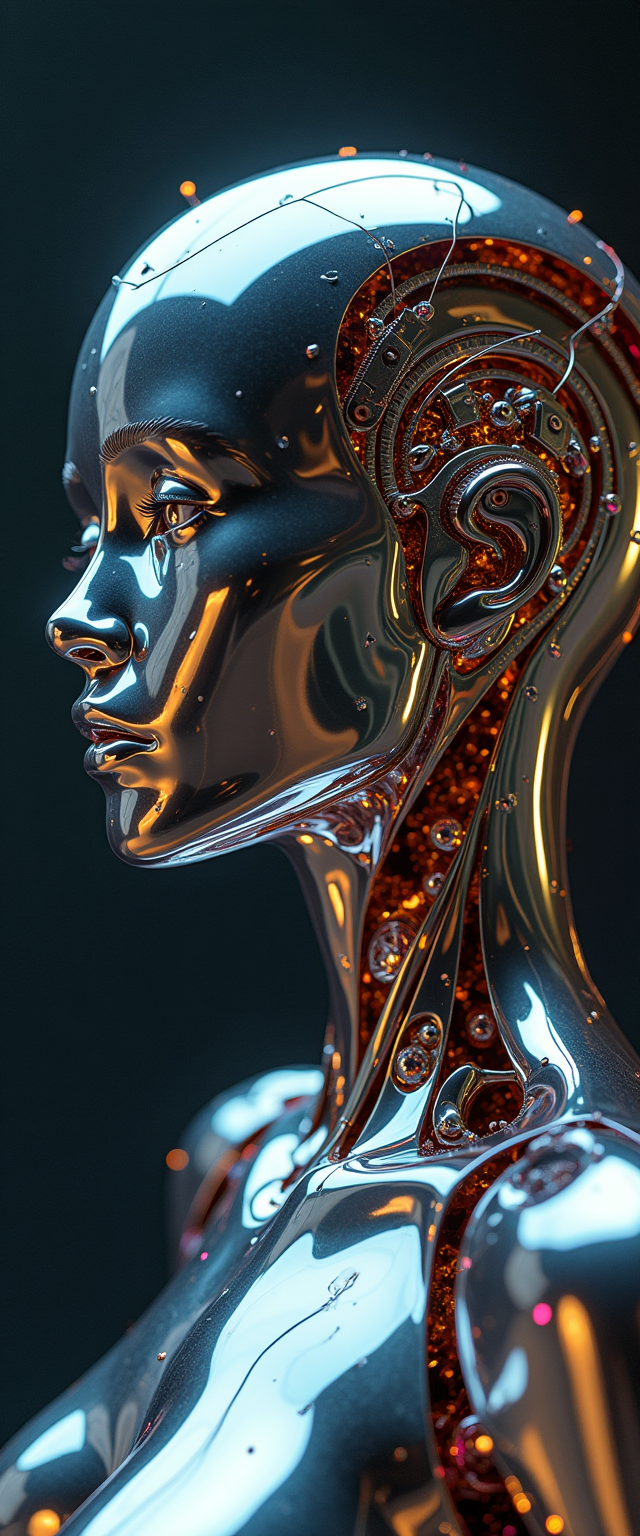
A breathtakingly detailed
stable-diffusion
Add soft atmospheric haze and depth
kling-video-edit
Will Smith eating spaghetti
image-to-video
OmniHuman 1
image-to-video
A dog running through a bog
image-to-video
Models you can run on PixelDojo for animate image with motion reference
Switch models without switching tools. Each one runs in the same PixelDojo studio.
What you can do with animate image with motion reference on PixelDojo
Motion from a reference clip
We take your still image and a short motion reference so the output video follows the same movement, timing, and camera feel.
Keep the original subject
We animate the frame while preserving identity, outfit, and composition so the person or product stays recognizable across the clip.
Control pace and duration
We let you set clip length and how strongly the reference motion is applied so you can match a shot or keep motion subtle.
Export ready video files
We generate downloadable video from your image and motion reference so you can drop the result into edits, ads, or social posts.
Loved by thousands of creators worldwide. 40+ cutting-edge AI tools in one place. Cancel anytime. Trusted for marketing, character work, and product animation every day.
Why Choose Pixel Dojo for animate image with motion reference
Professional-quality results with cutting-edge AI technology
Keep Identity and Style Perfectly Intact
Your subject’s face, clothing, lighting, and background stay locked while motion from the reference video is applied. Portraits, products, and illustrated characters look like they were filmed, not generated.
Turn Existing Photos into High-Performing Video Ads
Reuse approved stills as full social, web, and ad campaigns. No reshoots, no extra production days. Generate multiple motion versions in minutes and test what converts.
Direct Exact Motion with a Simple Reference Clip
Upload a walking shot, a head-turn, or a camera orbit and the AI copies that movement onto your image. Combine with text prompts for extra camera or lighting control.
How It Works
Three straightforward steps inside PixelDojo turn any still image plus a motion reference into a finished video. No technical setup required.
Step 1: Choose Your Tool and Upload the Still Image
Open Generate Videos and pick WAN Reference to Video, P Video Animate, or Kling Video. Drag in your high-quality still photo—product, portrait, or illustration. The platform automatically treats it as the first frame so identity and composition stay exact.
Step 2: Add Your Motion Reference and Optional Prompt
Upload a short, clear video that shows the movement you want—walking, smiling, camera push-in, or object interaction. Add a simple text prompt if you want extra camera path or lighting change. PixelDojo’s models transfer the motion while preserving every visual detail of your original image.
Step 3: Generate, Refine, and Download
Hit generate. Review the clip, then use Video Autocaption, Video Reframe, or FLUX Video Upscale if you need captions, different aspect ratios, or extra sharpness. Download in seconds. Iterate instantly if you want a different motion or longer duration.
The Pixel Dojo Advantage
Why PixelDojo outperforms other options for animate image with motion reference
| Others | Pixel Dojo |
|---|---|
| Traditional filming and animation | Skip location, talent, and post-production. Generate multiple motion versions from one still in minutes instead of days. |
| Generic AI video tools | PixelDojo gives you dedicated WAN Reference to Video, Seedance 2.5, and Kling Video models built for identity lock and precise motion transfer, plus editing and upscaling in the same workspace. |
| Manual frame-by-frame editing | No rotoscoping or keyframing. The AI handles temporal consistency, lighting match, and natural secondary motion automatically. |
Loved by creators on PixelDojo
Real feedback from people using PixelDojo, pulled from our in-product surveys.
it's very easy to use
Practically every Ai suite in one place? Who wouldn't?
versatile menu of tools
Best AI tool availble the suite is rad
Versatility quality, value, ROI, innovation
variety of tools available and prompt tools
Explore more AI tools on PixelDojo
AI Tools
Compare & Switch
- Best AI Image Generators
- Best AI Video Generators
- Midjourney Alternatives
- Civitai Alternatives
- Runway Alternatives
- Leonardo Alternatives
- Pika Alternatives
- Luma Alternatives
- Magnific Alternatives
- Veo Alternatives
- Flux Alternatives
- Freepik Alternatives
- Seedance Alternatives
- Seedream Alternatives
- Pixverse Alternatives
- GPT Image Alternatives
- Synthesia Alternatives
- Playground Alternatives
- NightCafe Alternatives
- Canva AI Alternatives
- ElevenLabs Alternatives
- ComfyUI Alternatives
- Fal Alternatives
- Replicate Alternatives
Common Questions
Everything you need to know about animate image with motion reference
How do I animate a still image with a motion reference video on PixelDojo?
Choose WAN Reference to Video or P Video Animate, upload your still image as the starting frame, then upload a short motion reference clip. Add an optional prompt for camera or lighting. Generate and download. The AI copies the movement while keeping your original photo’s identity and style intact.
Which PixelDojo tools work best for animating images with motion reference?
WAN Reference to Video is purpose-built for this. Kling Video, Seedance 2.5, WAN 2.7 Video, and P Video Animate also deliver excellent identity preservation and natural motion. Marketing Studio lets you batch product shots into campaign-ready clips.
Can I keep my product or character looking exactly the same while adding motion?
Yes. PixelDojo’s reference-to-video models treat your still image as the locked first frame. Face, clothing, lighting, and background stay consistent across every generated frame so the result looks filmed, not synthesized.
What kind of motion reference video should I use?
Use a short, well-lit clip that clearly shows the action you want—walking, head turn, smile, camera orbit, or object interaction. Avoid busy backgrounds or multiple overlapping movements. PixelDojo extracts the motion and applies it cleanly to your still.
How long can the animated videos be and what resolutions are available?
Most tools support 5–15 second clips at 720p or 1080p. You can extend with Grok Imagine Video Extend or upscale with FLUX Video Upscale. Marketing Studio and Seedance 2.5 handle longer, multi-shot sequences when you need them.
Is there a way to edit or refine the animation after generation?
Absolutely. Use Kling Video Edit, WAN 2.7 Video Edit, Video Reframe, Merge Videos, or Extract Frame. Add captions with Video Autocaption or polish lighting with Magic Lighting. Everything stays inside PixelDojo so you never lose quality or consistency.