ai voice scene generator
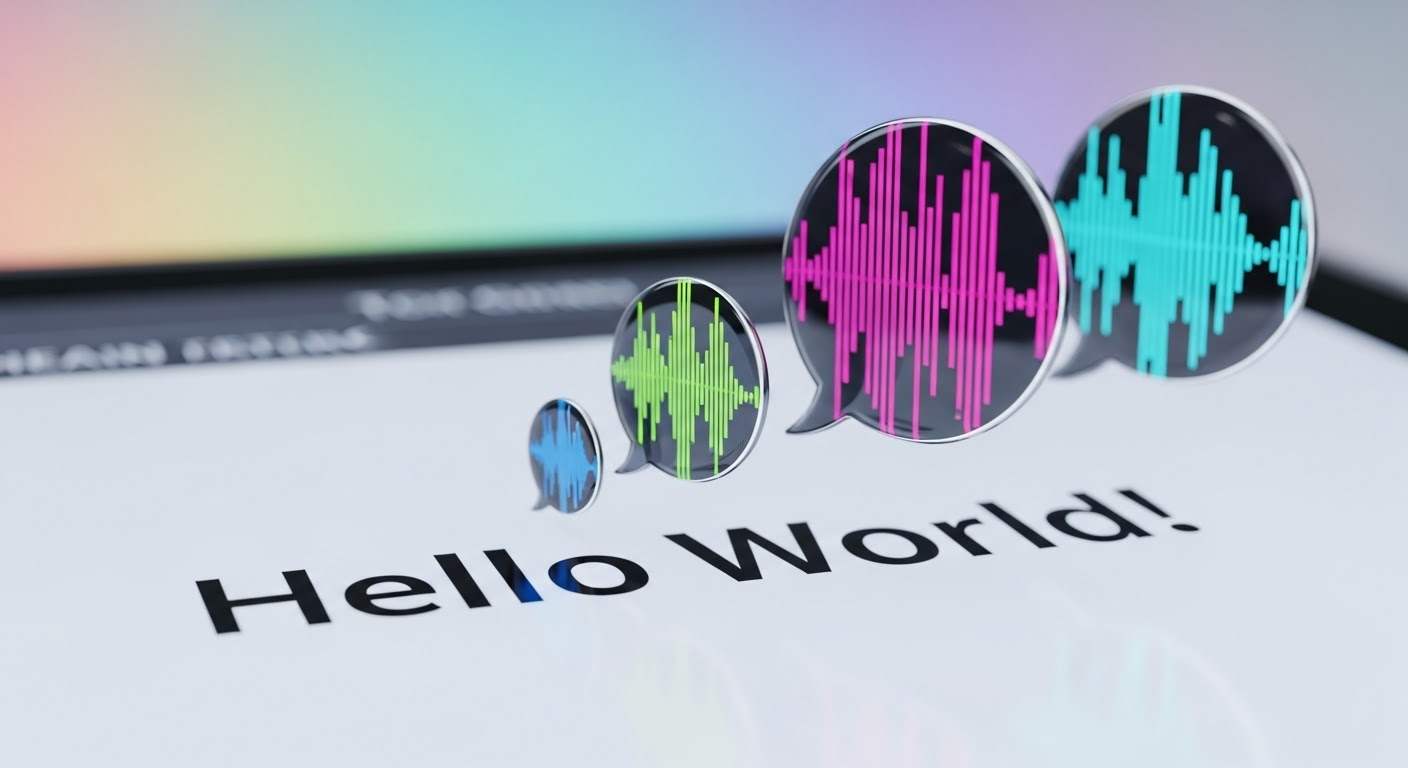
Generated on PixelDojo. Produced by PixelDojo's generation pipeline.
You have a powerful story in your voice, but you need visuals that make it unforgettable. PixelDojo's AI voice scene generator lets you transform spoken ideas, AI voiceovers, and dialogue into cinematic images and videos that hook viewers instantly. Describe the emotion, setting, and characters in your voice scene, then watch as tools like Flux.2 Studio and VEO 3.1 deliver professional-grade stills and motion that feel like they were shot on location. Content creators, marketers, podcasters, and filmmakers use this to produce complete productions without cameras, studios, or crews. You achieve scroll-stopping thumbnails, storyboard frames, and full video sequences that sync naturally with Seed Audio 1.0 or Text to Speech output. Every scene you generate carries the mood of the voice—tense whispers in rain, triumphant speeches at sunset, intimate conversations in warm lighting—so your audience feels the story before they even hear the words. Stop wasting hours on stock photos that never quite fit. Start creating original, on-brand visuals that elevate every voice-driven project and convert viewers into loyal fans.
Real image examples generated on PixelDojo
Every example below was produced on PixelDojo. Hover to see the prompt.
Text turning into speech
imagen
Text turning into speech
imagen
Text turning into speech
imagen
Text turning into speech
imagen
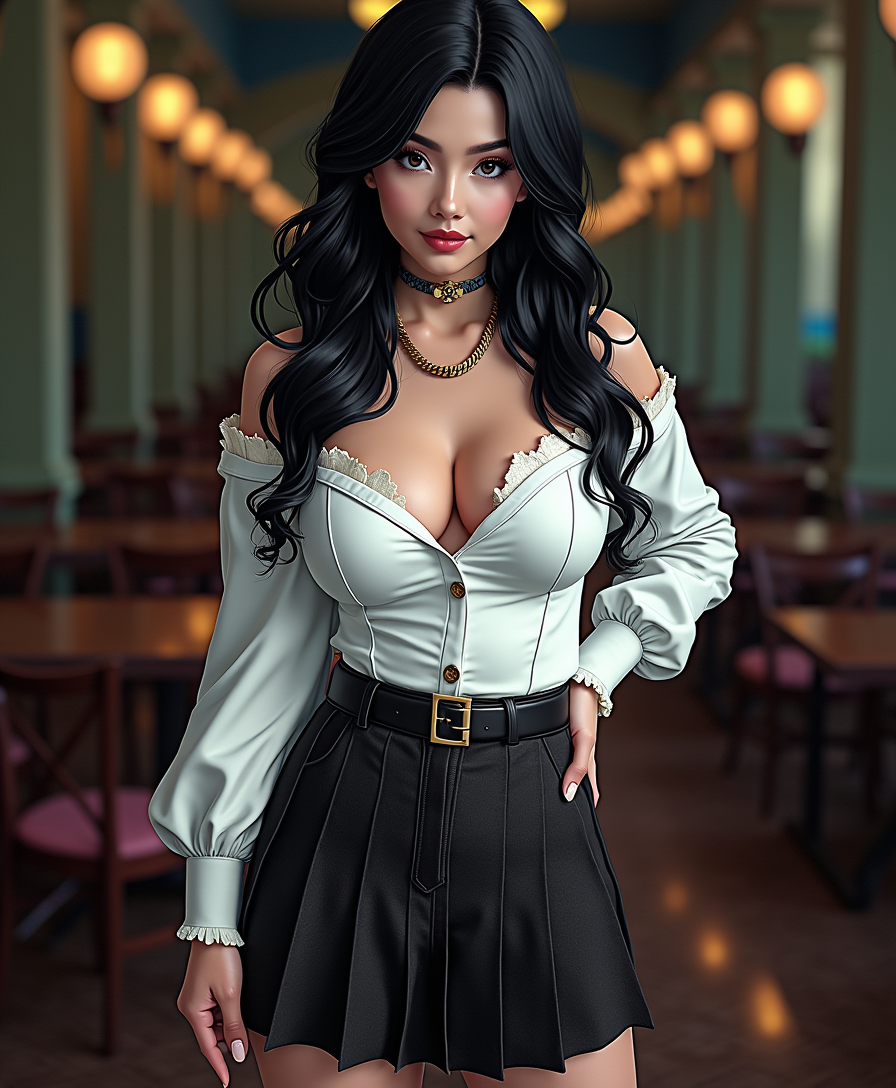
Anime character
flux
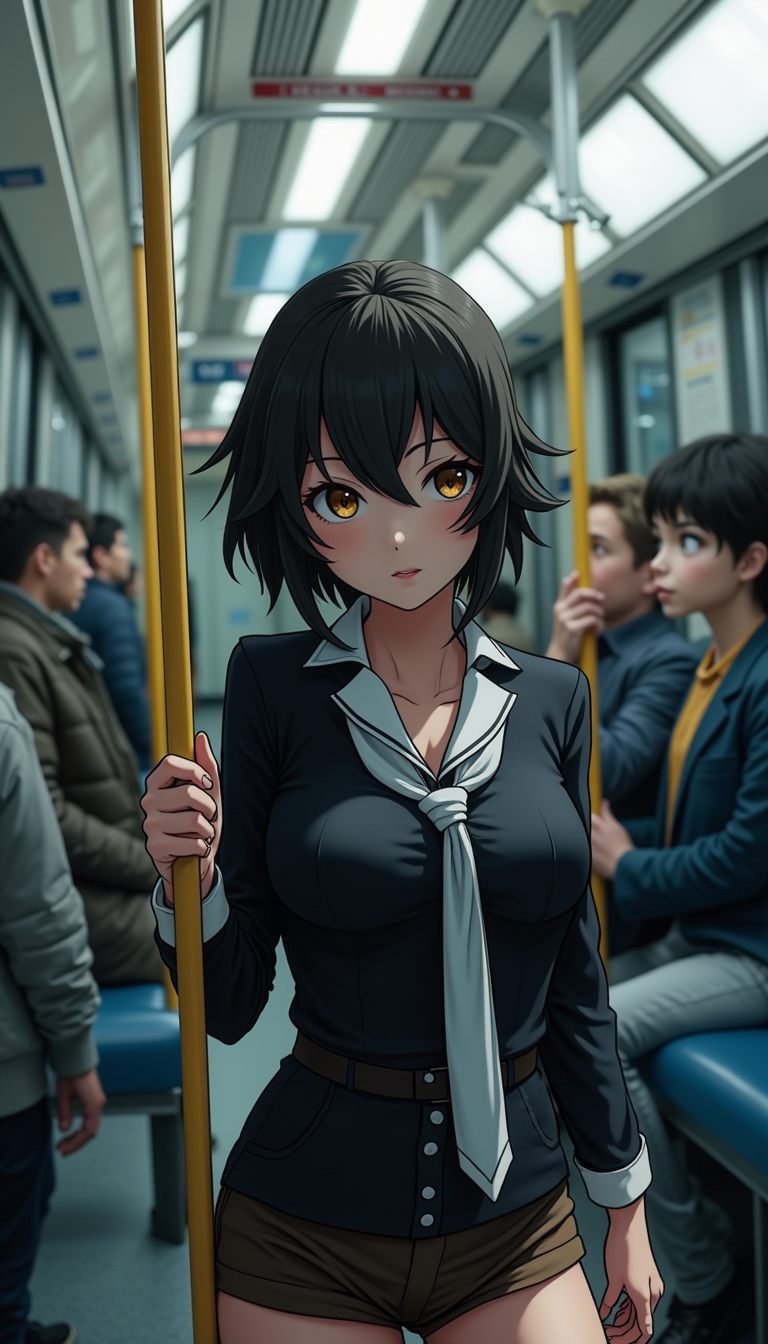
Anime character
flux
Models you can run on PixelDojo for ai voice scene generator
Switch models without switching tools. Each one runs in the same PixelDojo studio.
What you can do with ai voice scene generator on PixelDojo
Speak Scenes Into Images
We turn spoken scene descriptions into still images so you can draft visuals without typing a prompt. Record or upload audio and we map the words to composition, lighting, and subject.
Voice Driven Shot Control
We let you call camera angle, framing, and mood out loud while we generate matching image variants. Adjust a take with a short voice note instead of rewriting the whole prompt.
Multi Character Scene Layouts
We place people, props, and setting from your spoken blocking so group shots stay readable. You get image options that keep relative positions consistent across takes.
Style Locked Voice Iterations
We keep art style and palette stable while you refine a scene with follow-up voice instructions. Generate new frames that stay on-brief for storyboards, thumbnails, and concept art.
Loved by thousands of creators worldwide who have generated millions of voice-matched scenes. 40+ cutting-edge AI tools delivering consistent, high-quality results you can cancel anytime.
Why Choose Pixel Dojo for ai voice scene generator
Professional-quality results with cutting-edge AI technology
Turn Voice Ideas into Cinematic Visuals Instantly
You describe the scene your AI voice is narrating and receive matching images that capture every emotional beat, lighting cue, and character expression so your story feels complete from the first frame.
Keep Characters Consistent Across Every Voice Scene
You maintain the same faces, outfits, and personalities throughout a series of images or video clips, making multi-scene stories and talking-head sequences look professionally produced.
Produce Complete Voice-Driven Content in One Place
You combine Seed Audio 1.0 voice scenes with Flux.2 Studio stills, Kling Video motion, and editing tools to finish entire videos, ads, or social posts without leaving the platform.
How It Works
You create stunning visual scenes that perfectly complement your AI-generated voice by following three simple steps inside PixelDojo. No technical skills required—just your story and a few clicks.
Step 1: Choose Your Tool
Select Flux.2 Studio or Krea Image for photorealistic stills of your voice scene, Kling Image or Seedream 5 for stylized frames, or jump straight to VEO 3.1 and Kling Video when you want motion that already includes environmental sound. Consistent Characters and Ideogram Character keep faces identical if your scene features speaking people. Pick the tool that matches the mood of the voice you already generated with Seed Audio 1.0 or Text to Speech.
Step 2: Enter Your Prompt
Write a detailed description that includes the voice emotion, camera angle, lighting, and action. Example: “Cinematic medium shot of a determined woman delivering an inspiring speech on a rooftop at golden hour, wind in her hair, city skyline behind her, matching the passionate tone of the voiceover.” Add references to your Seed Audio 1.0 output so the visuals feel timed to the dialogue. The AI interprets the spoken energy and produces images that look like they belong with that exact performance.
Step 3: Customize & Download
Use Image to Image, Style Transfer, Magic Lighting, or Change Camera Angle to refine the result until it matches your voice perfectly. For video, extend clips with Grok Imagine Video Extend or Kling Video Edit, then add captions with Video Autocaption. Download high-resolution files ready for your timeline, social posts, or presentations. You now have visuals that make every word of your AI voice scene hit harder.
The Pixel Dojo Advantage
Why PixelDojo outperforms other options for AI voice scene image generation
| Others | Pixel Dojo |
|---|---|
| Traditional voice scene creation | You skip location scouting, actors, and lighting setups entirely. Generate unlimited variations of any spoken scene in minutes instead of days of shooting and post-production. |
| Generic AI tools | You access specialized models like Flux.2 Studio, VEO 3.1, Seed Audio 1.0, and Consistent Characters in one workflow, so voice, image, and video stay perfectly aligned instead of piecing together mismatched outputs. |
| Manual photo editing | You describe the exact emotion and setting of your voiceover once and receive ready-to-use cinematic frames. No more hunting stock libraries or spending hours compositing elements that never quite match the spoken tone. |
Loved by creators on PixelDojo
Real feedback from people using PixelDojo, pulled from our in-product surveys.
All the tools, plus the guidance
Excellent tools. Ease of use. Well thought out interface. Wide variety of AI tools and features which are up to date with more added each month
I really like how the site is kept up to date, and the leaderboard (where I'm currently #11 most popular artist)
This is the best image generator I've used so far. Well done!
es facil de comprender asi uno no sea programador
amazing web site
Explore more AI tools on PixelDojo
AI Tools
Compare & Switch
- Best AI Image Generators
- Best AI Video Generators
- Midjourney Alternatives
- Civitai Alternatives
- Runway Alternatives
- Leonardo Alternatives
- Pika Alternatives
- Luma Alternatives
- Magnific Alternatives
- Veo Alternatives
- Flux Alternatives
- Freepik Alternatives
- Seedance Alternatives
- Seedream Alternatives
- Pixverse Alternatives
- GPT Image Alternatives
- Synthesia Alternatives
- Playground Alternatives
- NightCafe Alternatives
- Canva AI Alternatives
- ElevenLabs Alternatives
- ComfyUI Alternatives
- Fal Alternatives
- Replicate Alternatives
Common Questions
Everything you need to know about ai voice scene generator
How does an AI voice scene generator create matching visuals with PixelDojo?
You first generate expressive audio with Seed Audio 1.0 or Text to Speech, then feed the same scene description into Flux.2 Studio, Kling Image, or VEO 3.1. The models understand emotional cues, lighting, and character action so the resulting images and videos feel timed to the voice performance. You can iterate with Inpainting or Style Transfer until everything syncs perfectly.
Can I generate images directly from a voice description using PixelDojo tools?
Yes. Describe the spoken scene in natural language—including who is talking, their emotion, the environment, and camera framing—and tools like GPT Image 2, Flux.2 Studio, and Seedream 5 produce high-quality stills. Pair them with Consistent Characters so the same people appear across multiple voice scenes.
What PixelDojo tools work best for cinematic AI voice scene images?
Flux.2 Studio and Krea Image excel at photorealistic cinematic stills. Kling Image and WAN Image deliver dynamic compositions. For talking characters, use Ideogram Character or P-Image Ideogram. When you need motion, VEO 3.1 and Kling Video generate clips that already include environmental audio to complement your Seed Audio 1.0 voiceover.
How do I keep characters consistent in a series of AI voice scene images?
Start with Consistent Characters or Character Sheets to lock in facial features, clothing, and style. Then generate each new scene with the same reference. Face Swap and LoRA Face Swap let you place your chosen faces into any environment while preserving the original voice-matched emotion.
Can I turn AI voice scene images into full videos on PixelDojo?
Absolutely. Take any still you created and animate it with Kling Video, WAN 2.7 Video, or P Video Animate. VEO 3.1 can generate new video directly from your scene prompt and even add matching sound. Then refine with Kling Video Edit, Video Reframe, or Merge Videos to produce a complete voice-driven sequence.
Is there a free way to try the AI voice scene generator on PixelDojo?
You can start creating immediately with access to 40+ cutting-edge tools. Thousands of creators already use the platform daily. There is no long-term commitment—you can cancel anytime after trying the full workflow of voice, image, and video generation.