ai image expander
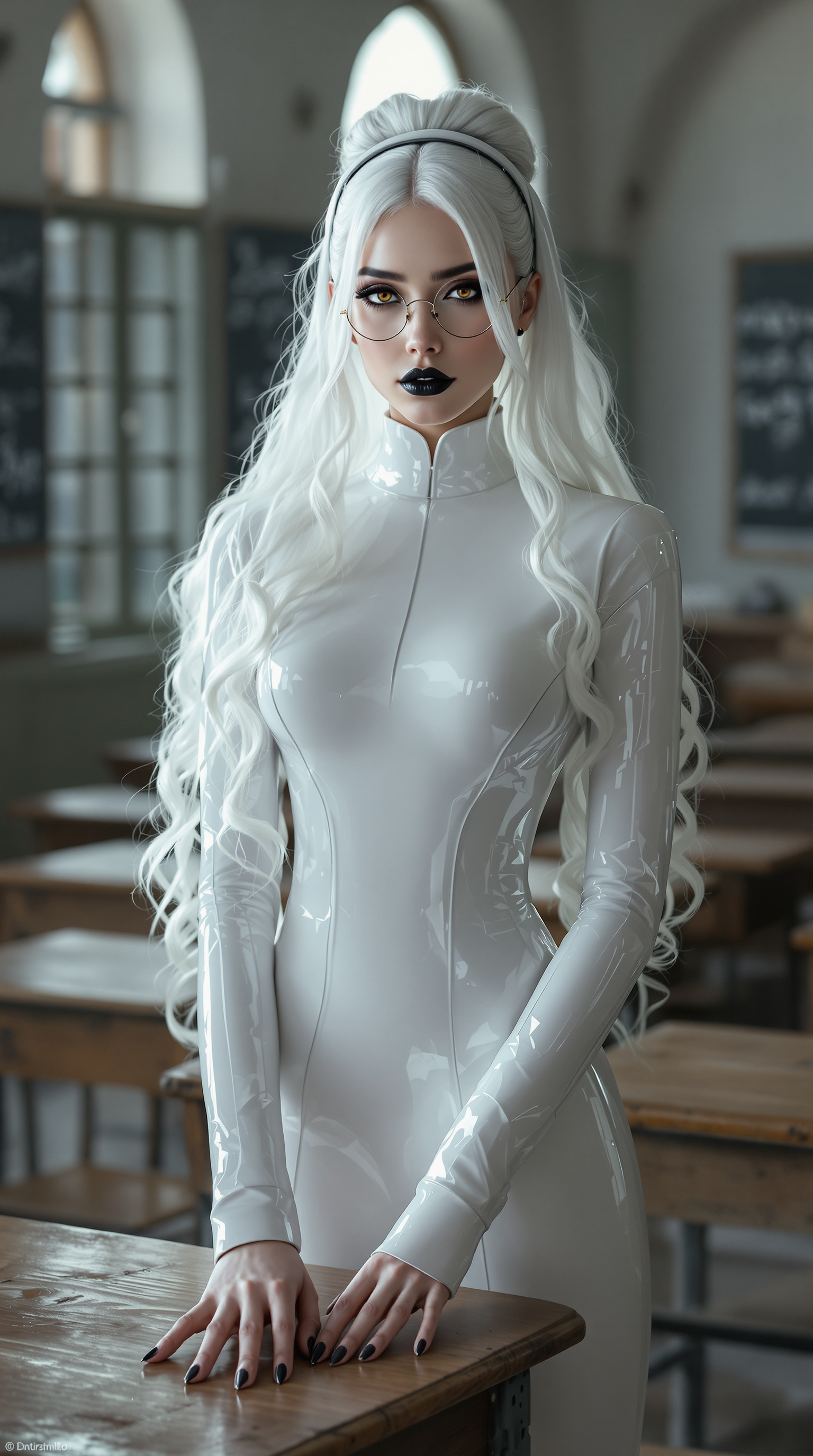
Generated on PixelDojo. Produced by PixelDojo's generation pipeline.
Your best photos often get cropped too tightly for the platforms you need. A square product shot won't fill a 16:9 YouTube thumbnail. A vertical phone capture leaves no room for text overlays on Instagram Stories. An AI image expander solves this instantly. PixelDojo lets you uncrop and outpaint any image so the original subject stays perfectly intact while new, matching scenery, sky, walls, or environment appears around it. You reuse one photo across every format, add professional breathing room, and turn average framing into cinematic compositions without reshooting or spending hours in traditional editors. Creators, marketers, and photographers achieve production-ready results in minutes using PixelDojo's Image Outpainting together with Flux.2 Studio, Nano Banana 2, GPT Image 2, and Magnific Upscaler.
Real image examples generated on PixelDojo
Every example below was produced on PixelDojo. Hover to see the prompt.
A breathtaking full-body portrait of a 29-year-old woman exuding an ethereal
flux
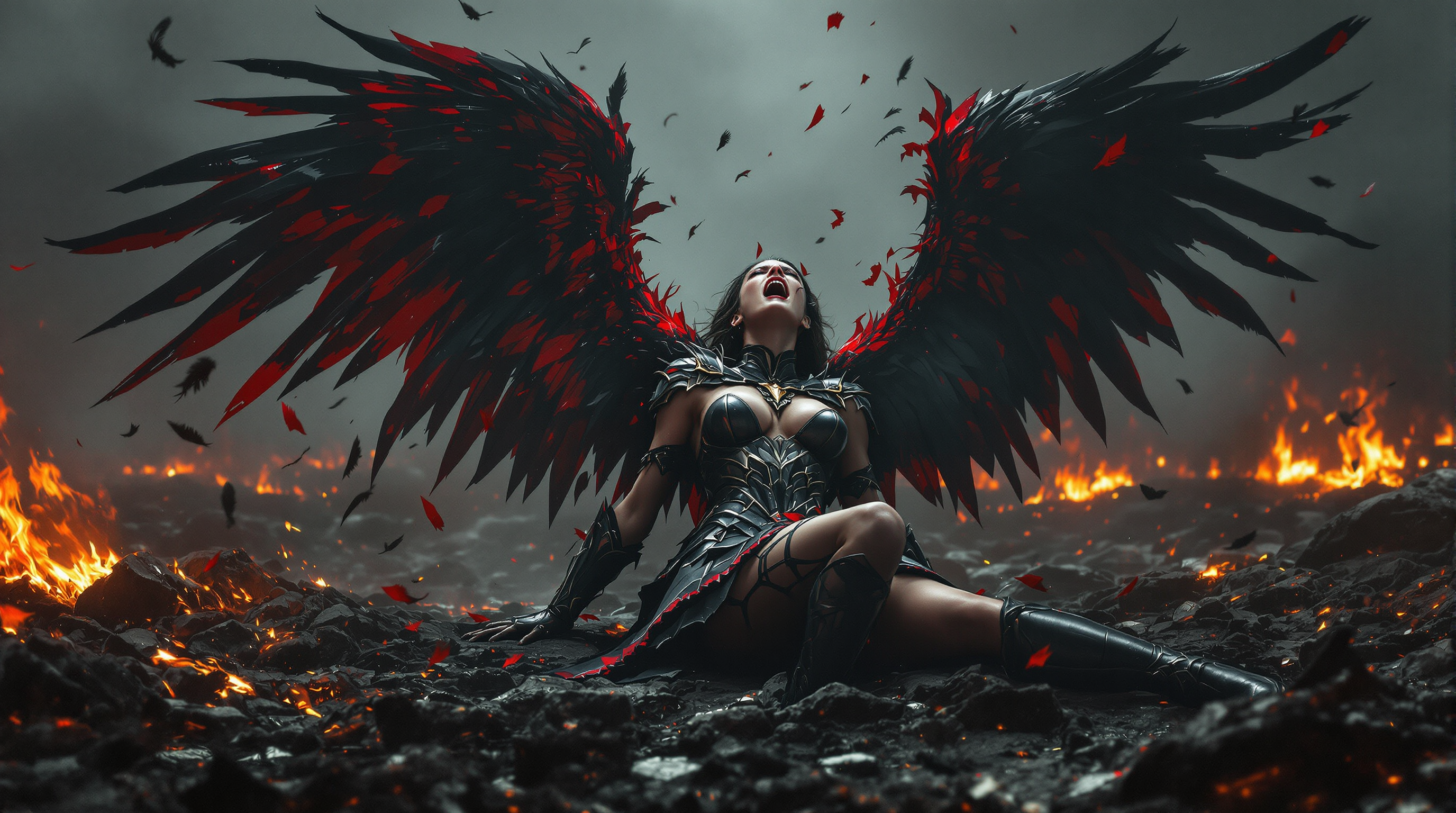
A breathtaking 8K wallpaper depicting a fallen valkyrie queen with her broken wings wearin…
flux
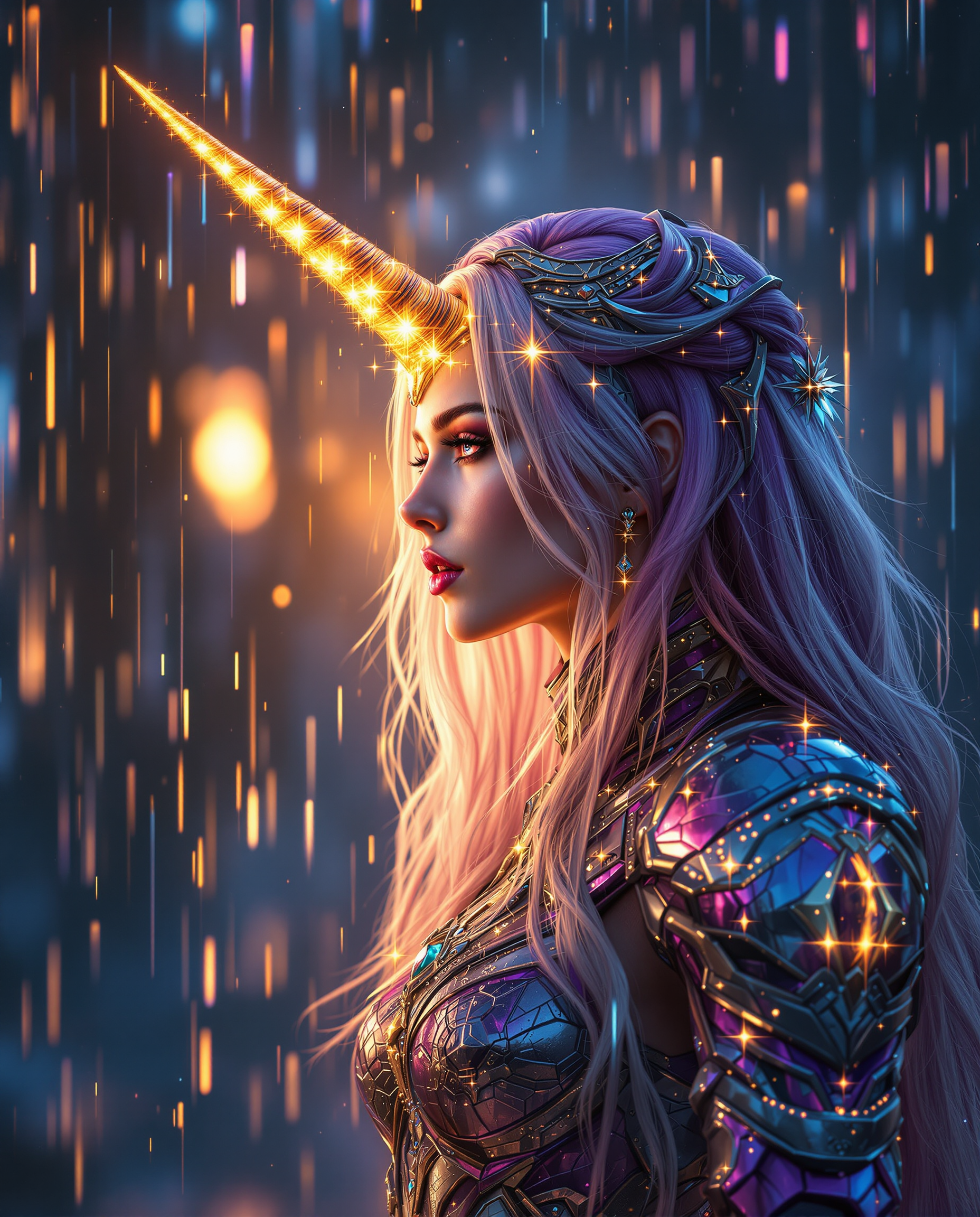
A breathtaking digital painting of a female figure in profile
flux
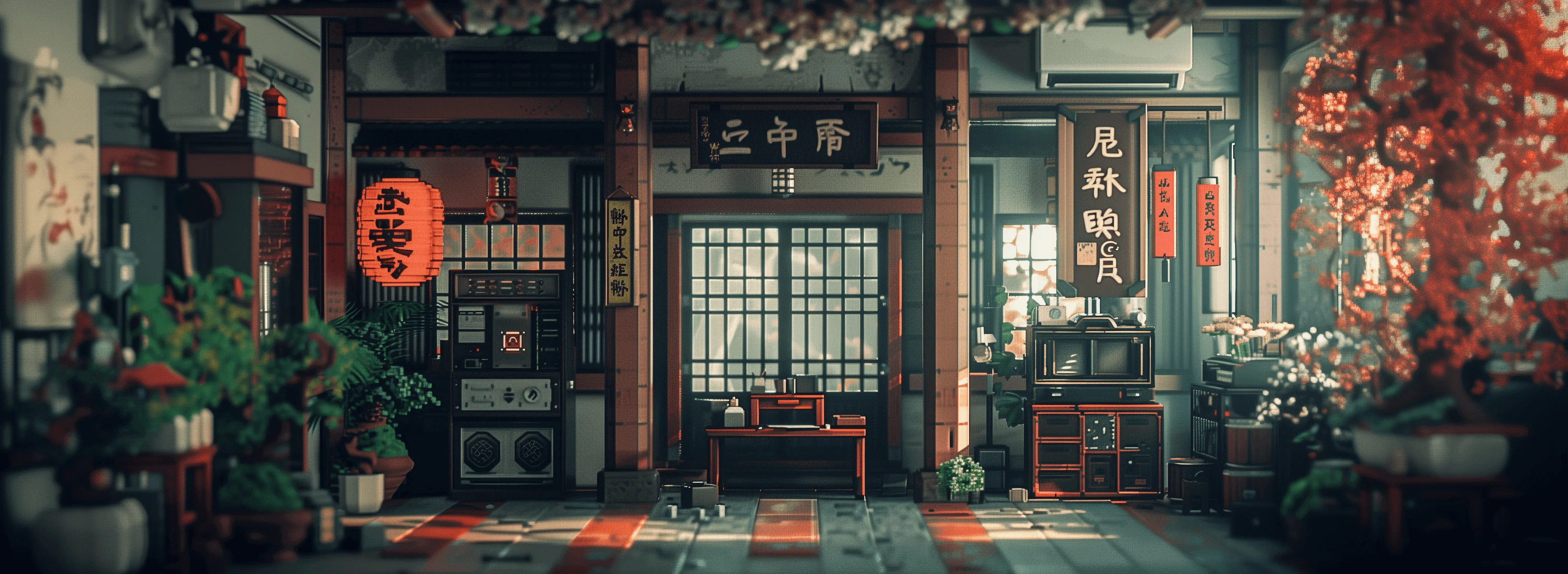
Masterpiece
creative-upscaler
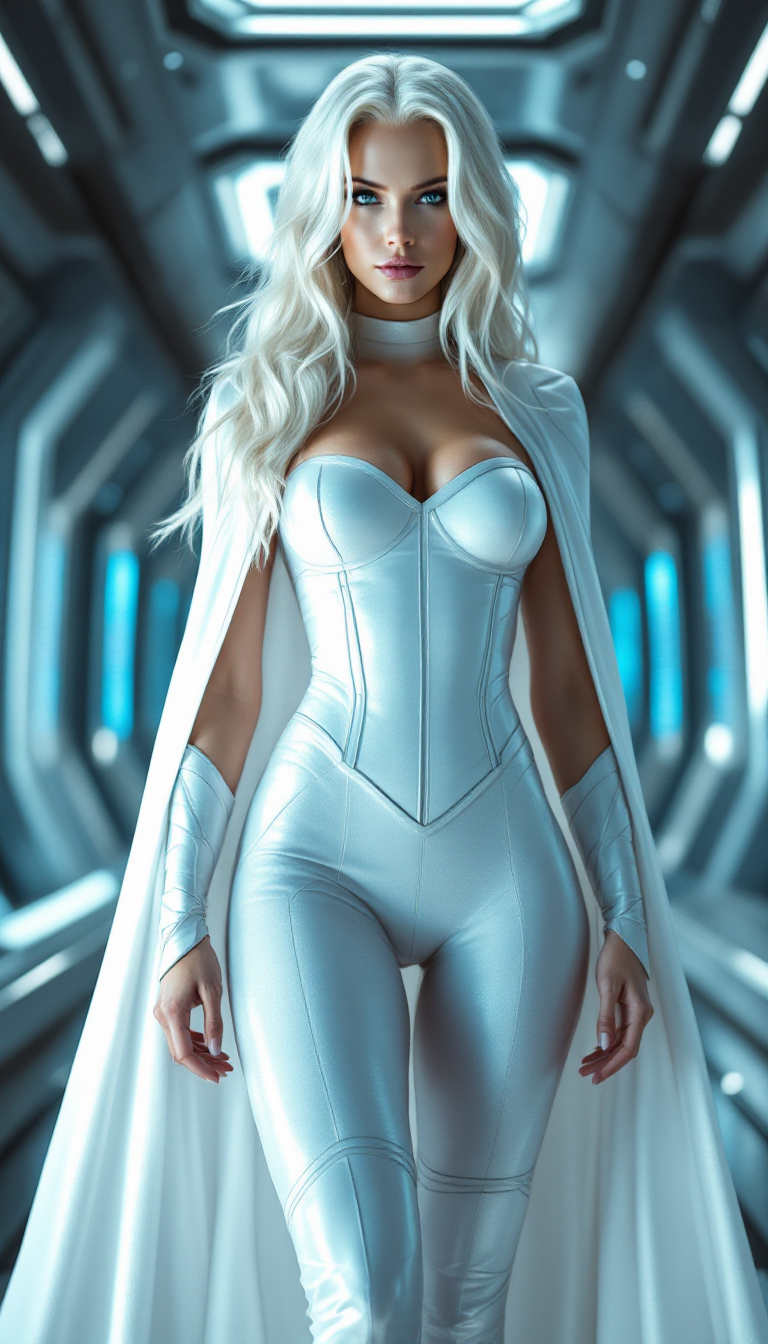
A stunning portrait of Emma Frost
flux
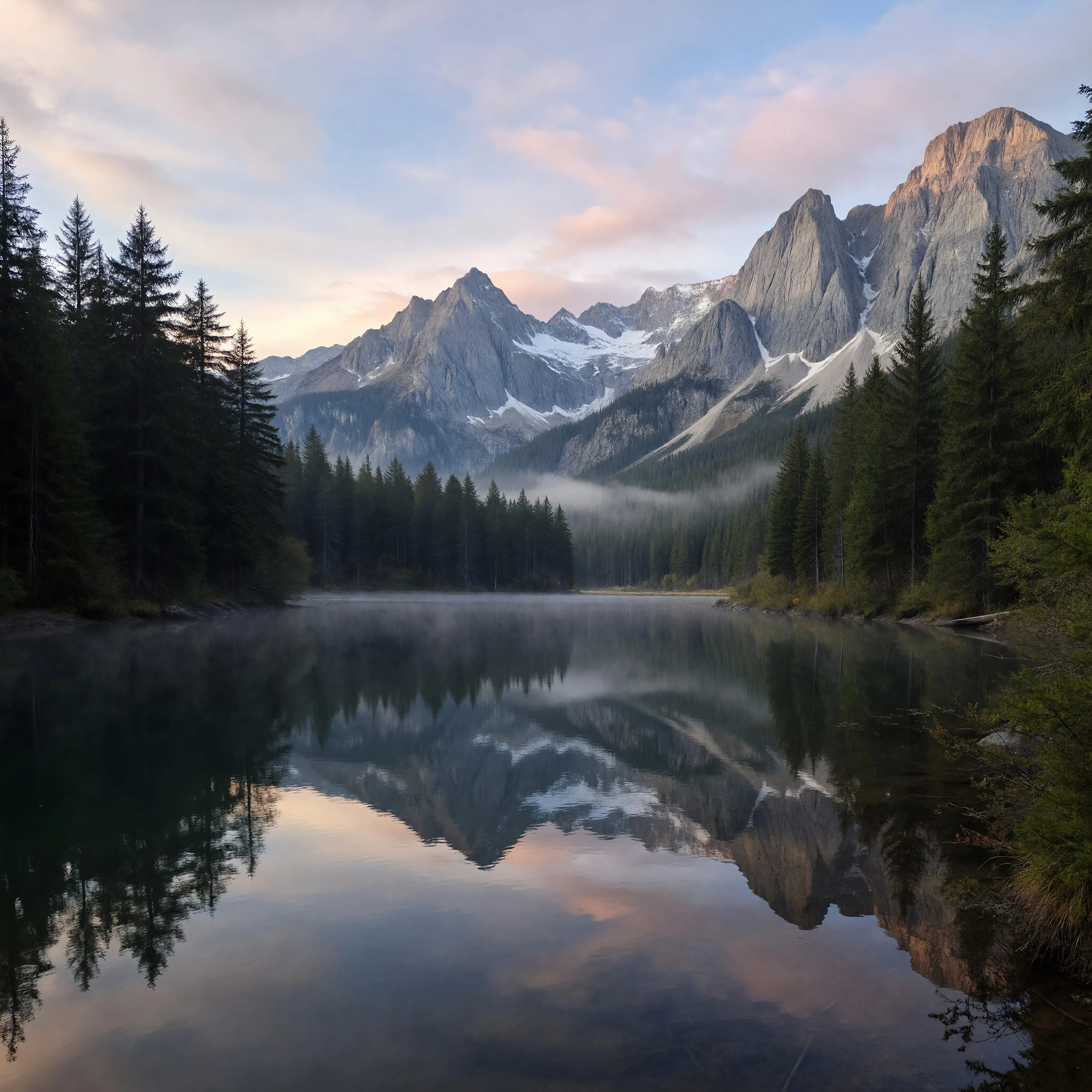
A tranquil alpine lake at dawn with mist rising off the glassy water
imagineart
Models you can run on PixelDojo for ai image expander
Switch models without switching tools. Each one runs in the same PixelDojo studio.
What you can do with ai image expander on PixelDojo
Expand Beyond the Frame
We outpaint your image past the original edges so you can grow a crop, add background, or reframe a shot without starting over.
Match Style and Lighting
We fill new regions so color, texture, and lighting stay consistent with the source image, which helps expanded areas blend with what you already have.
Choose New Aspect Ratios
We let you grow a square into a wide or tall canvas for posts, covers, and print layouts while keeping the original subject in place.
Guide What Gets Added
We accept prompts and masks so you can specify extra scenery, props, or empty space instead of leaving the expander to guess.
Loved by thousands of creators worldwide. Access 40+ cutting-edge AI tools including Image Outpainting, Flux.2 Studio, and Magnific Upscaler. Cancel anytime.
Why Choose Pixel Dojo for ai image expander
Professional-quality results with cutting-edge AI technology
Fit Every Platform From One Photo
Upload a tight crop and expand it to 16:9 banners, 9:16 stories, or custom sizes. Your subject stays centered and sharp while PixelDojo Image Outpainting generates seamless surroundings that match lighting and perspective.
Add Space for Text and Design Instantly
Create extra negative space around products or portraits so headlines, logos, and calls-to-action sit naturally. Expand with Image Outpainting then refine details using Inpainting and Style Transfer for campaign-ready assets.
Rescue Framing and Build Cinematic Scenes
Turn a close-up into a wide establishing shot or complete a landscape that was cut off. Combine Image Outpainting with Flux.2 Studio generations and Magnific Upscaler to deliver high-resolution, story-rich visuals you can use immediately.
How It Works
PixelDojo makes AI image expansion simple. Start with any photo, choose Image Outpainting, guide the new areas with a short description, then polish and download. You can also generate a fresh base image first with Flux.2 Studio, Nano Banana 2, or GPT Image 2 before expanding.
Step 1: Choose Your Tool and Upload
Open PixelDojo and select Image Outpainting from Edit Images. Upload your photo (JPG, PNG, or WebP). For best results start with a high-quality original. If the file is small, run it through Magnific Upscaler or P-Image Upscale first. You can also generate a new starting image in Flux.2 Studio or Nano Banana 2, then bring it straight into outpainting.
Step 2: Set Size and Enter Your Prompt
Choose the target aspect ratio or drag the canvas outward. Add a short prompt that matches the existing mood: 'extend the mountain landscape to the left with more pine trees and matching golden-hour lighting' or 'continue the studio background on both sides with the same soft shadows'. Expand in one direction at a time for the cleanest blend. PixelDojo's models preserve lighting, texture, and perspective automatically.
Step 3: Refine, Upscale, and Download
Generate variations until the extension looks natural. Use Inpainting to fix any small artifacts, Reality Polisher for extra realism, or Background Remover if needed. Finish with Magnific Upscaler or Clarity Pro for print-ready resolution. Download in the format you need. Repeat the process for other sizes using the same original file.
The Pixel Dojo Advantage
Why PixelDojo outperforms other options for AI image expander work
| Others | Pixel Dojo |
|---|---|
| Traditional photography and reshoots | You expand existing photos in minutes instead of booking new sessions, traveling, or waiting on photographers. One original file becomes every size you need. |
| Generic AI tools | PixelDojo combines Image Outpainting with Flux.2 Studio, Nano Banana 2, GPT Image 2, Inpainting, and Magnific Upscaler in one place so you generate, expand, refine, and upscale without switching platforms. |
| Manual photo editing | Hours of cloning, content-aware fill, and masking disappear. PixelDojo generates matching scenery that respects lighting and perspective, then lets you polish only the details that matter. |
Loved by creators on PixelDojo
Real feedback from people using PixelDojo, pulled from our in-product surveys.
All the tools, plus the guidance
Excellent tools. Ease of use. Well thought out interface. Wide variety of AI tools and features which are up to date with more added each month
I really like how the site is kept up to date, and the leaderboard (where I'm currently #11 most popular artist)
This is the best image generator I've used so far. Well done!
es facil de comprender asi uno no sea programador
amazing web site
Explore more AI tools on PixelDojo
AI Tools
Compare & Switch
- Best AI Image Generators
- Best AI Video Generators
- Midjourney Alternatives
- Civitai Alternatives
- Runway Alternatives
- Leonardo Alternatives
- Pika Alternatives
- Luma Alternatives
- Magnific Alternatives
- Veo Alternatives
- Flux Alternatives
- Freepik Alternatives
- Seedance Alternatives
- Seedream Alternatives
- Pixverse Alternatives
- GPT Image Alternatives
- Synthesia Alternatives
- Playground Alternatives
- NightCafe Alternatives
- Canva AI Alternatives
- ElevenLabs Alternatives
- ComfyUI Alternatives
- Fal Alternatives
- Replicate Alternatives
Common Questions
Everything you need to know about ai image expander
How does an AI image expander uncrop a photo without stretching it?
PixelDojo Image Outpainting generates brand-new pixels outside the original borders instead of stretching existing ones. The AI reads lighting, textures, and objects already in your photo and continues them naturally. You keep the original subject perfectly sharp while new sky, walls, landscapes, or studio space appear around it.
Can I expand a square product photo into a 16:9 banner with PixelDojo?
Yes. Upload the square image to Image Outpainting, set the canvas to 16:9, and add a prompt describing the extra space you want (matching background, extra props, or empty area for text). Generate, refine with Inpainting if needed, then upscale with Magnific Upscaler. The product stays centered and undistorted.
What is the best way to get seamless results when using an AI image expander?
Start with a high-quality original, expand in one direction at a time, and write a prompt that matches the existing lighting and mood. PixelDojo Image Outpainting plus Flux.2 Studio or GPT Image 2 for new bases, followed by Reality Polisher and Magnific Upscaler, produces the cleanest blends. Avoid expanding images where people or text are cut off at the edge.
Does PixelDojo AI image expander work on portraits and photos with people?
It works well when the person is fully inside the original frame. Keep border preservation high so facial features stay untouched. Image Outpainting extends the background and environment while Inpainting can later adjust clothing or surroundings. For best results generate the portrait first in Flux.2 Studio or Nano Banana 2, then expand.
Can I use the expanded images commercially after using PixelDojo?
Yes. PixelDojo gives you commercial-use rights on the images you create. Expand product shots for ads, social posts, websites, and print. Combine Image Outpainting with Background Remover, Style Transfer, and Magnific Upscaler to produce ready-to-publish assets across all your channels.
How do I expand images for both Instagram Stories and YouTube thumbnails from the same photo?
Upload once to Image Outpainting. First expand to 9:16 for Stories, download, then expand the original again to 16:9 for thumbnails. Use the same prompt style so lighting stays consistent. Finish both versions with Magnific Upscaler. One source file now serves every platform without extra shoots.