Image Outpainting Guide

Image Outpainting.
Make the picture bigger, not different.

Image Outpainting grows your photo past its edges. Pick the sides to expand, or zoom out on all four. The AI fills the new space to match your scene. Your original picture stays as it is. One credit per image.

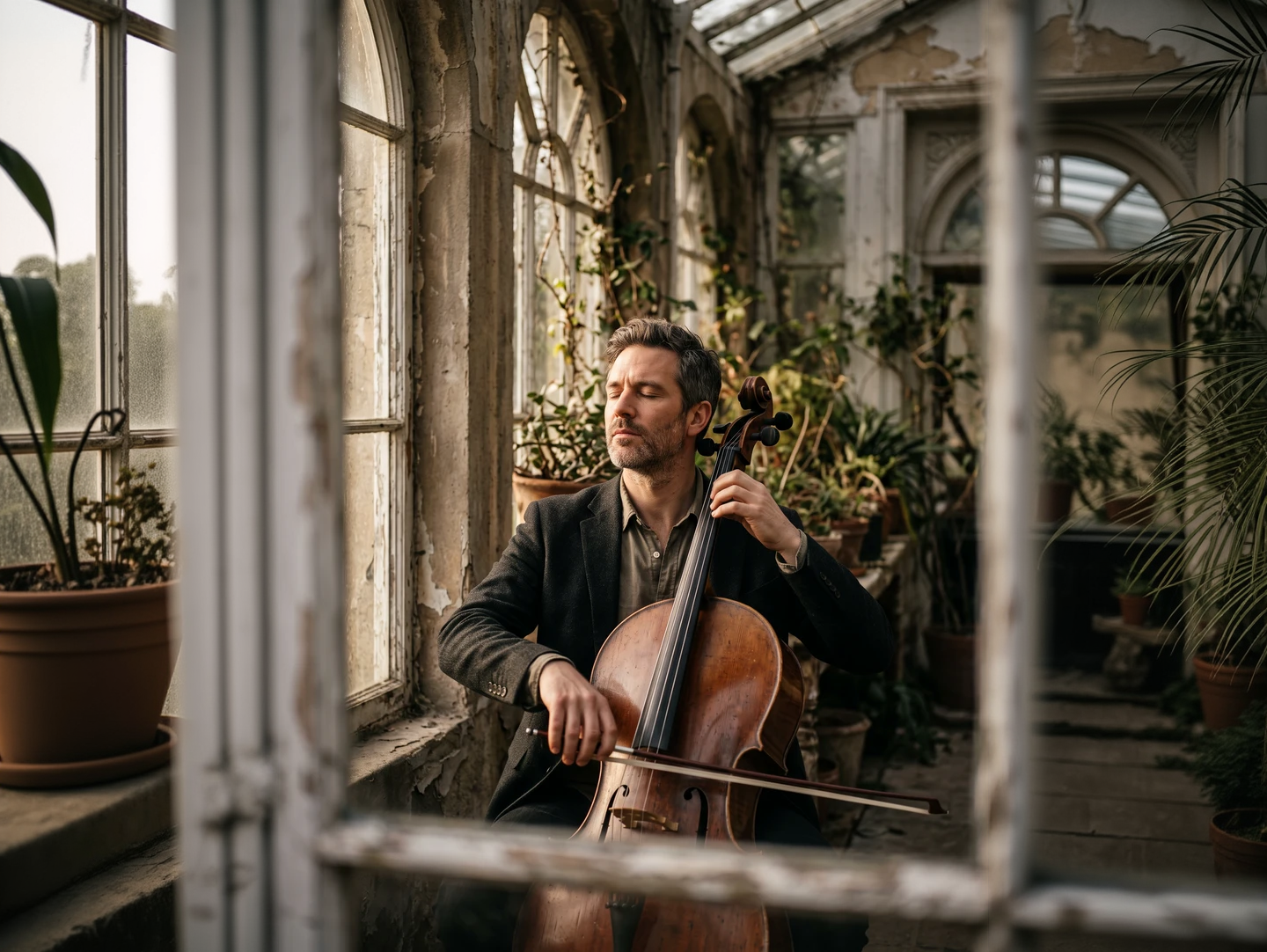
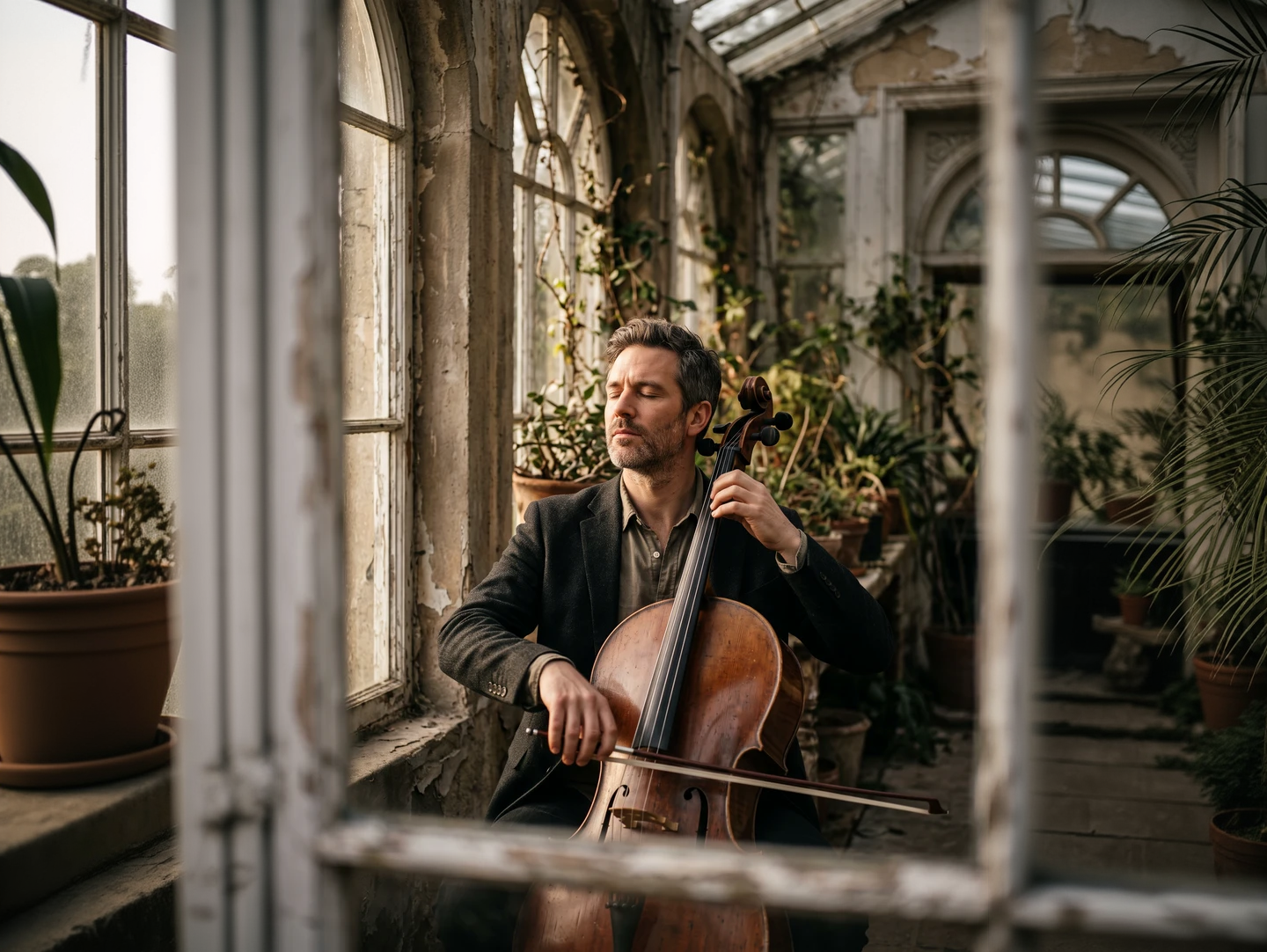
A cellist playing in a glass conservatory, a portrait photo widened to a landscape with Image Outpainting

Pricing

Overview

Outpainting adds new picture around a photo you already have. Cropping does the opposite, it throws pixels away. If a shot is too tight, cropping cannot fix it. Outpainting can.

You choose how the picture grows. By Edge lets you push out the left, right, top or bottom, each by up to 700 px. Zoom Out grows all four sides evenly, from 0 to 90 percent of the picture. The preview shows the new area before you generate.

A prompt is optional. Leave it empty and the AI continues what it sees. Add a short line like "more of the cobblestone street, same warm light" when you want to steer what appears in the new space.
700 px

Max per side

1 to 4

Outputs per run

1 credit

Per image

Key Features

By Edge
Left, right, top, bottom

By Edge

Select the edges you want, then set each one with the S (100 px), M (250 px), L (400 px) or XL (700 px) preset, or drag the slider from 50 to 700 px. Turn a tall portrait into a wide banner by expanding left and right only.

Zoom Out
0 to 90 percent, all four sides

Zoom Out

Pull the camera back. Zoom Out adds the same share of the picture on every side, so a tight close-up gains room to breathe. Each side still stops at 700 px.

Prompt Guided
Optional, one short line

Prompt Guided

Describe the new area, for example "with a beautiful sunset sky". With no prompt, the AI matches the scene on its own. A prompt helps most when the new space needs something specific.

Up to 4 Outputs
Number of Outputs

Up to 4 Outputs

Run the same expand up to four times at once and pick the best fill. Each output costs 1 credit, so four outputs cost 4 credits.

Example Images

Each example shows the exact prompt that produced the result. Copy any prompt with one click.

Portrait to Wide Landscape

Portrait to Wide Landscape

By Edge · Left 700 px · Right 700 px · 1 output

A wide view of an old glass conservatory with tall arched windows, potted palms and ferns, warm side light, a man playing a cello by the window, editorial photograph.

The input was a tall portrait of a cellist in a conservatory. Expanding only left and right turned it into a wide scene. The prompt names the same room, the same light and the same man, so the new space continues the story instead of starting a new one.

Zoom Out From a Close-Up

Zoom Out From a Close-Up

Zoom Out · 35% · 1 output

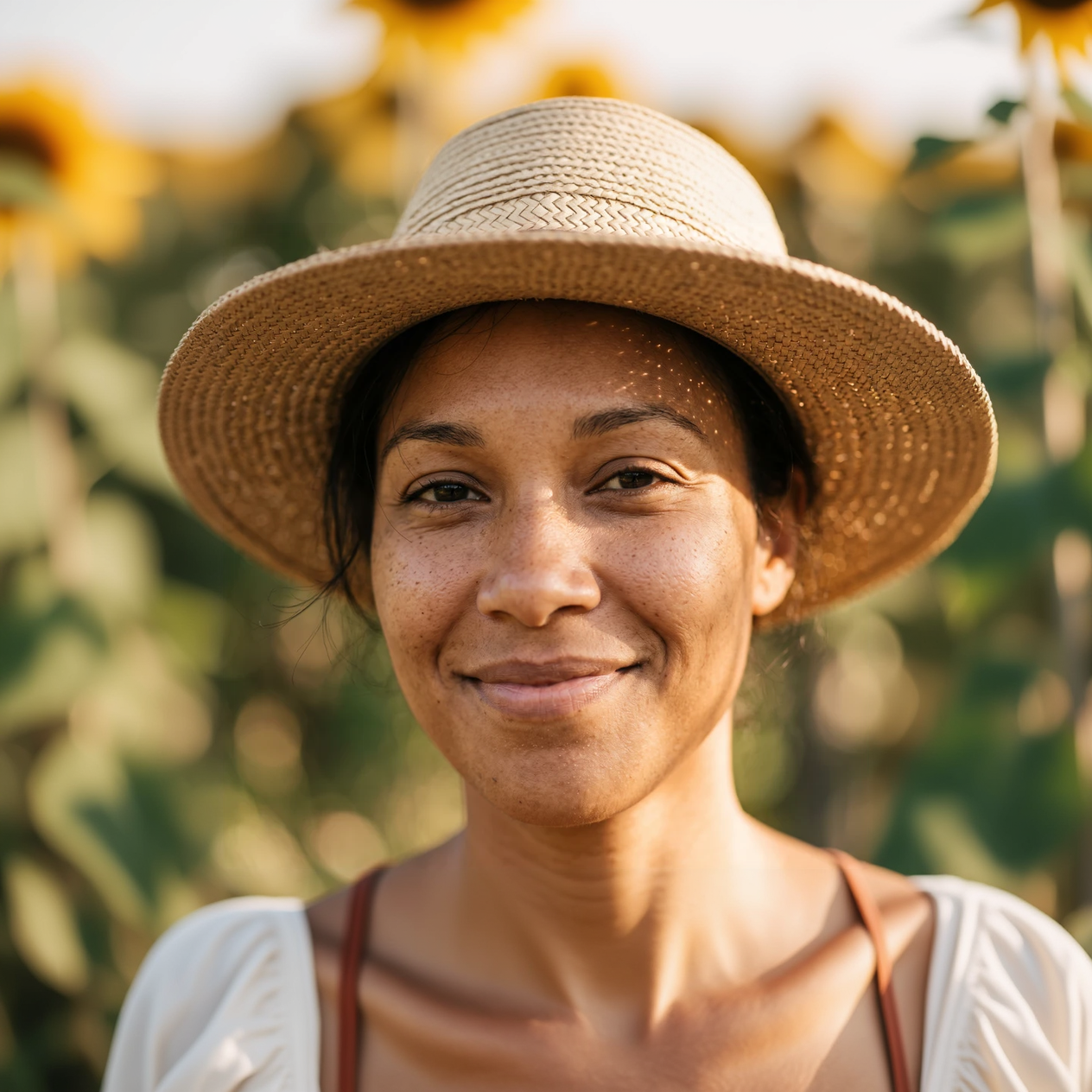
A smiling woman in a wide brimmed straw hat and a white linen sundress standing in a sunflower field at golden hour, warm summer light, photographic.

The input was a tight close-up of her face under the hat. Zoom Out at 35 percent added room on every side, so the hat, the shoulders and the sunflower field now fit in the frame. Describe what the new space should show, here the dress and the field.

Product Shot to Banner

Product Shot to Banner

By Edge · Left 700 px · Right 700 px · Top 0 · Bottom 0

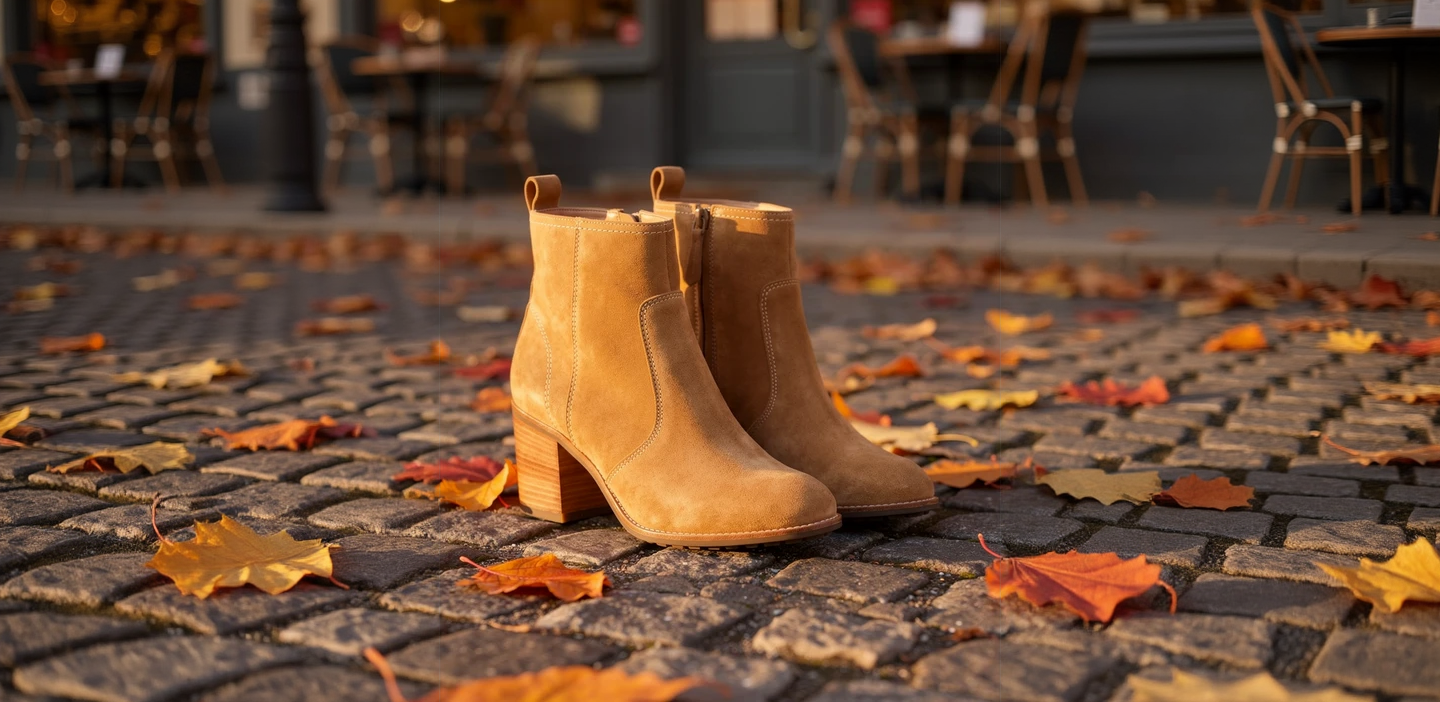
Continue the autumn cobblestone street to both sides: more wet grey cobbles, scattered orange and yellow leaves, the softly blurred cafe fronts with chairs and warm windows, the same low golden side light.

The input was a tall photo of two suede boots on a street. Expanding both sides gave a banner with room for a headline. The prompt lists the textures to continue (cobbles, leaves, cafe fronts), which keeps the ground and the light consistent across the join.

Zoom Out a Room

Zoom Out a Room

Zoom Out · 25% · 1 output

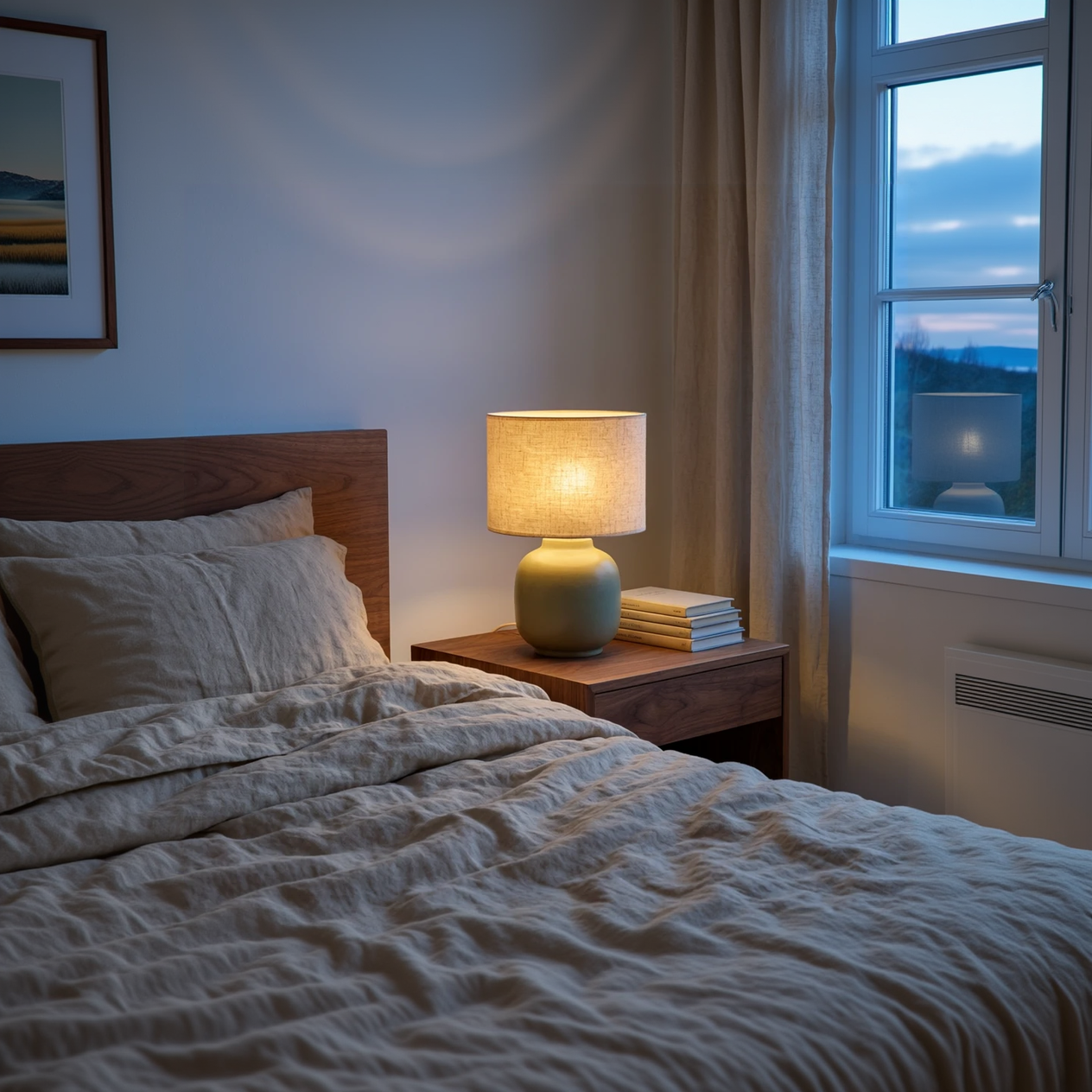
Extend the calm Scandinavian bedroom on every side: more of the linen bed, the walnut bedside table, a wooden floor and a pale wall, same soft light.

The input was a square photo of a lamp on a bedside table. A 25 percent zoom out added more bed, wall and floor on all four sides. Name the furniture and surfaces you expect to see, and the fill follows.

Minimal Still Life Banner

Minimal Still Life Banner

By Edge · Left 512 px · Right 512 px · Top 0 · Bottom 0

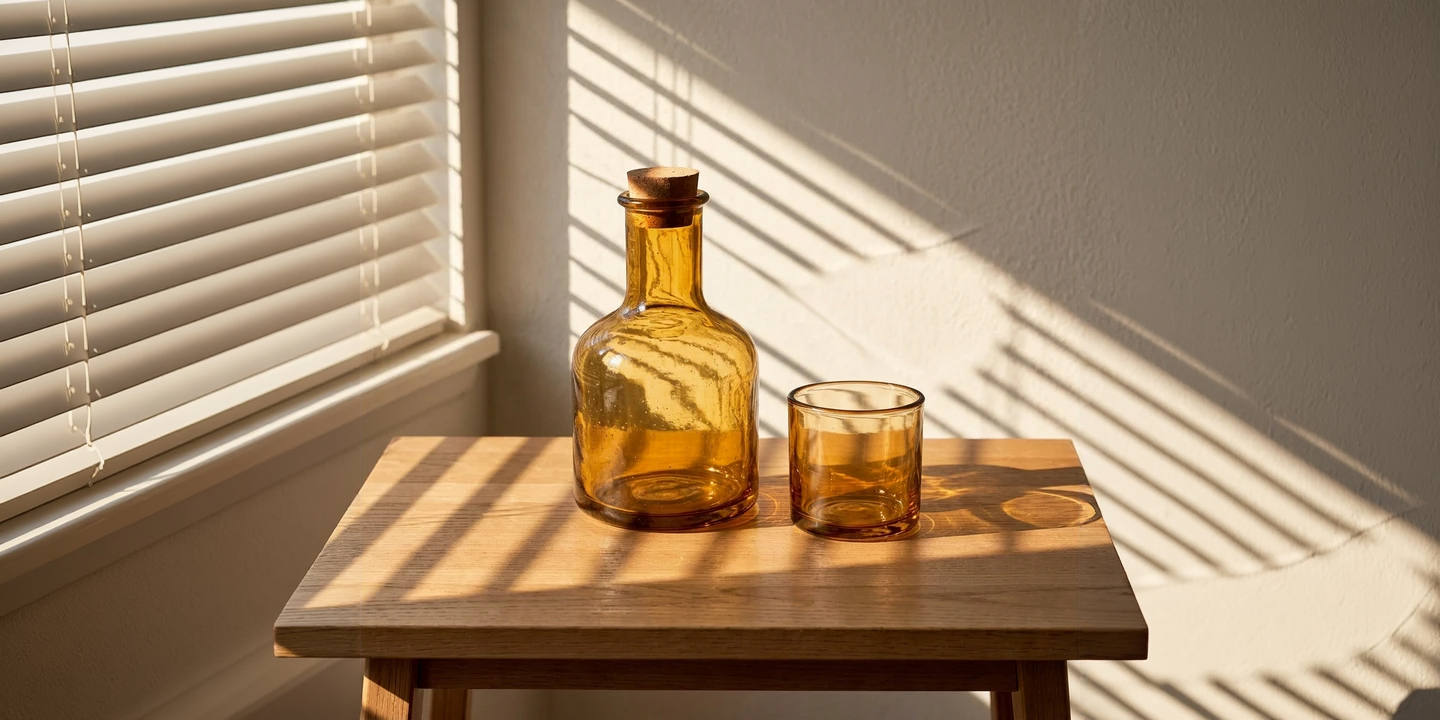
Continue the quiet room on both sides: more pale oak table and warm white wall, the same diagonal stripes of golden sunlight from the blinds, nothing else on the table, calm and minimal.

The input was a square photo of an amber carafe and glass. Expanding 512 px on each side made a calm banner. The line "nothing else on the table" stops the AI from adding props, which matters on a minimal scene.

Prompting Tips

Crop when you can, outpaint when you cannot

Cropping is free and keeps the picture sharp, but it can only remove. When the subject is too close, the frame is the wrong shape, or you need space for text, outpainting adds the room cropping cannot.

Use an edit model to change things, outpainting to extend

An edit model such as Seedream 5.5 changes what is inside the picture, like the clothes, the light or an object. Outpainting leaves the inside alone and only adds around it. Use both in order: extend first, then edit.

Expand in steps for big jumps

Each side stops at 700 px. For a much wider picture, run the result through Image Outpainting again. Smaller steps of 250 to 400 px often match the scene better than one huge push.

Name what continues

The best prompts say what carries on into the new space: the surface, the light, the background. "More wet cobbles, same low golden light" works better than a new idea.

Pick the sides that match the job

Left and right make banners and wide headers. Top adds sky or headroom. Bottom adds ground and room for a caption. Expanding every side at once is what Zoom Out is for.

Run a few outputs

The fill can differ from one output to the next. Set Number of Outputs to 2 or 4 when the new area matters, then keep the one that blends best.

Settings Reference

SettingValuesNotes
Imageone imageRequired. Your original picture stays as it is.
Expand ModeBy Edge or Zoom OutBy Edge sets each side. Zoom Out grows all four sides evenly.
Select EdgesLeft, Right, Top, BottomPick any sides. Each one has its own amount.
Edge amount50 to 700 pxPresets: S 100 px, M 250 px, L 400 px, XL 700 px.
Zoom Out0 to 90 percentPercent of the picture added to every side. Each side stops at 700 px.
Promptoptional textDescribe the new area. Empty means match the scene.
Number of Outputs1 to 4Default 1.
Output formatPNG, JPEG, WebPPNG is the default.
Price1 credit per imageFour outputs cost 4 credits.

FAQ

Outpainting extends a picture beyond its original edges. The AI looks at your photo and paints new space that matches it. Your original picture stays as it is.