Characters · Lesson 2 of 6
How to make a consistent AI character
Create a character from a description, add reference angles, then put the same face in any scene.
You need: A saved character (make one in the lesson before this). · Start to finish, step 7 of 10
Step by step
Open your character
Pick a character in Character Studio, or build one first in the lesson before this. One photo works; three or more angles keep the face far steadier from scene to scene.
Make 4 angles
Press Make 4 angles in the banner. For 5 credits you get new views of the same face: front, side, back and lying down.
Pin the best as references
Click Pin as reference under each angle you like. Every shot you make from now on carries all of them.
Describe the scene, not the person
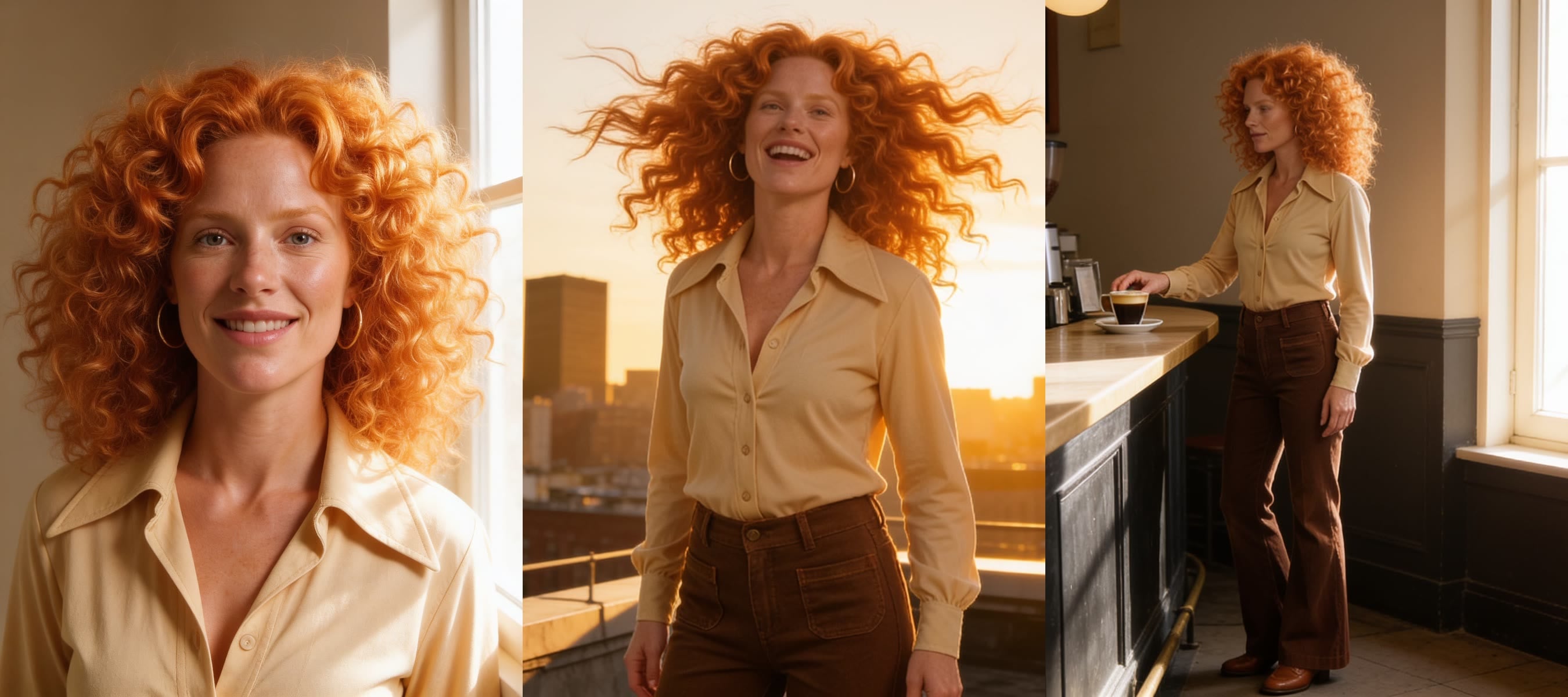
Pick a model and a shape, then write only the scene: "Juniper ordering an espresso at a Paris cafe counter, morning light through the window." The references already know who she is.
Queue more scenes, then compare
Each image costs about a credit. Queue the next scene while one renders, then line them up: the same face on a rooftop, in a cafe, in a close-up.
Make a character sheet
Open the Sheet tab and press Generate for one image of them from every side, the strongest reference of all. Then Use in a film or Use in an ad, in the header.
Why it works
- Consistency comes from references, not adjectives. Three pinned angles beat a longer description every time.
- Keep describing the outfit only if you want it changed. Otherwise leave it to the references.
Made this way
Your practice task
Make one character and put them in three places at three times of day.
Read the transcript(1:59)
Keep your character's face consistent across scenes in PixelDojo Character Studio. Then bring every angle together in a character sheet. Start with your character open in Character Studio. Juniper has just one photo. The banner explains why adding three or more angles helps keep her face steadier across scenes. Press Make 4 angles. For five credits, Character Studio creates new views of the same character. Front, side, back, and lying down. These give you more reference options. Pin the best angles as references. Here, the front, back, and side join the original photo. All four references now travel with each shot, helping Juniper stay consistent. Describe the scene, not her appearance. Juniper ordering an espresso at a Paris cafe counter, morning light through the window. Choose your model and shape, then press Generate. The references supply her identity. You can queue more scenes while the first renders. The cafe and rooftop are already generating, so add a close-up next. Each image costs about one credit. Now compare the finished shots. A close-up, a rooftop at sunset, and the cafe. Juniper keeps the same face across all three. Pin a favorite to use it as another reference. Open the Sheet tab to make one image showing Juniper from every side. The turnaround prompt is built in, so you can leave optional details blank and press Generate. The Sheet is your strongest reference, bringing her angles into one image. In the header, use in a film, and use in an ad, take Juniper straight into a story or ad. Add angles, pin references, and describe scenes. Next, try taking your character into a film in PixelDojo.