ai expand image
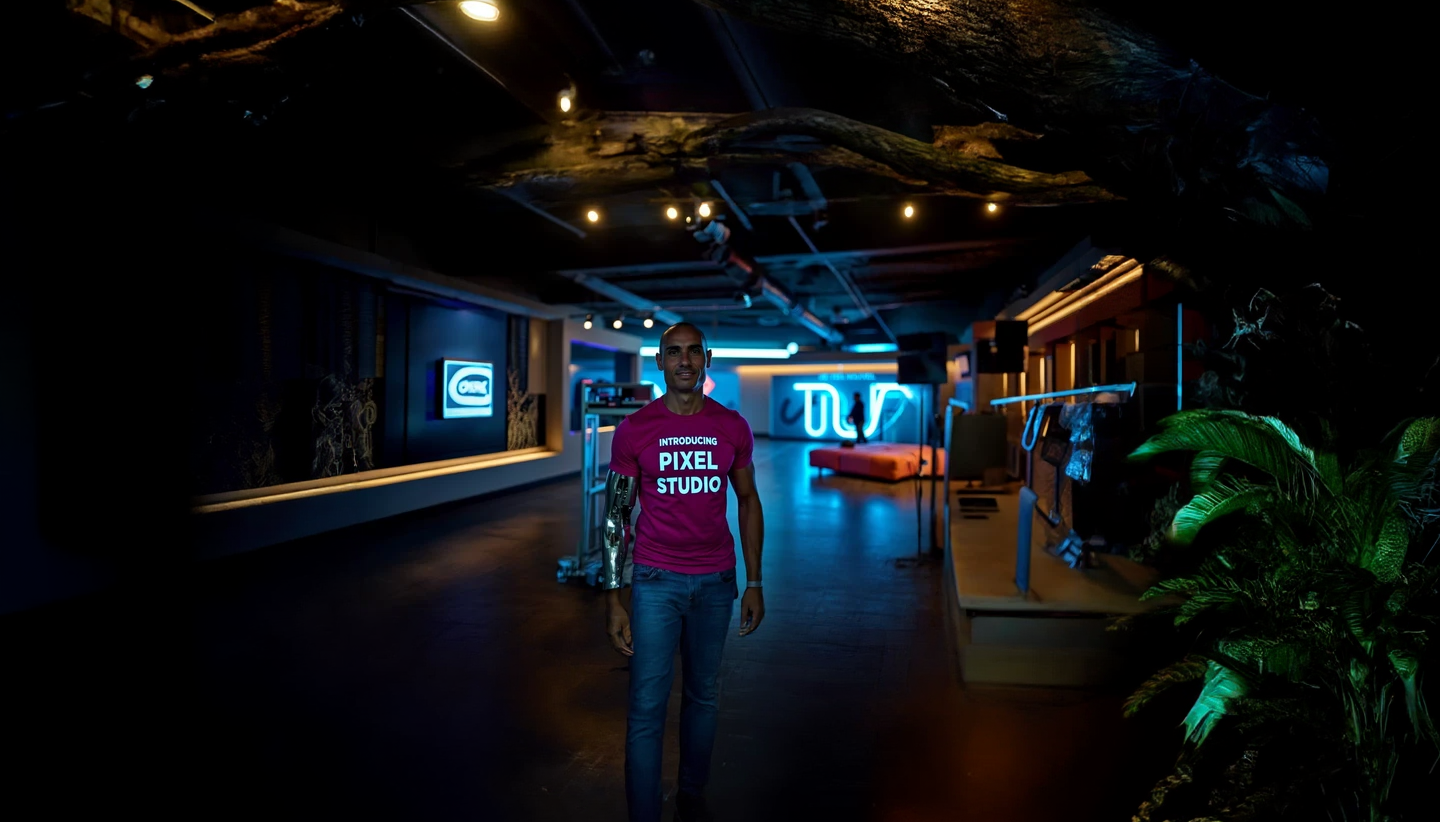
Generated on PixelDojo. Produced by PixelDojo's generation pipeline.
You no longer have to crop away important details or settle for awkward empty bars when your photo doesn't match the required size. With PixelDojo's AI expand image capabilities, you transform any tight shot into a perfectly composed wide scene, banner, or social asset that looks like it was captured that way originally. Image Outpainting analyzes the edges of your photo and generates matching scenery, lighting, textures, and perspective so the new areas blend invisibly. Marketers turn one product shot into assets for every platform. Photographers recover framing they missed in the moment. Designers create print-ready panoramas or add breathing room for headlines. Start from an existing photo or generate a fresh base with Flux.2 Studio, Nano Banana 2, Seedream 5, or Ideogram 4, then expand. Pair the result with Reality Polisher and Magnific Upscaler for professional finish. Thousands of creators already produce more versatile visuals in minutes instead of hours. Access 40+ cutting-edge AI tools, loved by thousands of creators worldwide, cancel anytime.
Real image examples generated on PixelDojo
Every example below was produced on PixelDojo. Hover to see the prompt.
ai expand image on PixelDojo
stable-diffusion
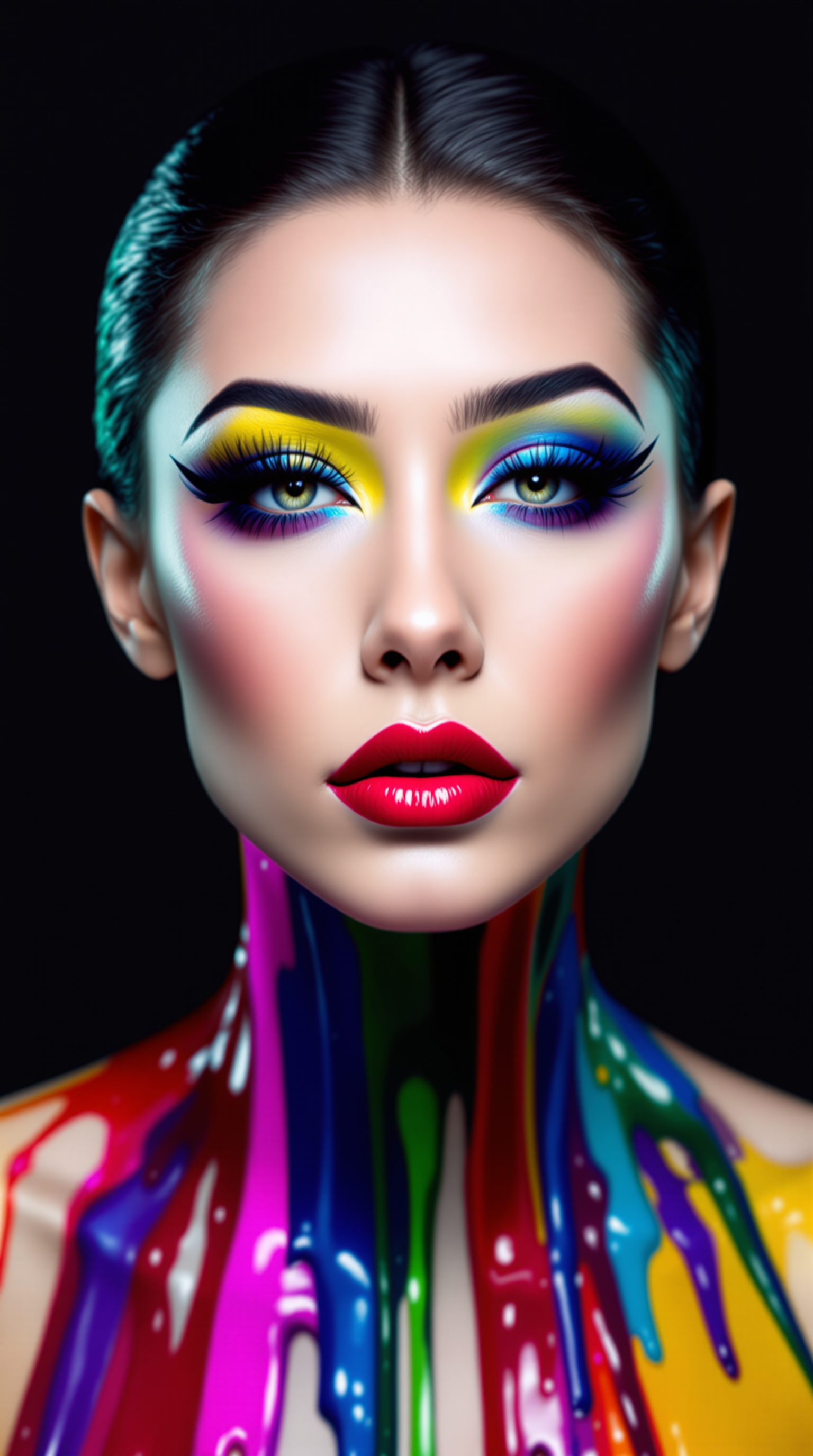
This image is a portrait of a person with a highly stylized and artistic makeup look
flux
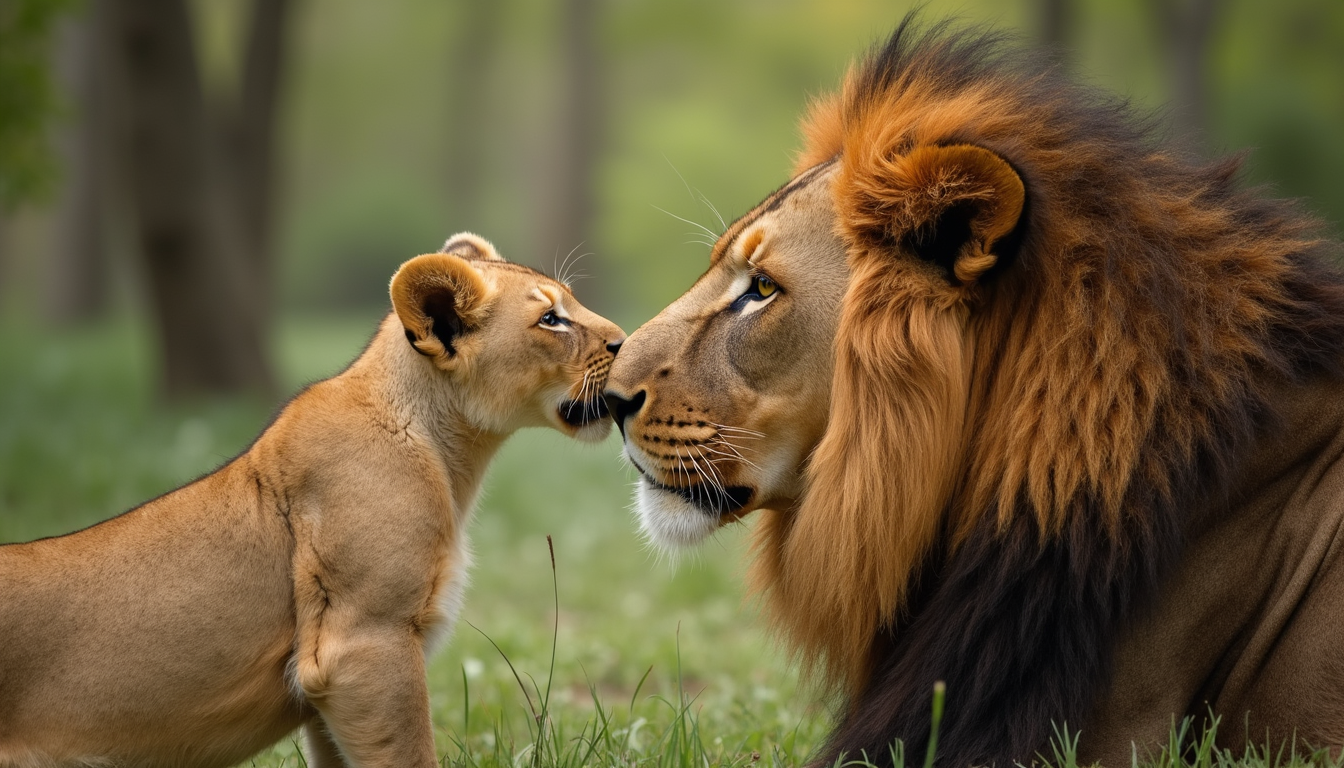
Closeup of a Lion Cub and Adult Lion Nuzzling in a Forest
flux
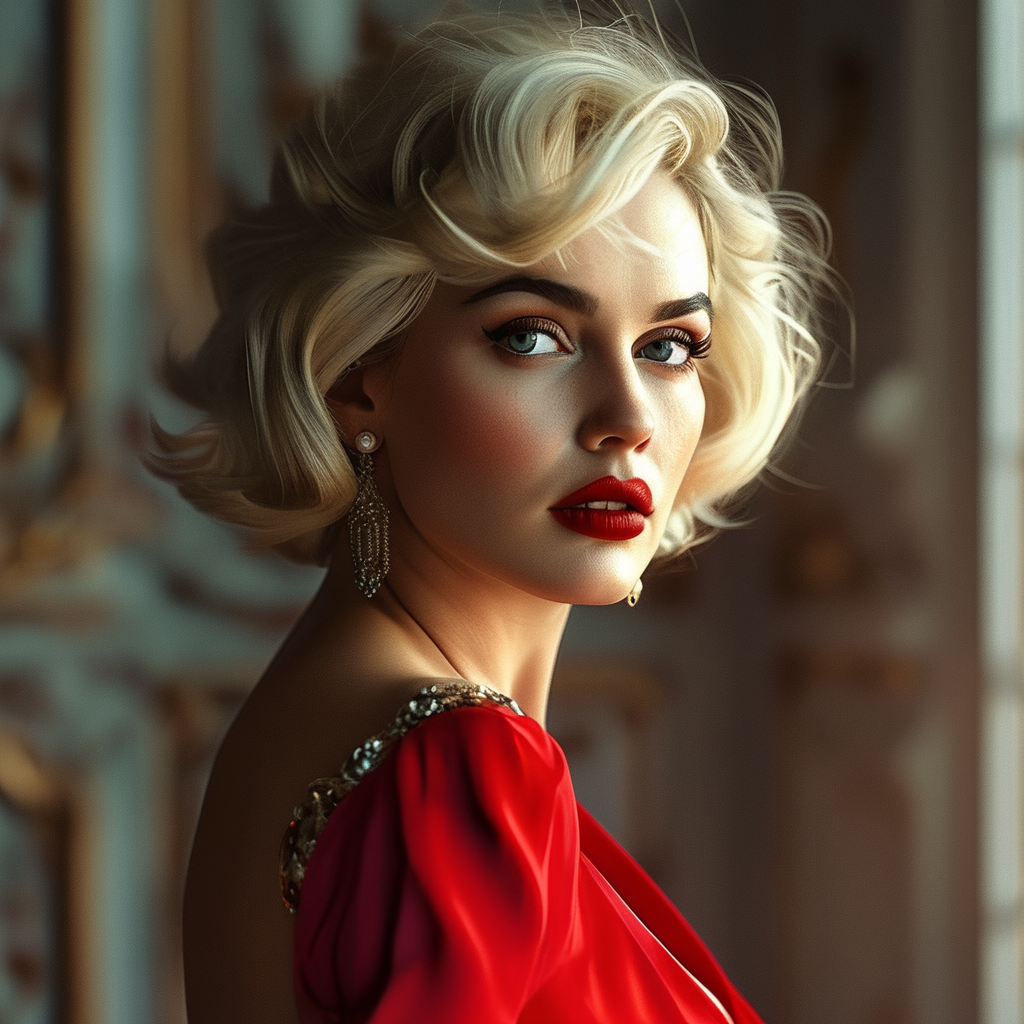
Actress Evangeline Lilly looks like Marilyn Monroe
kolors
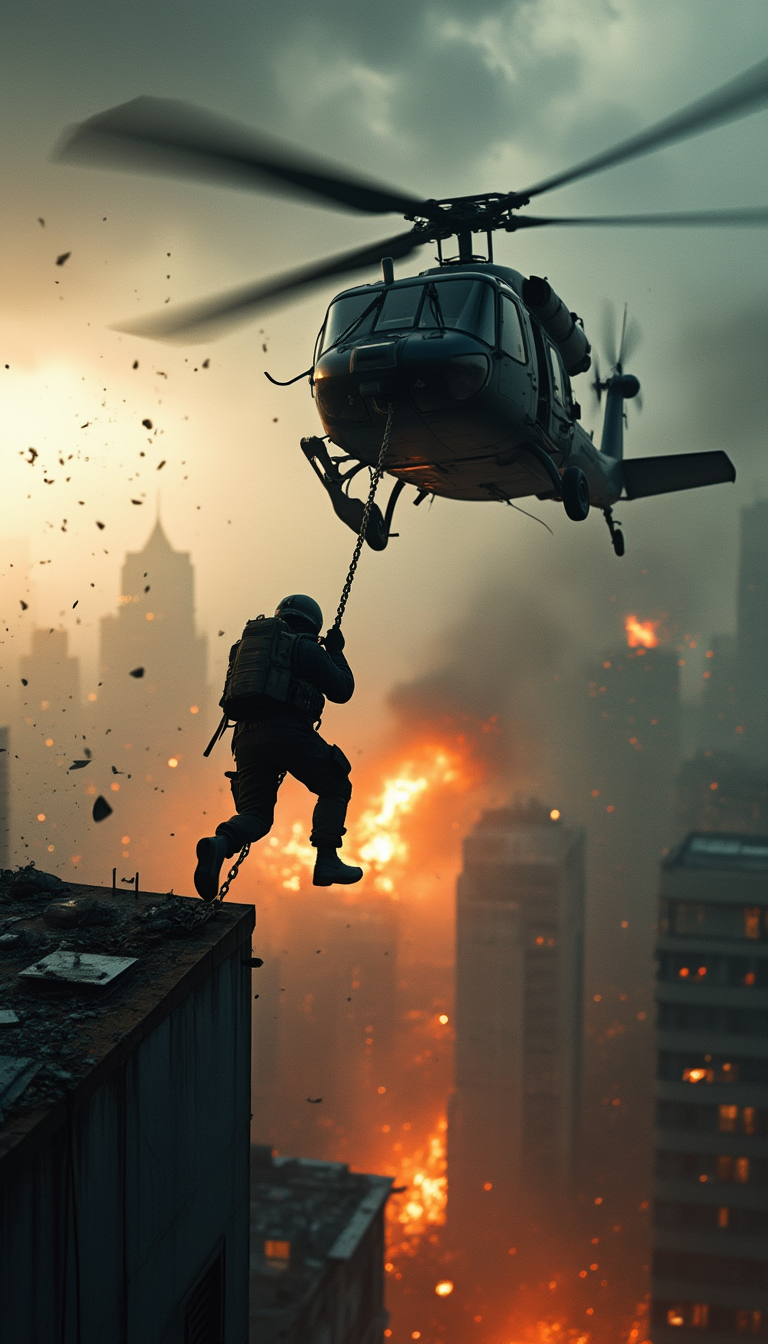
A gritty
stable-diffusion
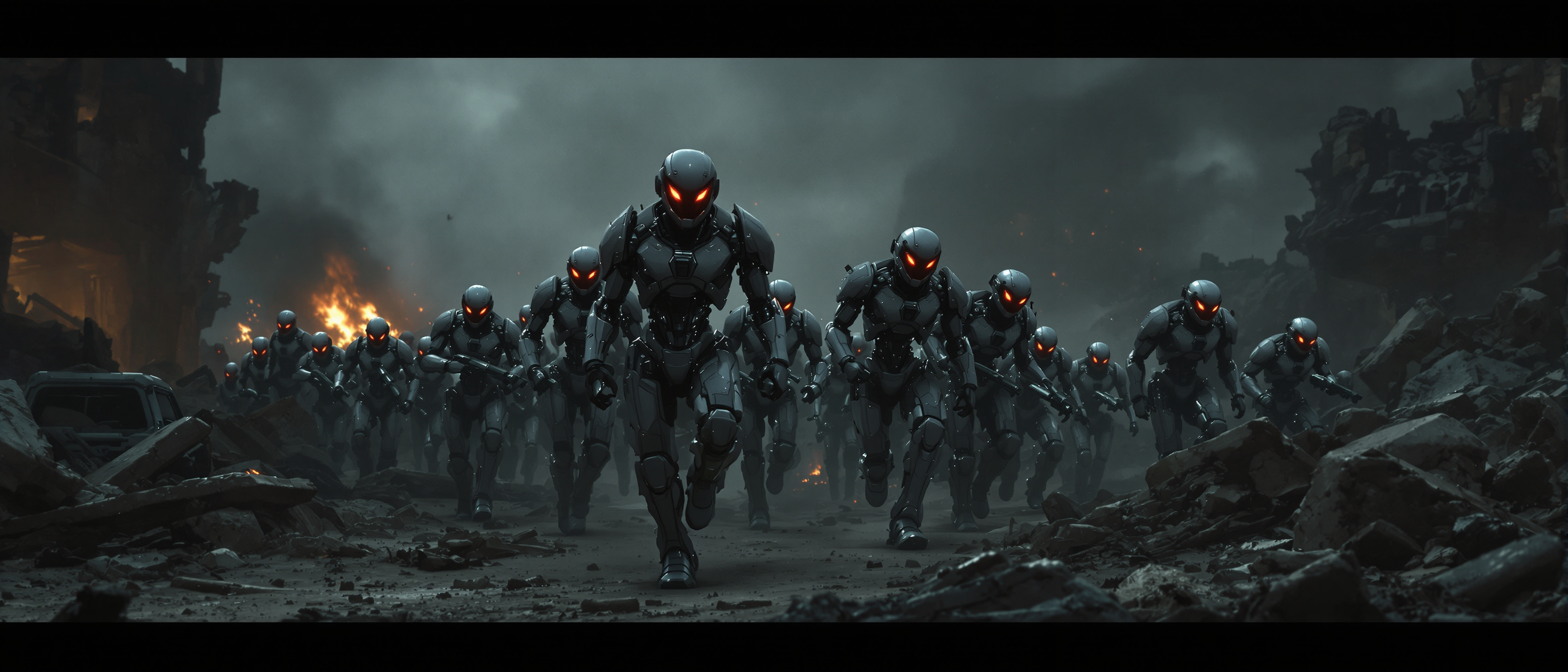
This image depicts a scene of a robotic army marching through a desolate
flux
Models you can run on PixelDojo for ai expand image
Switch models without switching tools. Each one runs in the same PixelDojo studio.
What you can do with ai expand image on PixelDojo
Expand Beyond Original Borders
We grow your image in any direction so the scene continues past the original frame. Lighting, color, and subject stay aligned with the source.
Outpaint With Prompt Control
We add new edge content from a short prompt while we preserve the original subject. You choose what appears in the extra space.
Match Style And Perspective
We fill expanded regions so perspective, texture, and palette follow the source image. The result reads as one continuous picture.
Download The Full Canvas
We return the completed image at high resolution for print, web, or further edits. You keep the original plus the new areas in one file.
Loved by thousands of photographers, marketers, and designers worldwide who expand images faster and keep every subject intact. 40+ cutting-edge AI tools deliver seamless, high-quality outpainting that matches original style and lighting perfectly.
Why Choose Pixel Dojo for ai expand image
Professional-quality results with cutting-edge AI technology
Fit Every Platform Without Cropping
You convert one photo into Instagram squares, YouTube thumbnails, Pinterest pins, LinkedIn banners, and ad formats while keeping your subject fully visible and perfectly placed. Image Outpainting plus our generation tools like WAN Image and Recraft V4.1 give you ready-to-use assets for every channel.
Add Cinematic Space and Story
You turn close-up portraits or product shots into immersive wide scenes that reveal environment, add negative space for text, or create panoramic impact. The AI continues lighting, perspective, and mood so the expansion feels naturally captured rather than edited.
Build Full Campaigns in Minutes
You generate variations, refine with Inpainting or Style Transfer, then upscale using P-Image Upscale or Creative Upscaler. One original becomes a complete set of social, web, print, and video-ready visuals. Combine with Consistent Characters or Marketing Studio for even faster production.
How It Works
You expand images in three straightforward steps using PixelDojo's dedicated Image Outpainting together with our generation and enhancement suite. Results stay photorealistic and on-brand.
Step 1: Choose Your Tool
Upload your existing photo directly into Image Outpainting under Edit Images, or first create a custom starting image with Flux.2 Studio, GPT Image 2, Grok Image, Kling Image, or Seedream 4.5. Position the original on the canvas, choose expansion direction or target aspect ratio such as 16:9 or 9:16, and let the AI prepare the new areas.
Step 2: Enter Your Prompt
Describe how the scene should continue, for example 'extend the beach with more sand, gentle waves, and matching golden-hour lighting and perspective' or simply let the AI auto-match the original. Be specific about environment, mood, and lighting so the generated content flows naturally from the edges. PixelDojo analyzes textures, vanishing points, and color to keep everything cohesive.
Step 3: Customize & Download
Review multiple variations, touch up any area with Inpainting, apply Magic Lighting or Style Transfer if desired, then enhance resolution with Magnific Upscaler, Clarity Pro, or Portrait Upscaler. Download high-resolution files ready for web, print, or further video work in Film Studio. Iterate as many times as you need.
The Pixel Dojo Advantage
Why PixelDojo outperforms other options for AI expand image generation
| Others | Pixel Dojo |
|---|---|
| Traditional photo cropping and padding | You keep every important element instead of cutting them off or adding lifeless bars. Image Outpainting generates natural matching content that looks professionally photographed, eliminating the need for reshoots or extra stock. |
| Generic AI tools | You work inside a complete ecosystem of 40+ tools. Generate the base with Flux.1 Studio or QWEN Image 2, expand with dedicated Image Outpainting, then polish, upscale, or even turn the result into video with WAN 2.7 Video or Kling Video. Everything stays consistent. |
| Manual photo editing | You finish in minutes what used to take hours of cloning, healing, and blending. The AI maintains lighting, perspective, and texture automatically so results look photorealistic on the first or second try, with easy variations for client feedback. |
Loved by creators on PixelDojo
Real feedback from people using PixelDojo, pulled from our in-product surveys.
You keep adding to it to stay up to date and that is GOLD.
very easy to use and good support
Very easy to use
super easy to use
it's very easy to use
Practically every Ai suite in one place? Who wouldn't?
Explore more AI tools on PixelDojo
Popular AI Models
AI Tools
Compare & Switch
- Best AI Image Generators
- Best AI Video Generators
- Midjourney Alternatives
- Civitai Alternatives
- Runway Alternatives
- Leonardo Alternatives
- Pika Alternatives
- Luma Alternatives
- Magnific Alternatives
- Veo Alternatives
- Flux Alternatives
- Freepik Alternatives
- Seedance Alternatives
- Seedream Alternatives
- Pixverse Alternatives
- GPT Image Alternatives
- Synthesia Alternatives
- Playground Alternatives
- NightCafe Alternatives
- Canva AI Alternatives
- ElevenLabs Alternatives
- ComfyUI Alternatives
- Fal Alternatives
- Replicate Alternatives
Common Questions
Everything you need to know about ai expand image
How does AI expand image work to uncrop photos without quality loss?
PixelDojo's Image Outpainting examines the pixels at your photo's edges, understands colors, textures, lighting direction, and perspective, then generates new content that continues the scene seamlessly. After expansion you can immediately upscale with Magnific Upscaler or P-Image Upscale and refine with Reality Polisher so the final file stays sharp and professional even at large sizes.
Can I expand product photos for e-commerce and marketplace listings with AI?
Yes. Upload your product shot, use Background Remover if needed, then expand with Image Outpainting to the exact dimensions required by Amazon, Shopify, or social shops. The AI adds matching surfaces, shadows, and environment while keeping the product perfectly centered and detailed. Follow up with Image Analyzer or Style Transfer for brand consistency.
What is the best way to change a portrait photo into a landscape banner using AI expand image?
Open Image Outpainting, place your portrait on the canvas, extend left and right (or choose 16:9), and prompt something like 'continue the studio background with matching soft lighting and extra space for headline text.' Generate variations, pick the strongest, then enhance with Creative Upscaler. You can also start by generating a new portrait with Ideogram 4 or PonyXL and expand immediately.
How do I get the most natural results when using AI outpainting prompts?
Describe the continuation of the existing scene rather than unrelated objects. Mention lighting, time of day, surfaces, and mood that already appear in your photo. PixelDojo works especially well on continuous areas like sky, water, walls, or floors. After generation, use Inpainting for any small refinements and Magic Lighting to unify the whole image.
Is PixelDojo suitable for professional photographers who need to expand images?
Absolutely. Professional users combine Image Outpainting with high-end generation models such as Flux.2 Studio and Hunyuan Image 3, then finish with Clarity Pro or Portrait Upscaler. The results maintain photorealistic quality, consistent color, and perspective so they can be used in client work, prints, and commercial campaigns. Cancel anytime if it doesn't fit your workflow.
Can I expand AI-generated images as well as real photos?
Yes. Create the original with any of our Generate Images tools including Nano Banana 2, Grok Image, Riverflow, Luma UNI 1, or Seedream 5, then send it straight to Image Outpainting. The same matching process works on both photographs and generated art, letting you turn square generations into cinematic wides or social formats in seconds.